
01
The right message starts the workflow.
Choose which customer replies trigger your automation. The example accepts only emails from contacts tagged “Service”, so not every message starts the same workflow.


Service Automation
Acknowledge inquiries, assign tasks and remind your team about unanswered messages. Once configured, ONE LOOP handles the recurring steps in your customer service.
Three examples show how you can use Service Automation.
Choose which customer replies trigger your automation. The example accepts only emails from contacts tagged “Service”, so not every message starts the same workflow.
Create a task with an owner and a due date. In the example, Maria should clarify a question within one day. The image shows the draft rule, not a completed task.

Wait for a team member’s reply to be delivered. If none arrives within the configured period, the workflow can send an internal alert. The example’s one-hour timeout is a chosen setting, not a promised response time.

The practical benefits of Service Automation.
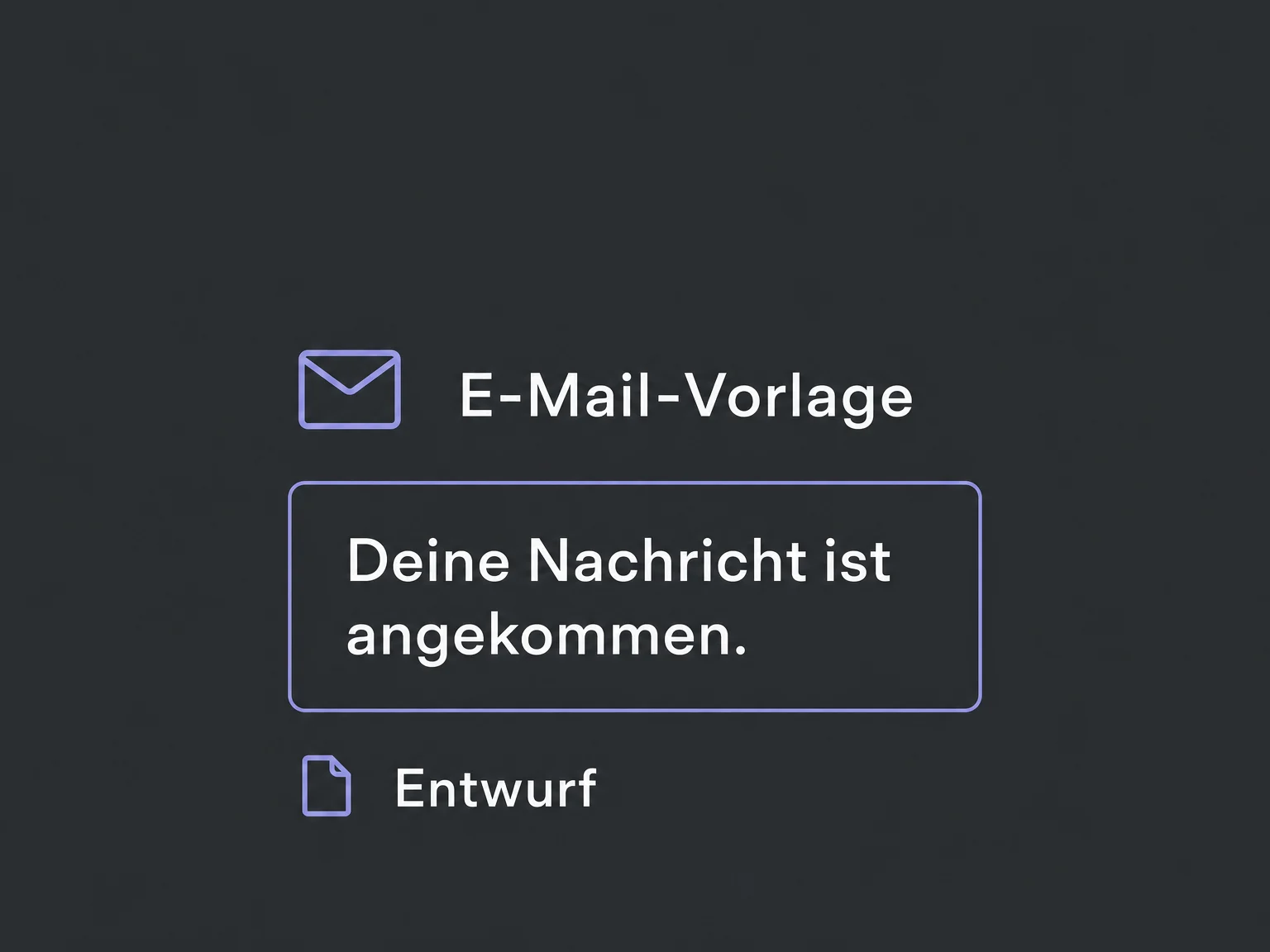
Let a configured workflow acknowledge receipt by email. Set the sender and message in advance; the acknowledgment does not replace a personal reply.
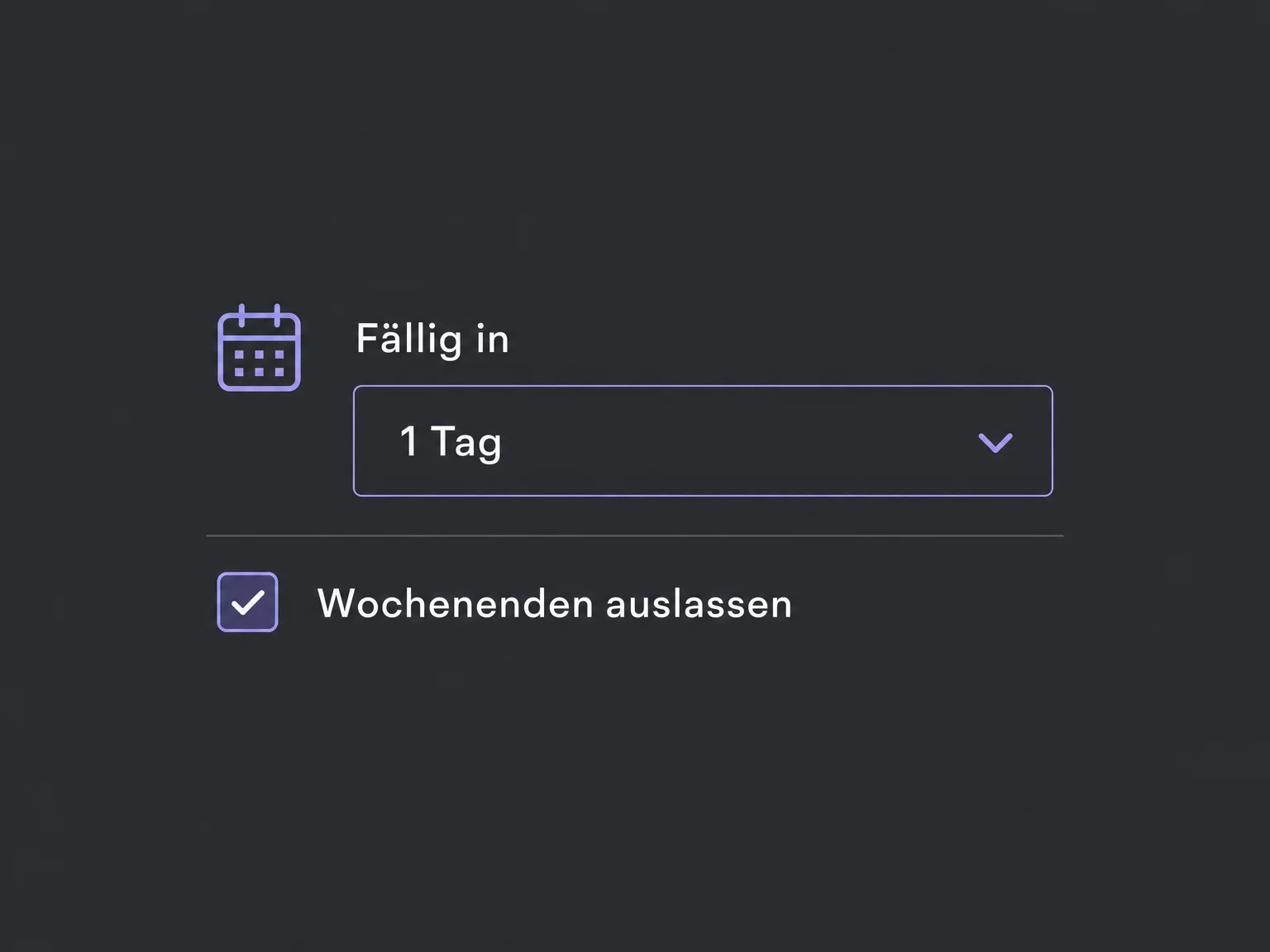
Exclude weekends when calculating a task’s due date. Preview the resulting deadline before saving.
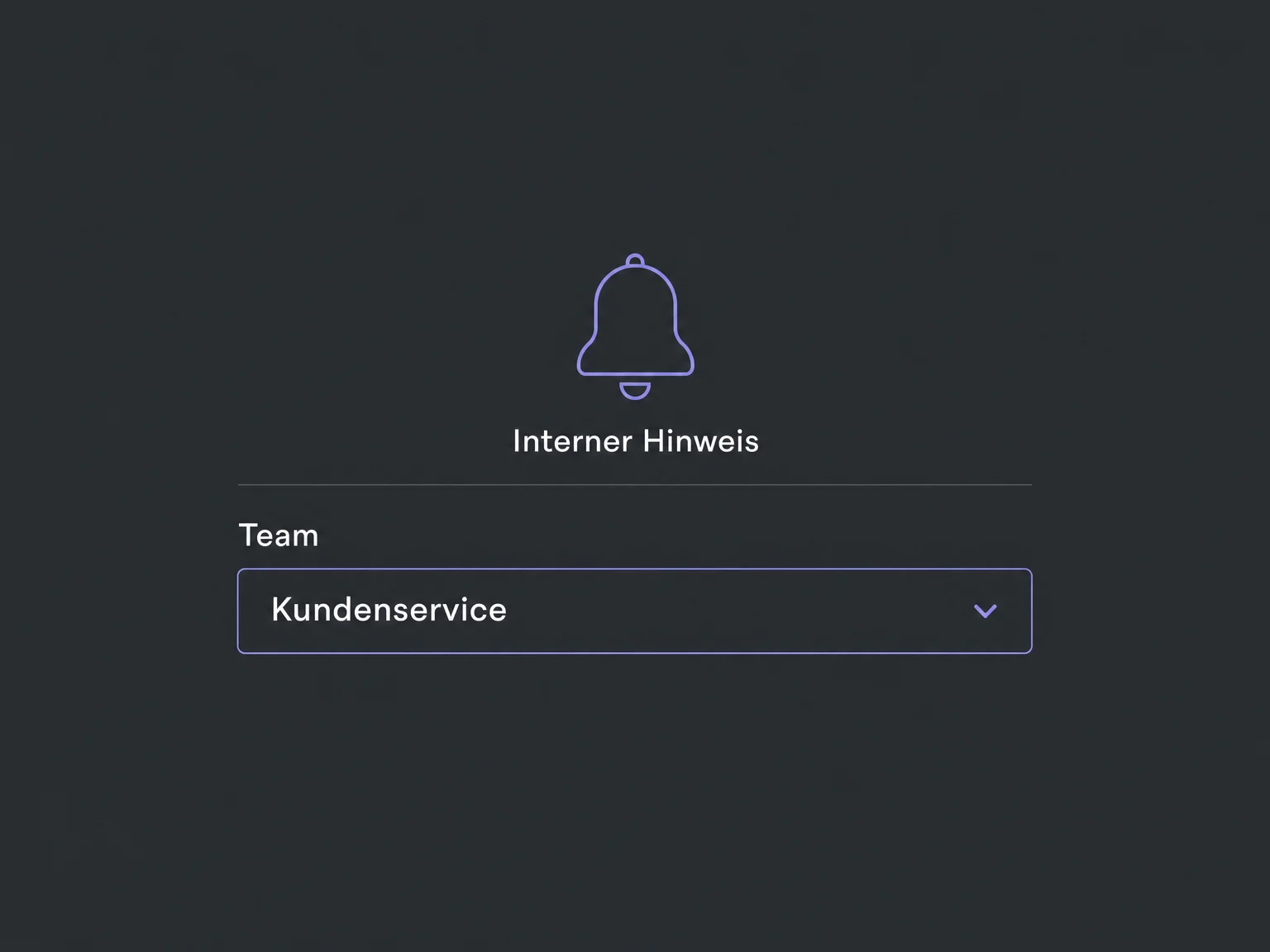
Configure internal alerts for selected users or teams. Notifying a contact’s assigned owner requires the contact to have one.
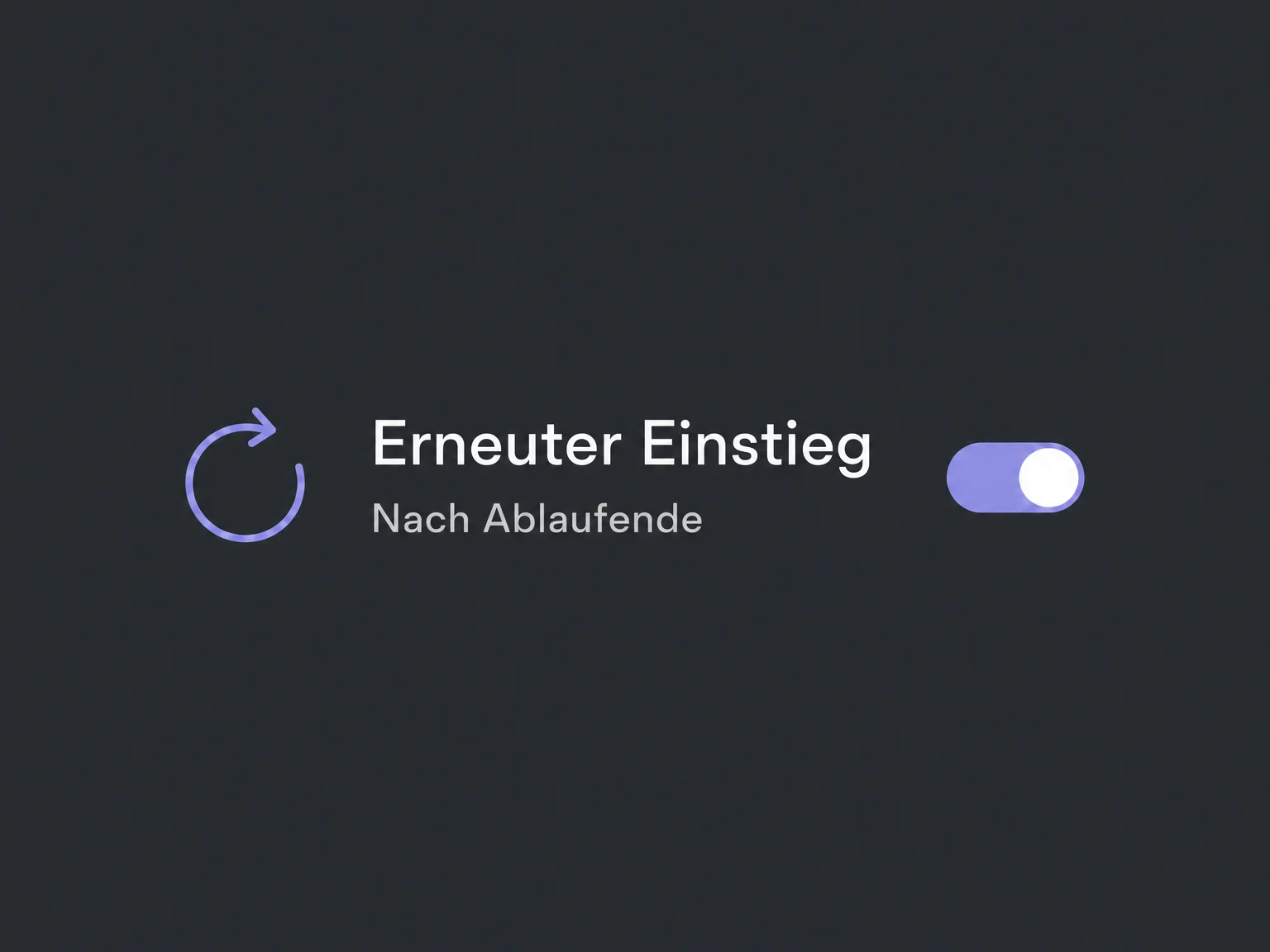
Allow a contact to re-enter a message-triggered workflow after it ends. While that contact is still active, a second run of the same workflow does not begin.
Check completed steps and errors in the execution log. Successfully creating a task does not mean that someone has finished it.
Simplified examples, not live account data.
We define triggers, filters, tasks, recipients and re-entry rules. Before publishing, we test with a sample contact, including missing assignments and unanswered messages.
Connect configured communication channels with contacts and team tasks. AI agents are a separate addition: the rules shown here do not require AI-generated replies.
Availability and any add-on or usage costs are confirmed for your ONE LOOP account before implementation.
Not automatically. The examples run predefined steps: send a message, create a task or notify someone internally. Your team provides the substantive answer. An AI agent requires separate setup and testing.
No. A workflow or AI message is not a manual team reply. The wait step shown checks for a delivered reply from a team member on the selected channel. Configure which users count.
No. “Stop on response” reacts when the customer replies to a message from that workflow. The wait step shown checks for your team’s reply instead. Both settings need to match the intended workflow.
Communication channels, senders, users and notification destinations must be configured. We test enrollment, ownership and exceptions before publishing the workflow. Sending a test message alone does not verify the entire process or your team’s subsequent work.
Let’s explore your use case and what the setup requires.
Book a demo