01
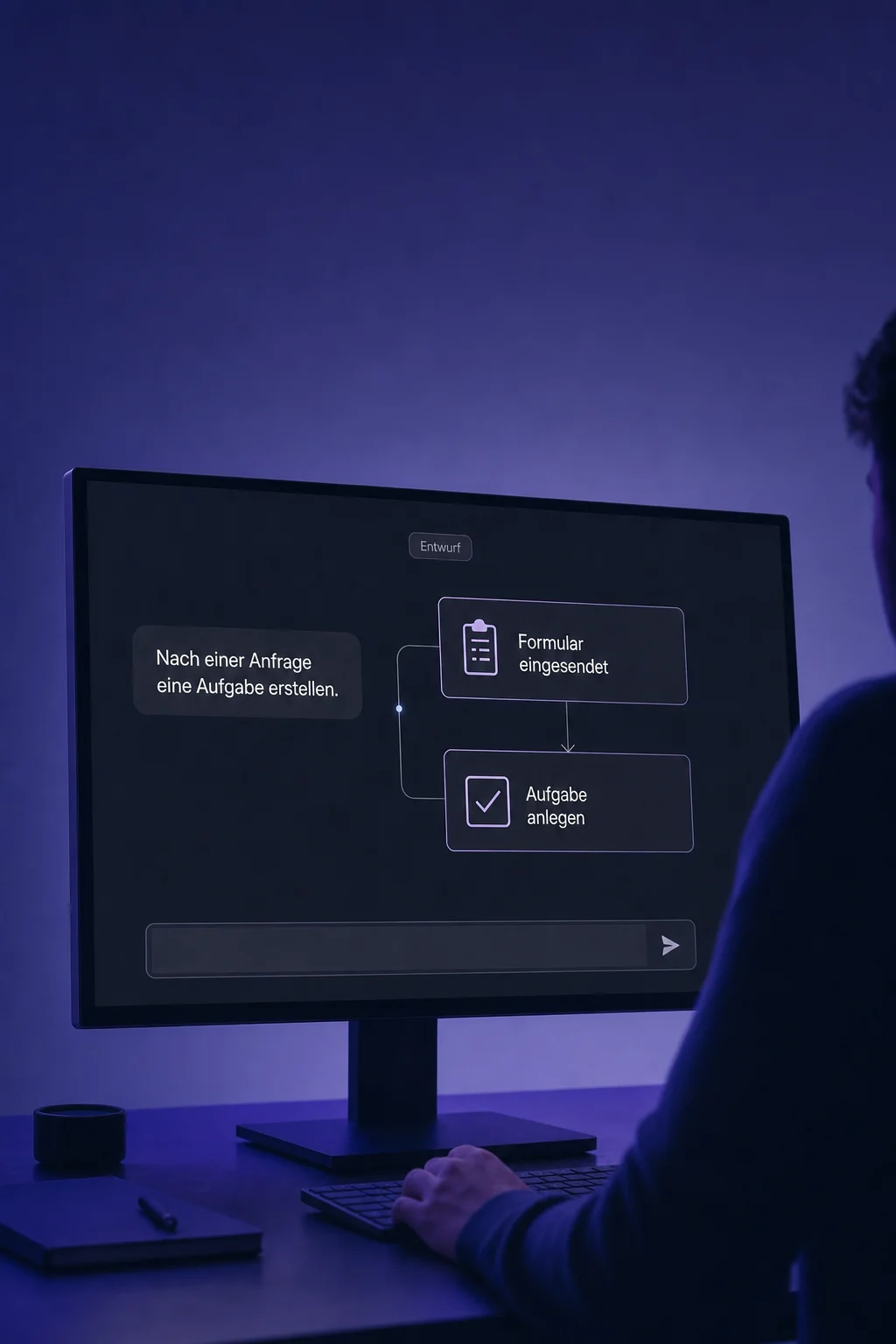
You decide what starts the flow
Choose an event and relevant filters, such as a submission to your consultation form. The contact enters only when the conditions match.


Workflow Builder
An enquiry arrives. A task is created, your team is notified or a message is prepared. Use the visual editor to decide what happens and when.
Three examples show how you can use Workflow Builder.
Choose an event and relevant filters, such as a submission to your consultation form. The contact enters only when the conditions match.
Connect actions and if/else conditions. Create a task when someone requests a callback, and configure a team notification for other enquiries.

Open a contact's execution history. See which path was taken, which actions ran and where a step is waiting or reporting an error.

The practical benefits of Workflow Builder.
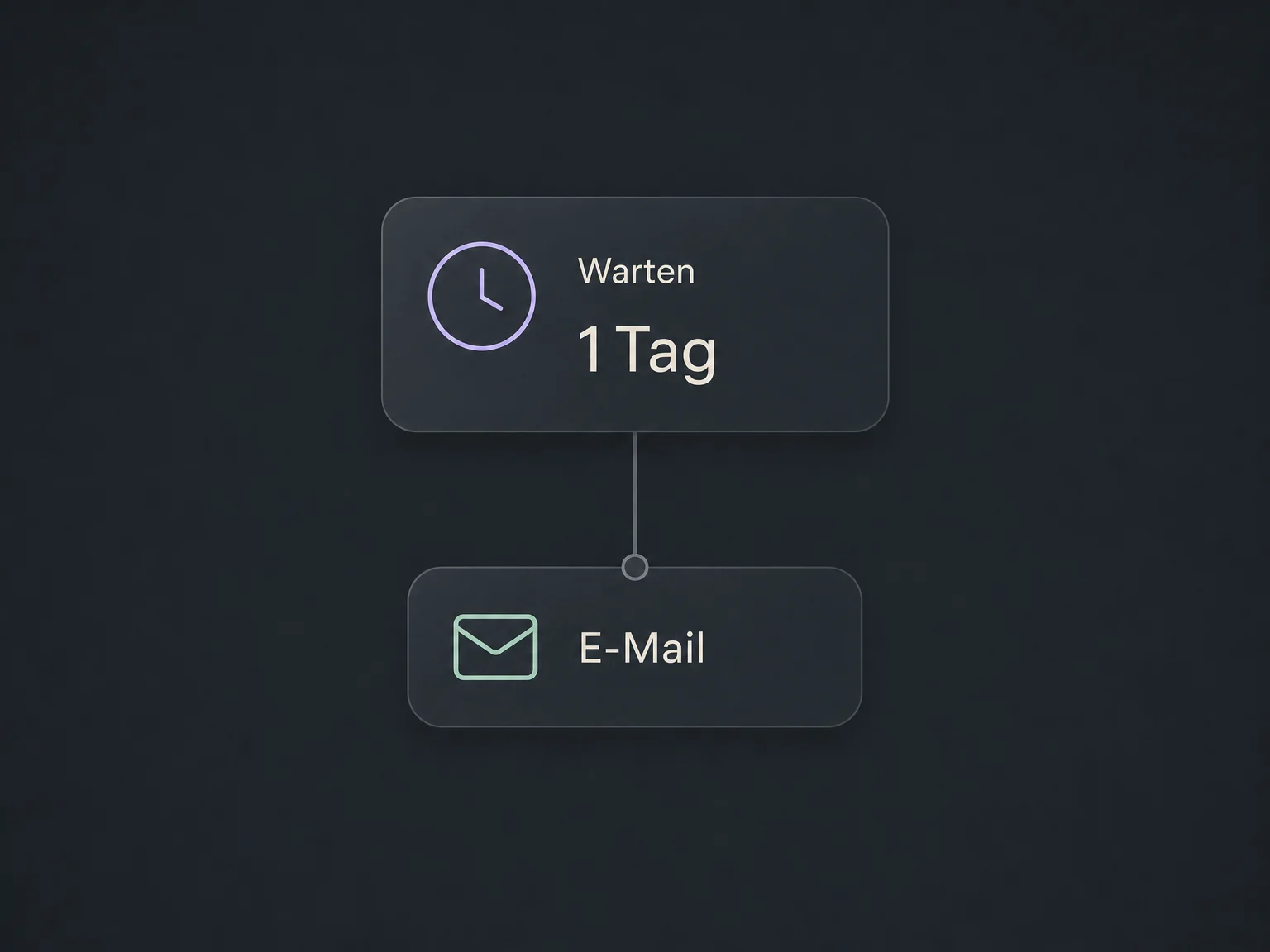
Wait a day, until an appointment or for a reply. Use the appropriate wait step to control when the flow continues.
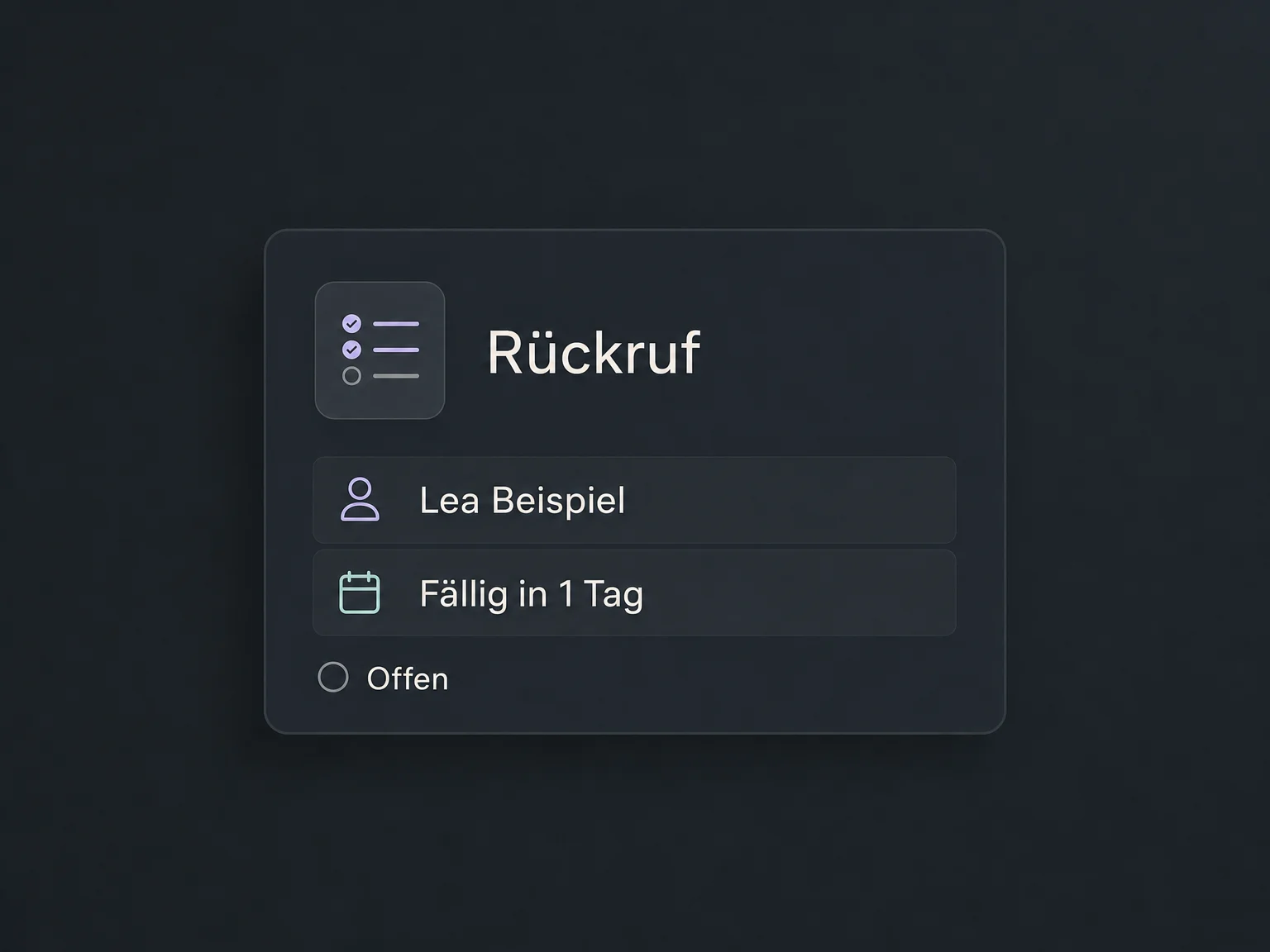
Create a callback task with a title, owner and due date. Your team still handles the personal follow-up.
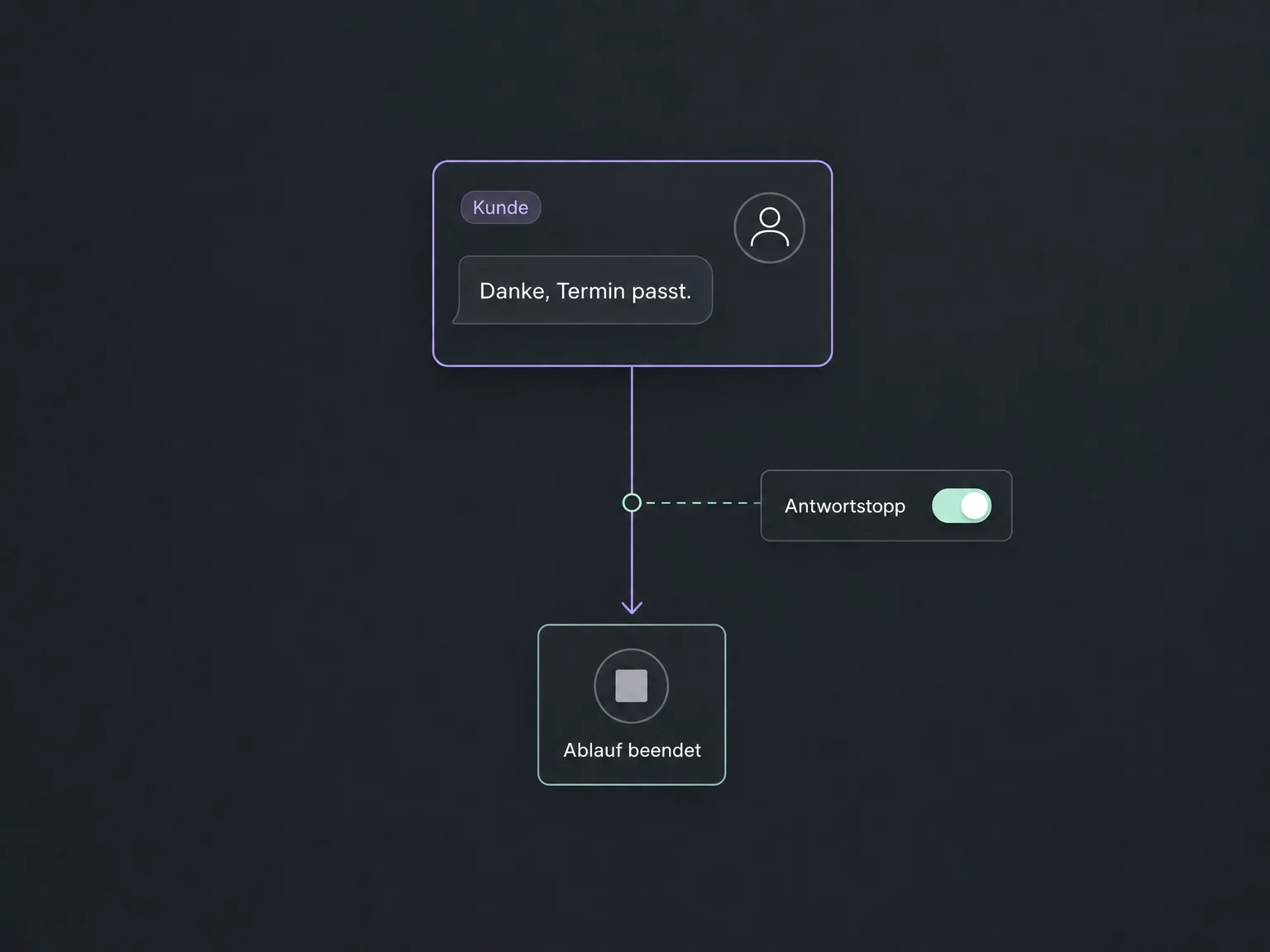
Enable Stop on Response so a reply to a message from this workflow removes that contact from this particular flow.
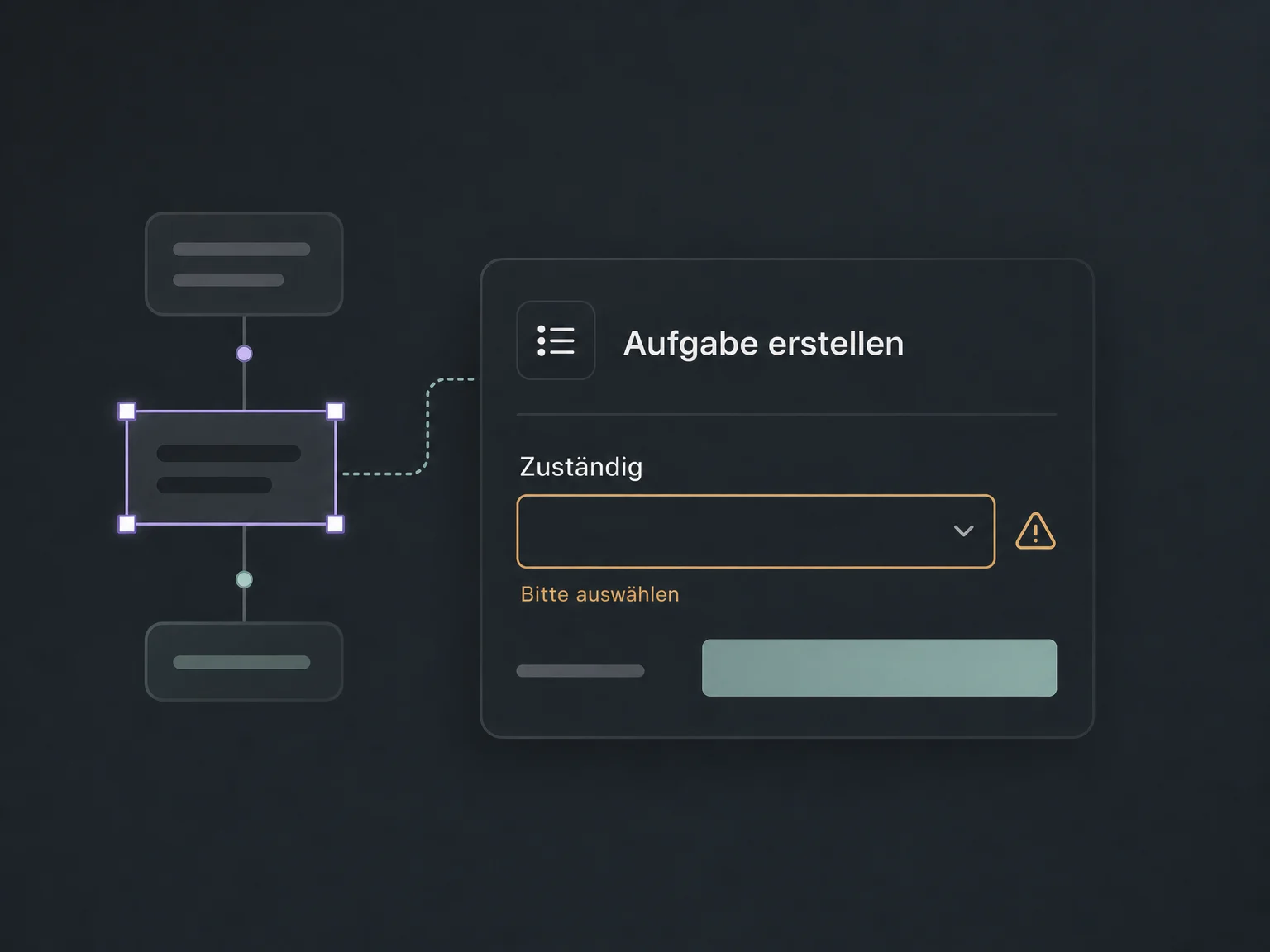
Indicators flag detected required-field or connection issues in the editor. Still check your logic and the actual execution.
Open version history to inspect earlier states. Clear step names help you and your team understand what changed.
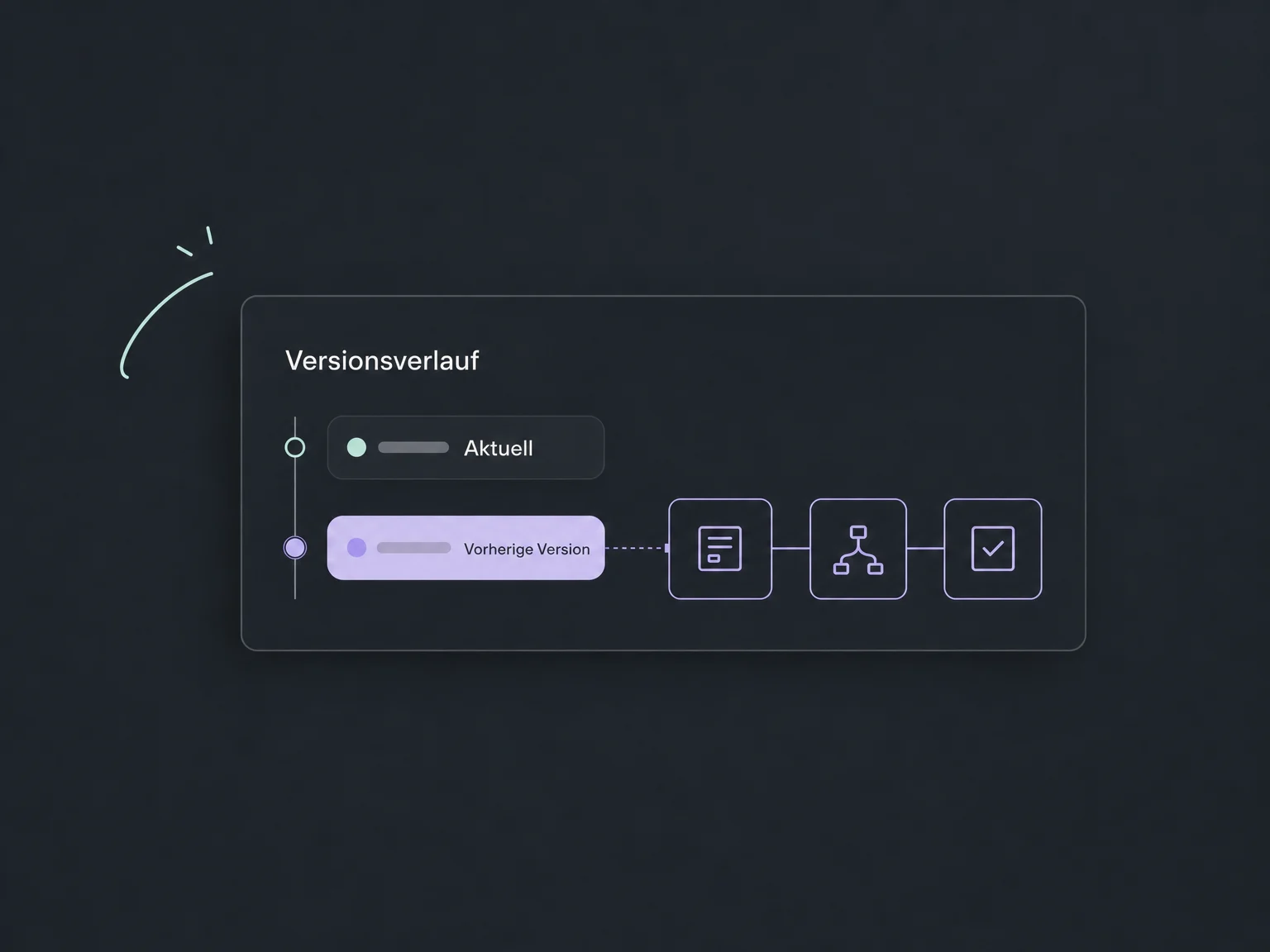
Simplified examples, not live account data.
We configure triggers, filters, re-entry, response stops and timing. Channels, permissions and available actions are checked for your account. Messaging, AI or premium actions may carry separate charges.
Your flow can connect contacts, messages, appointments and other configured features. Add AI assistance or external integrations where needed; neither is required for every workflow.
Availability and any add-on or usage costs are confirmed for your ONE LOOP account before implementation.
For supported standard flows, choose triggers, conditions and actions in the editor. You still need to define the data, responsibilities and exceptions. External systems need a suitable connection, and specific requirements may need additional setup.
No. Saving and publishing are separate. Check the flow with your own test contacts and controlled recipients before processing real enquiries. Tests are not automatically harmless: integration actions can change data or send messages during a test.
It depends on re-entry settings. Normally, the previous run must finish or the contact must be removed first. Appointment and invoice triggers have exceptions, and multiple opportunities can have separate runs. Review these rules to avoid unintended duplicate messages.
Not across the board. Available actions depend on access, package and connected services. Messaging, AI and certain premium actions may be billed separately. Before launch, we confirm the required features and potential ongoing costs.
Let’s explore your use case and what the setup requires.
Book a demo