Skip to content

Customer Reactivation

Start a new conversation with past customers.

Choose relevant contacts, build on your previous work together and follow up personally when they reply.

Here’s what you can do.

Three examples show how you can use Customer Reactivation.

01

Find the people worth reconnecting with.

For example, filter for existing customers whose last appointment was some time ago. The 90 days shown are an illustrative choice. Contact details and email blocks help narrow the audience; check permission to reach out separately.

Example contact list filtered by existing customer, last appointment more than 90 days ago and no email block; this selection does not establish marketing consent.
Simplified product example · not a live product view
02

Write a message that fits the relationship.

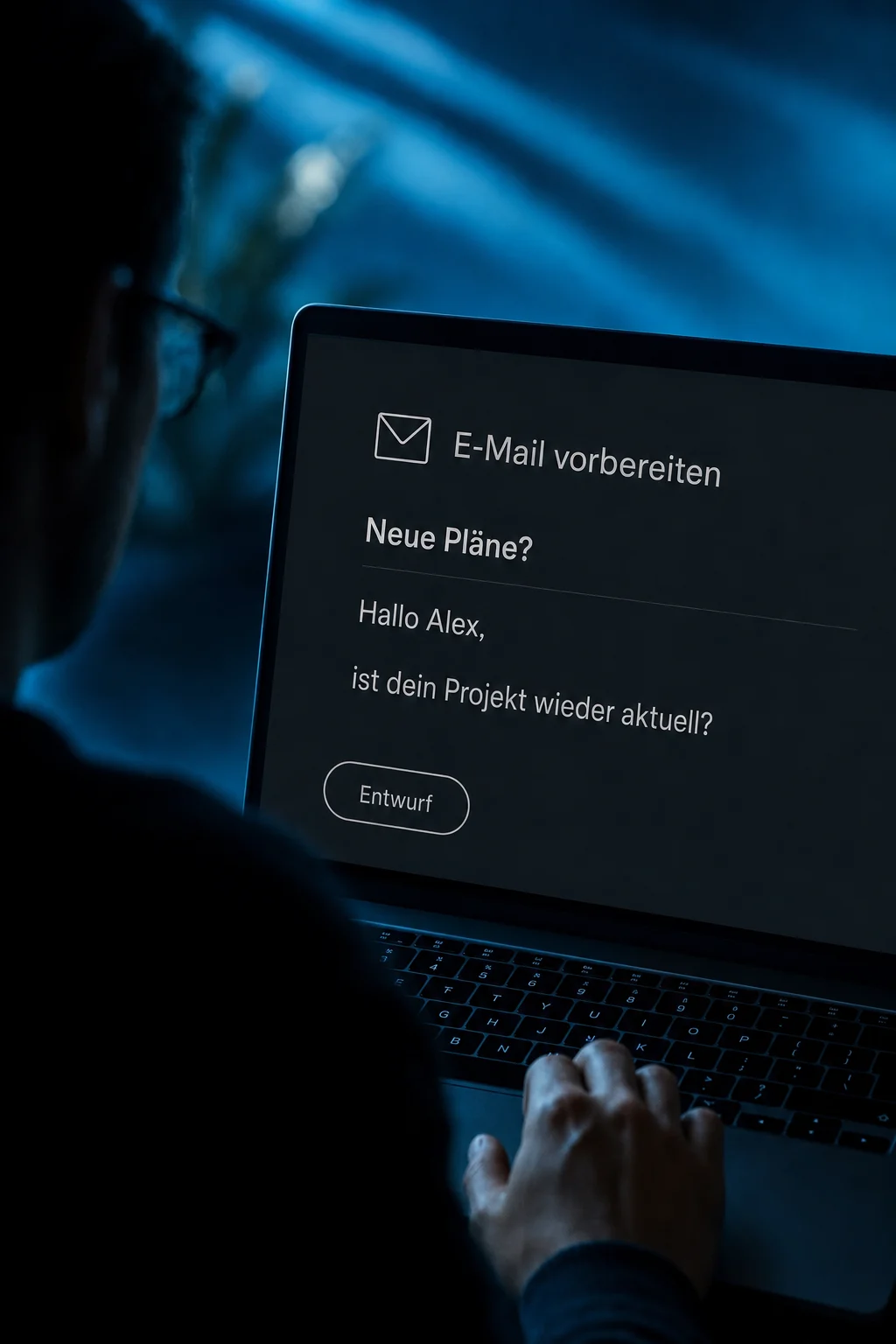
Prepare a short email with a relevant reason to reconnect. Contact fields can personalize the greeting. In the example, the team asks about a previous project; this is still a draft, not a sent message.

Example of an unsent email draft: Neue Pläne? with a short question to Alex and test-email and save controls.
Simplified product example · not a live product view
03

Turn a reply into a personal conversation.

Read incoming replies in the inbox and continue with the previous conversation in view. Alex replies positively in the example; Maria prepares her follow-up question. No appointment or sale has been confirmed.

Example email reply from Alex and an unsent reply draft by Maria; no appointment is confirmed.
Simplified product example · not a live product view

What this changes for your day-to-day work.

The practical benefits of Customer Reactivation.

Find the right customers

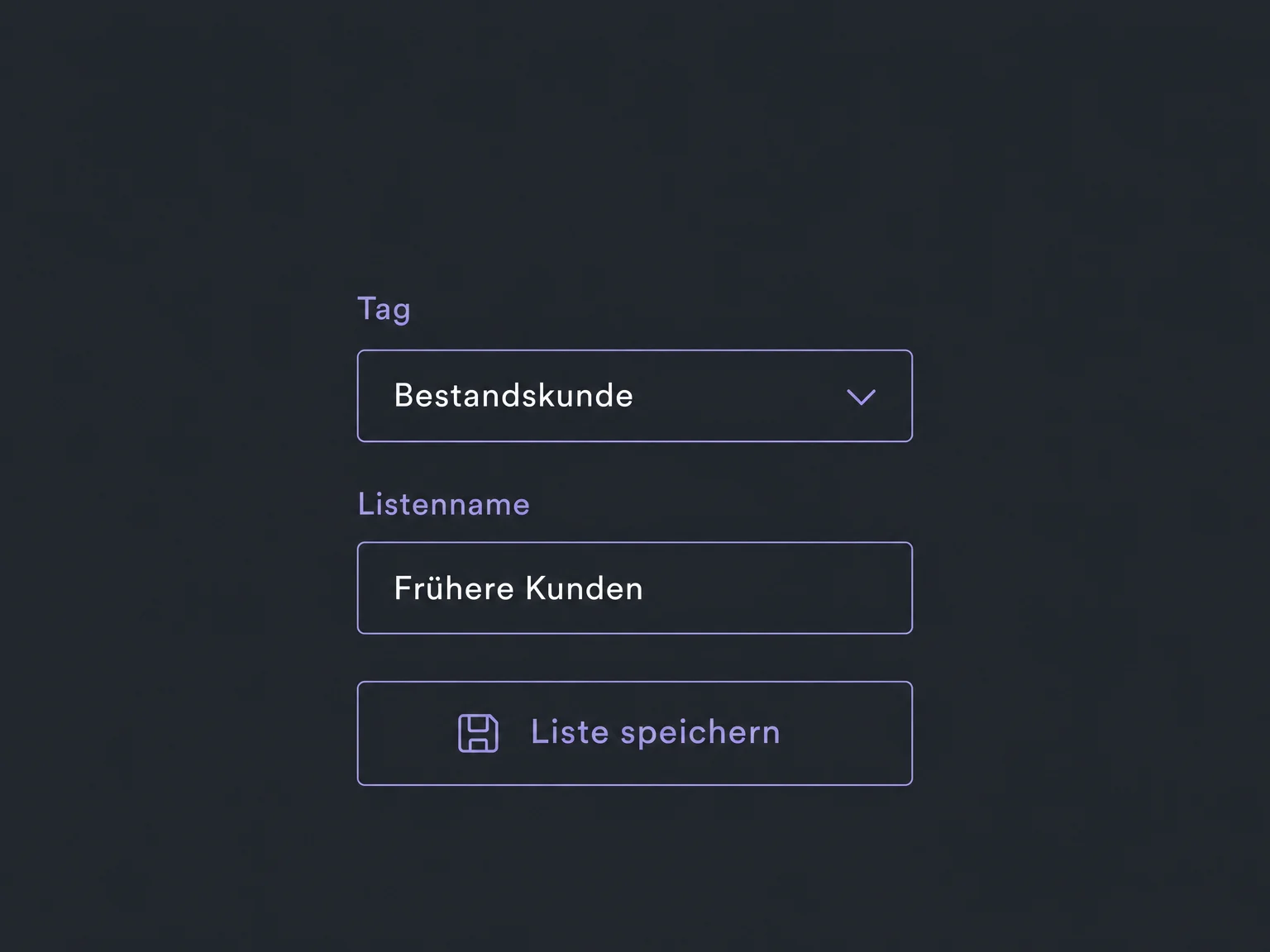
Save useful filters as a contact list. Membership changes with contact data; the list itself does not send messages.

Saved filters select existing customers and name the contact list without sending a message.

Follow up in small batches

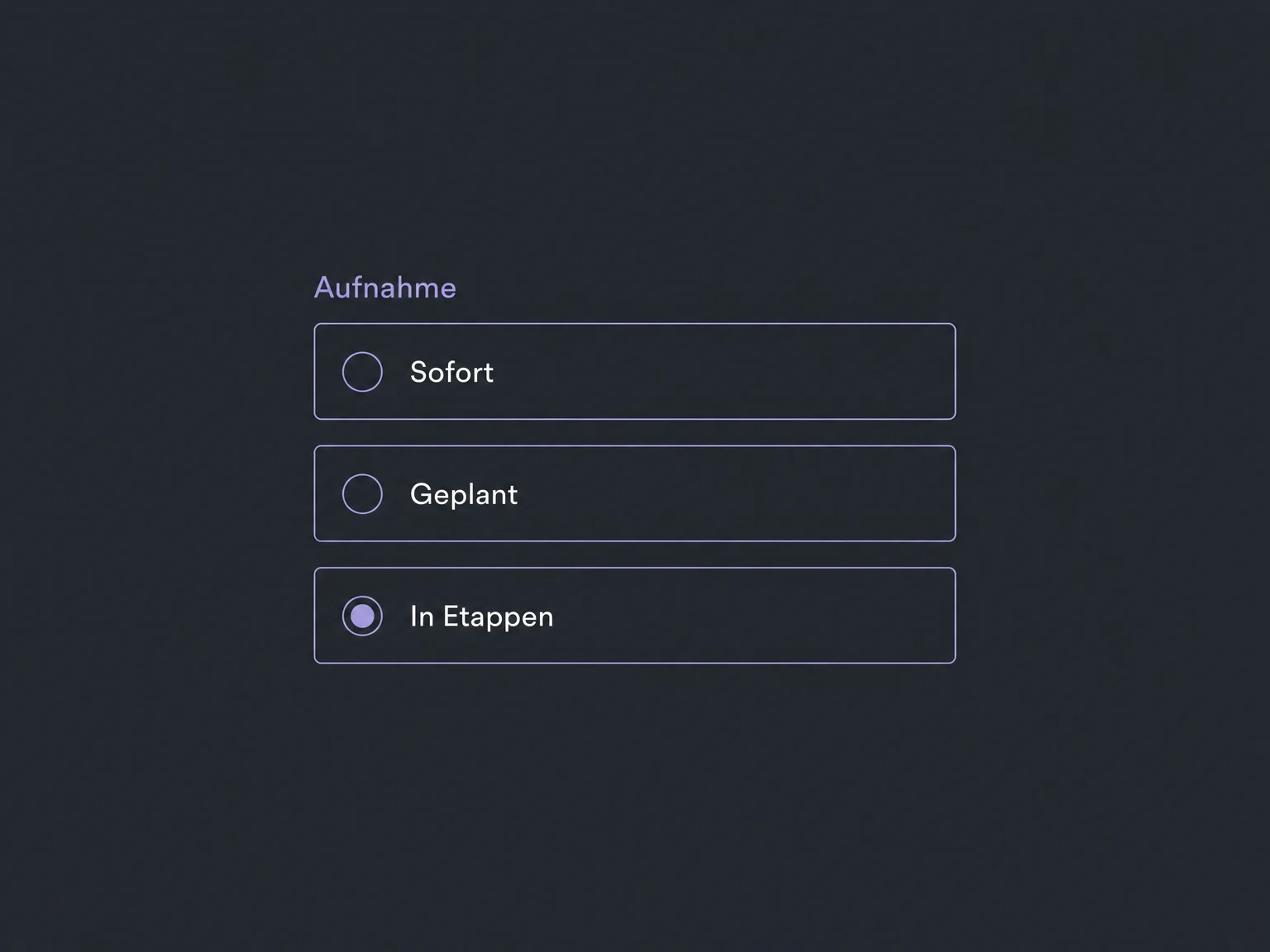
Add selected contacts to a published workflow now, on a schedule or in batches. This controls enrollment, not the actual sending time.

Enrollment of contacts in a workflow is set to batches.

Follow up at a suitable time

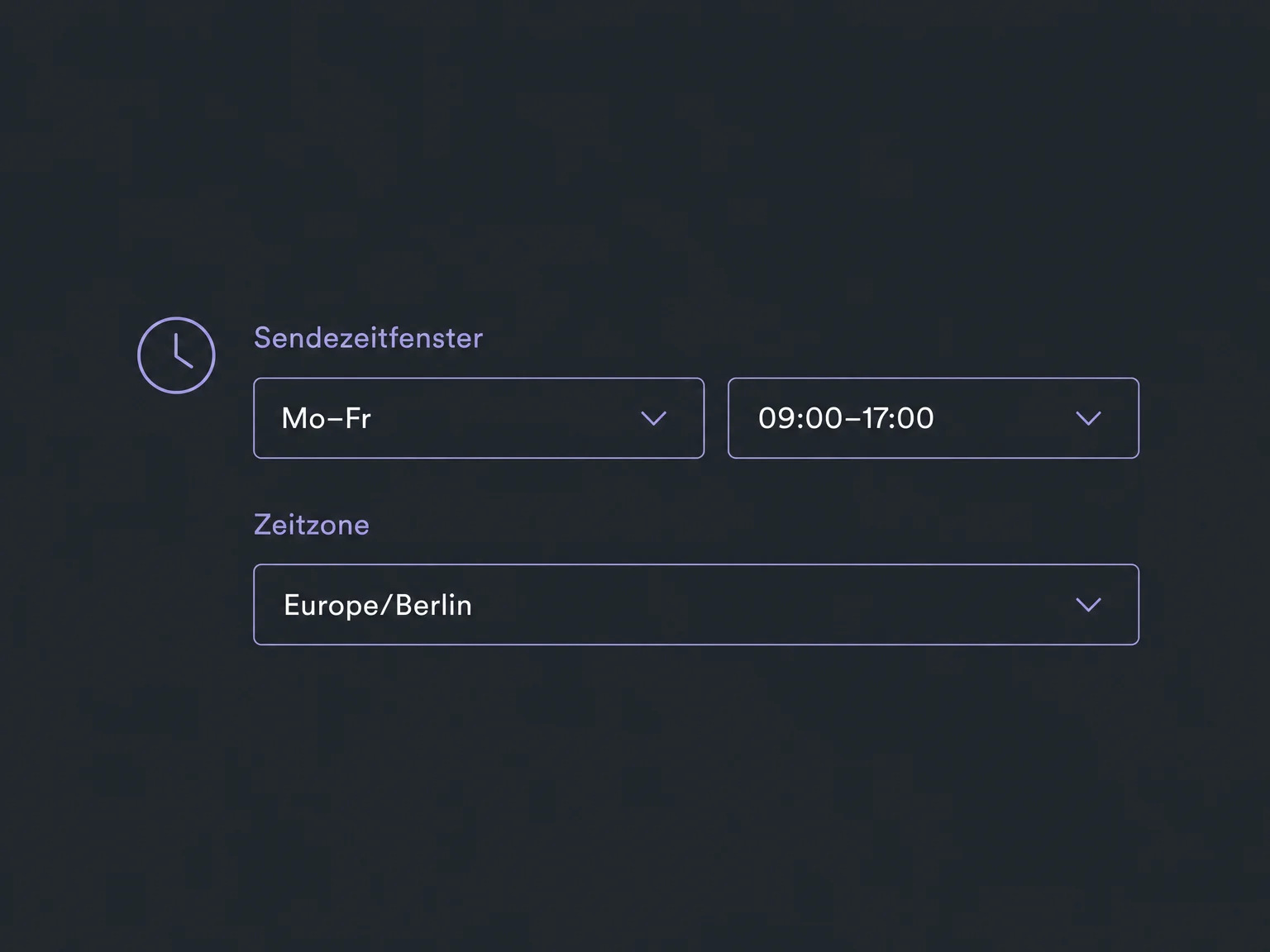
Set a workflow sending window and timezone. Messages wait outside the window; internal tasks can still continue.

An illustrative messaging window shows weekdays, hours and the Berlin timezone.

Spot mistakes before sending

Check content, links and formatting with a test email. Spot missing contact values or unsuitable wording before real outreach.

A test email can be sent to team@example.com for internal review.

Keep context with your team

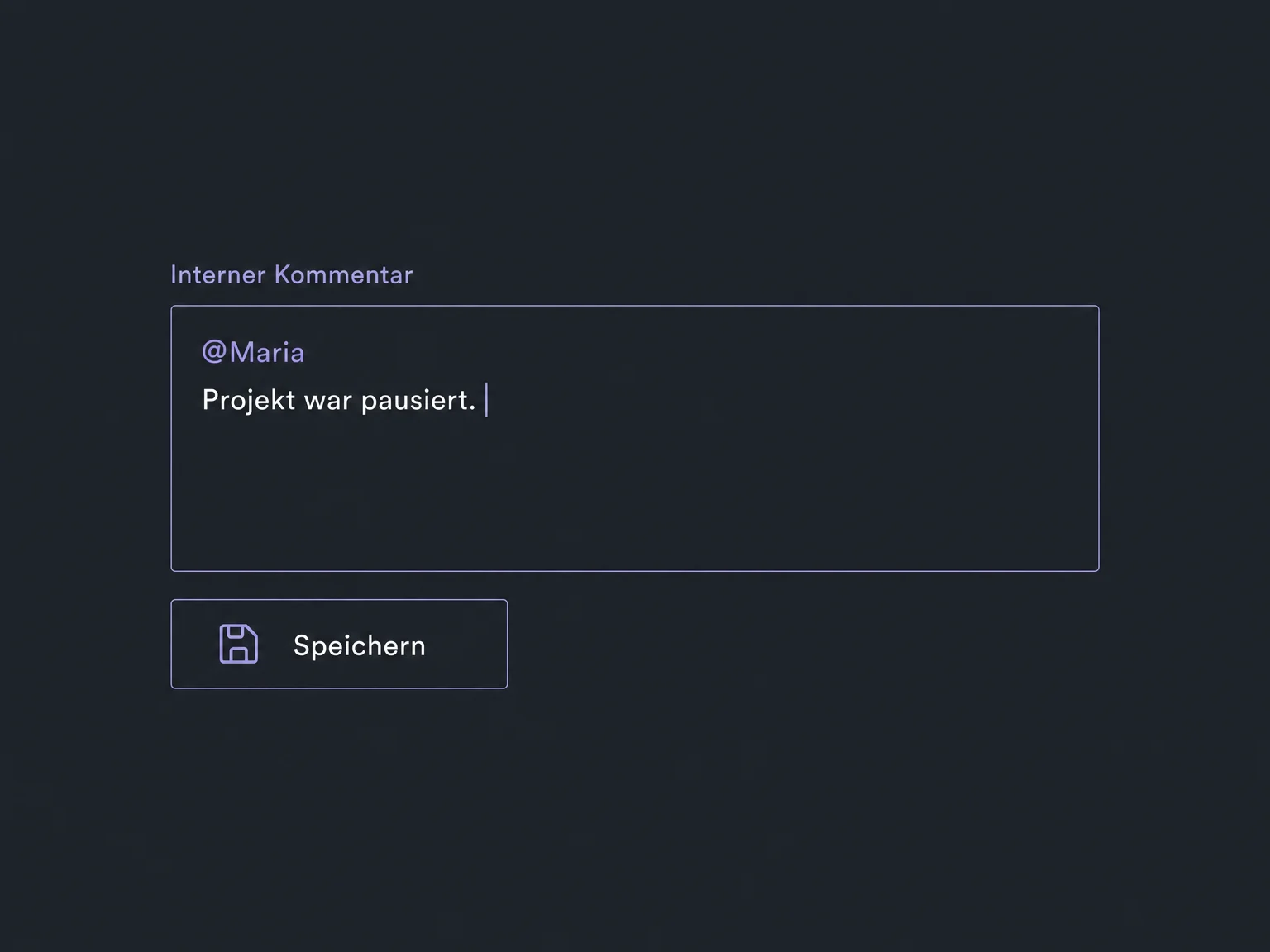
Add internal comments to the conversation and mention the relevant colleague. These notes stay internal rather than being sent as customer replies.

An internal comment mentions Maria and records the previous project status.

Simplified examples, not live account data.

What you need to get started.

We review the audience, contact permissions, opt-outs, sender setup and available channels. Sending, ownership and stopping rules are then configured. A test contact checks the flow before real customers are enrolled.

Reactivation connects existing contacts with a configured workflow and inbox. If a reply should automatically create a team task, configure and publish a separate reply trigger with the appropriate filters.

Availability and any add-on or usage costs are confirmed for your ONE LOOP account before implementation.

Your questions, answered.

Can I message every stored contact?

No. A saved contact or an inactive email block is not proof of marketing consent. Before outreach, check the basis for contacting the person, the channel and any opt-outs. Do not simply reactivate unsubscribed contacts. Resolve legal questions with qualified advice before starting.

Does a saved list start outreach automatically?

No. A dynamic contact list only updates the selection. Enroll suitable contacts in a published workflow or configure an appropriate trigger. Before repeating outreach, we also check whether contacts may enter the workflow again.

What happens to follow-ups when someone replies?

When enabled, “Stop on response” ends the workflow for a contact who replies to a message from that specific workflow. It does not stop every other workflow. Configure personal handover or internal notifications separately as needed.

Is a test email enough before launch?

It helps check the message but does not replace a full workflow test. With a sample contact, we also check enrollment, waits, replies and opt-outs. A reply is not new revenue; assess appointments and sales separately.

See it with your own use case.

Let’s explore your use case and what the setup requires.

Book a demo