01
Sign in and get started.
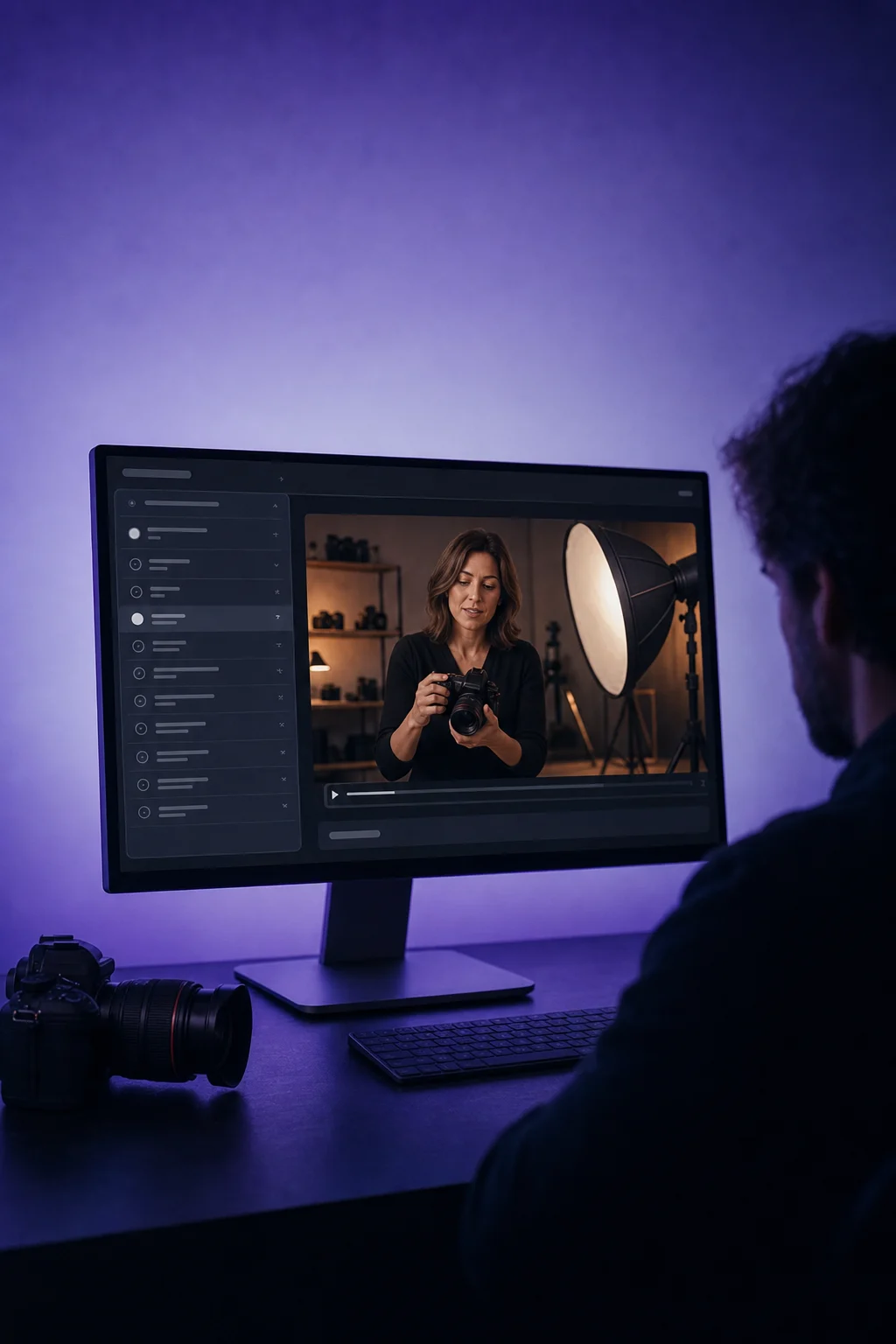
Invite customers to their client area. They can sign in with their email and password or an emailed code. The example shows the sign-in form before login is completed.

Client Portal
Give your customers one place for their courses, community and shared files. They sign in, find their content and can send documents back.
Three examples show how you can use Client Portal.
Invite customers to their client area. They can sign in with their email and password or an emailed code. The example shows the sign-in form before login is completed.
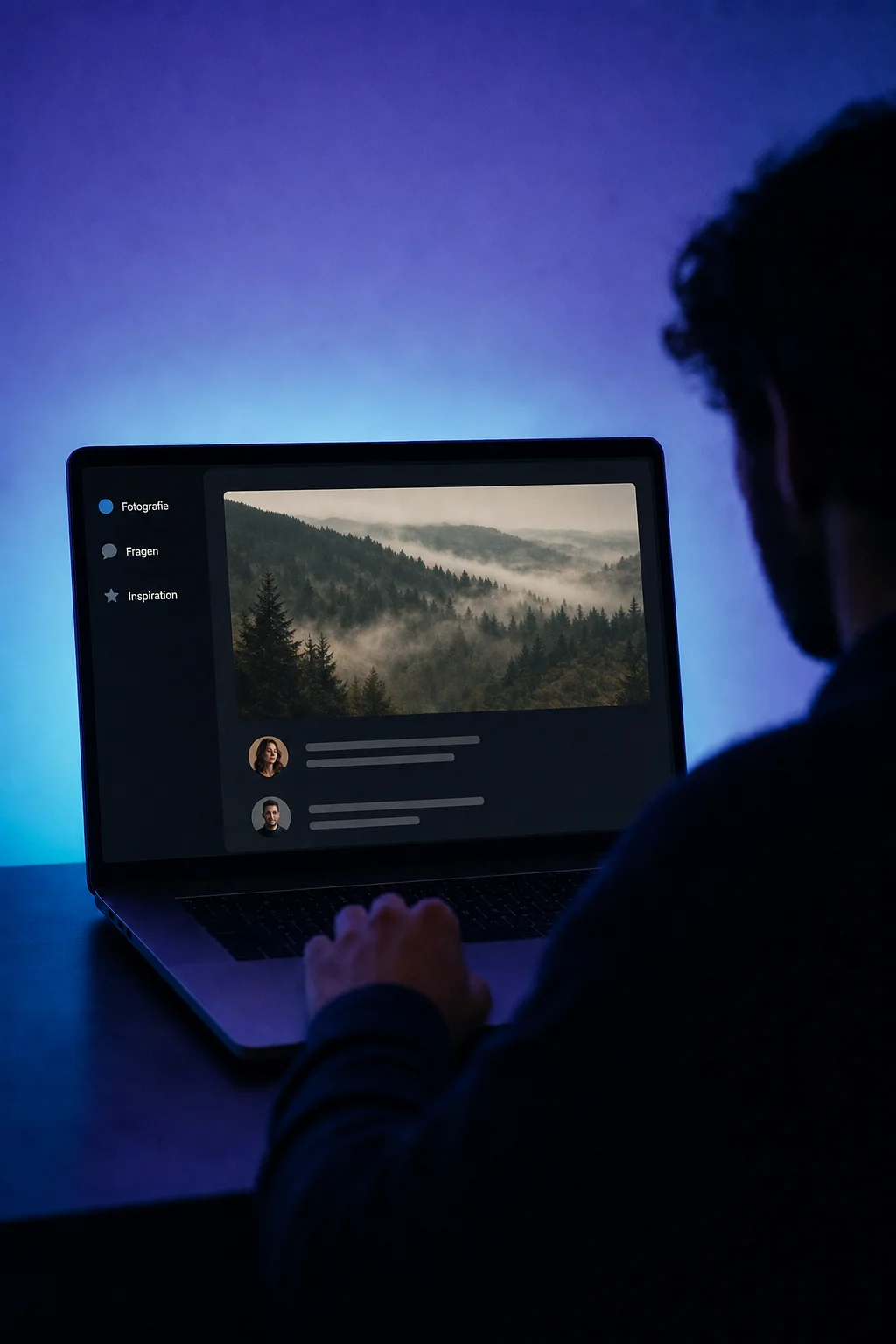
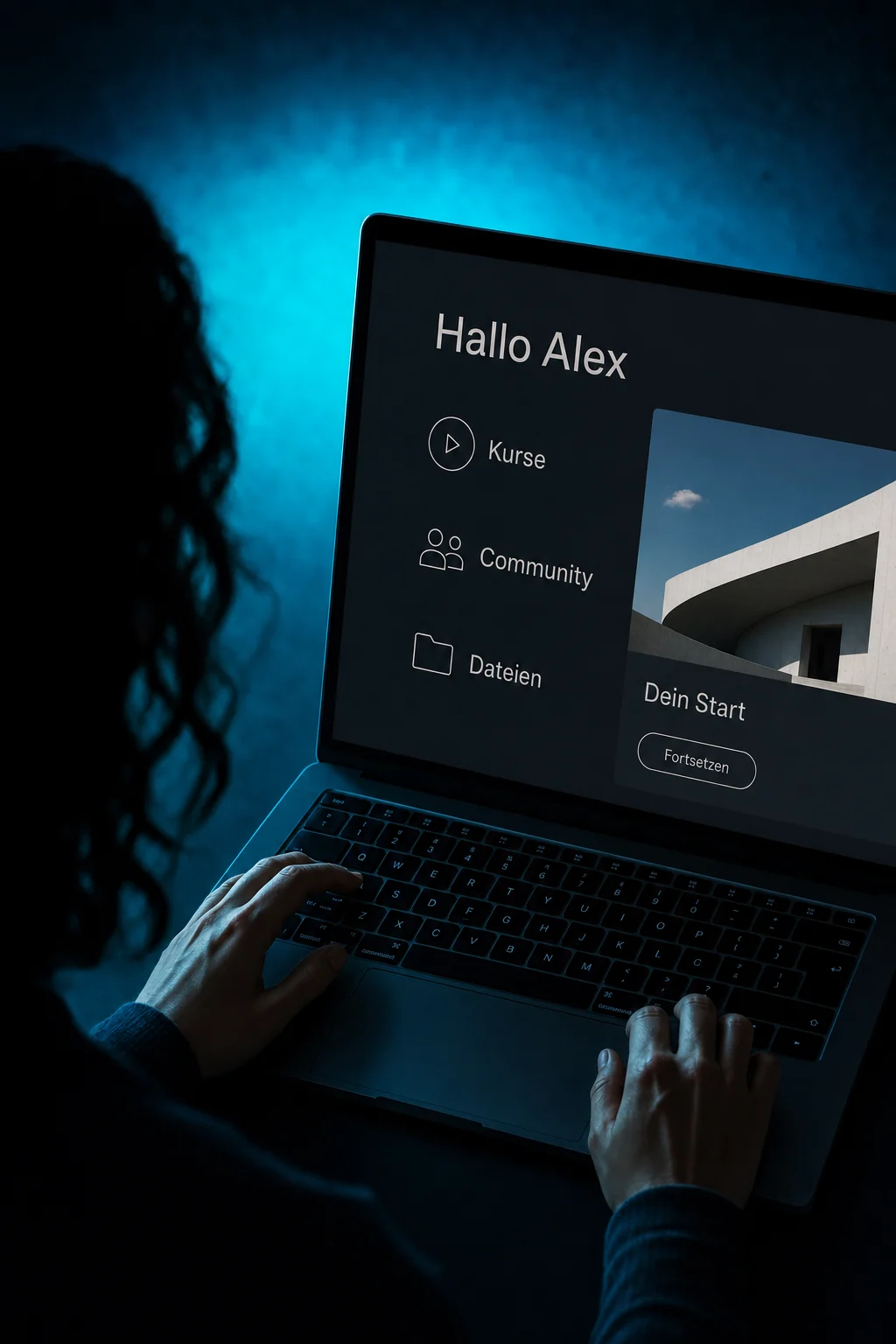
After signing in, customers open the courses and communities available to them. In the example, Alex continues the “Dein Start” course. You decide which content is available through its access settings.

Share files with a specific contact. Customers can download them and upload their own documents. The example shows an available starter guide and a briefing selected but not yet uploaded.

The practical benefits of Client Portal.
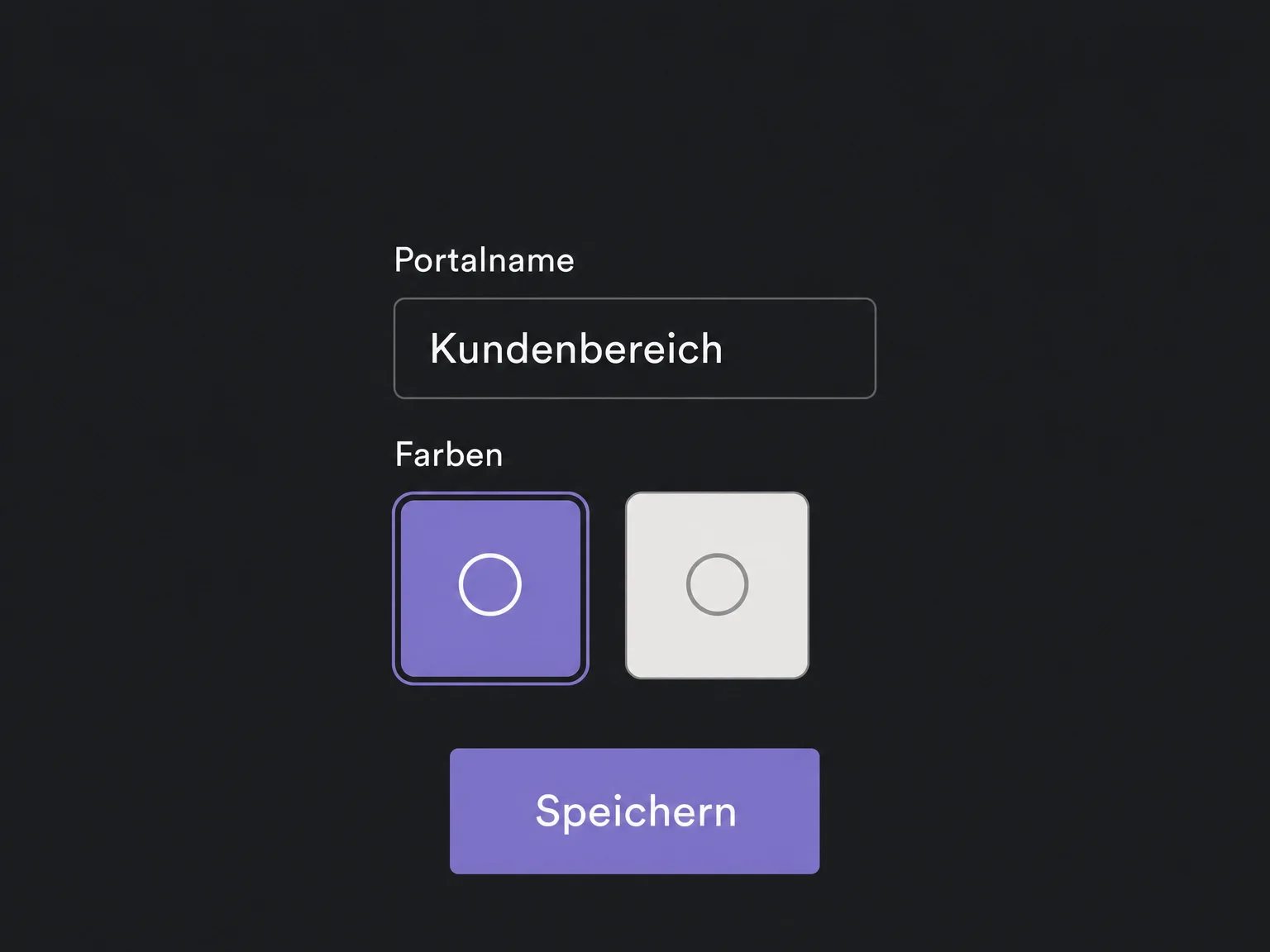
Customize the name, colors and contact address. Connect and verify your own portal domain separately.
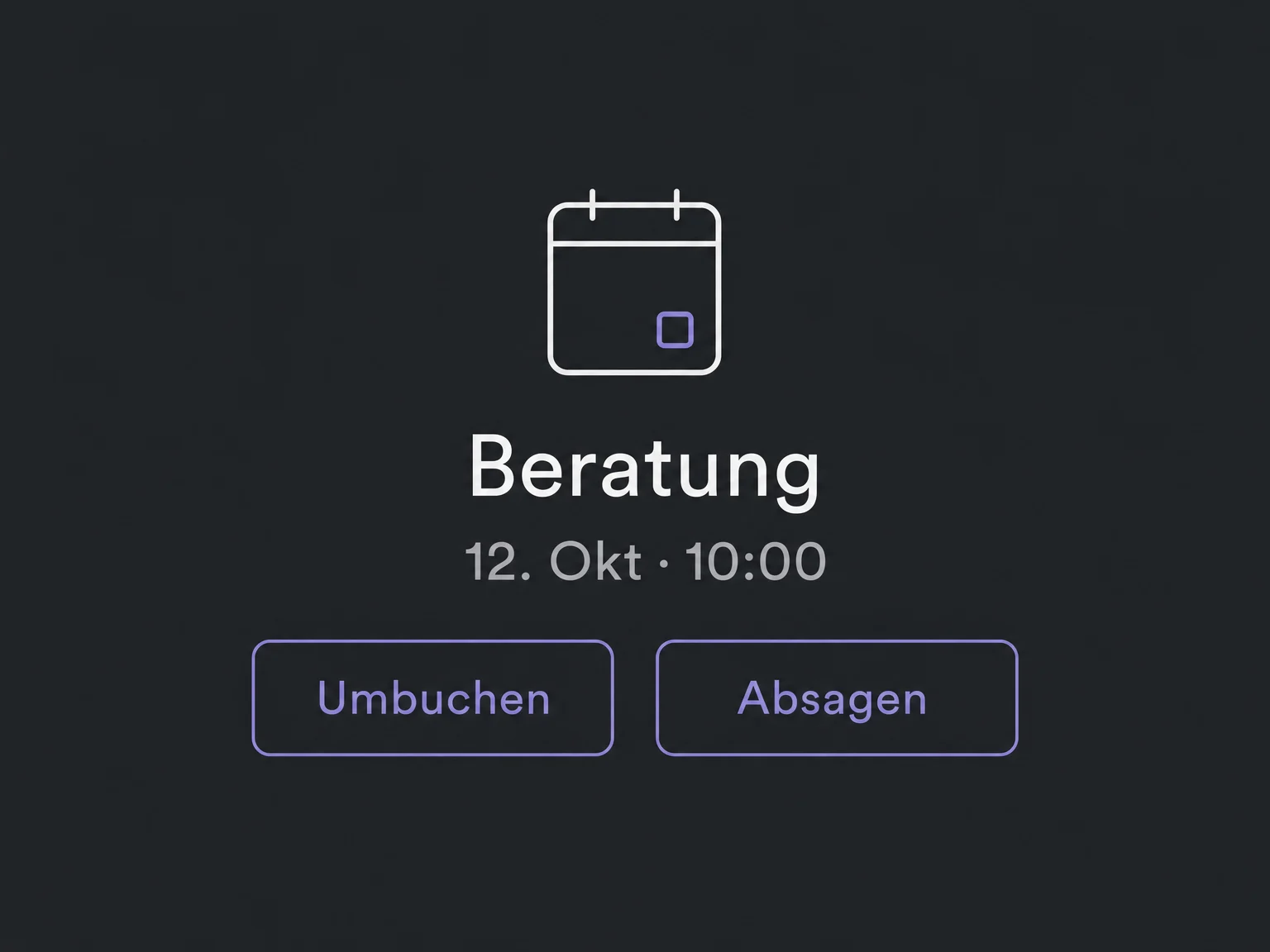
In the new portal, customers can book and manage eligible appointments. Enable both the appointments module and portal booking for each calendar.
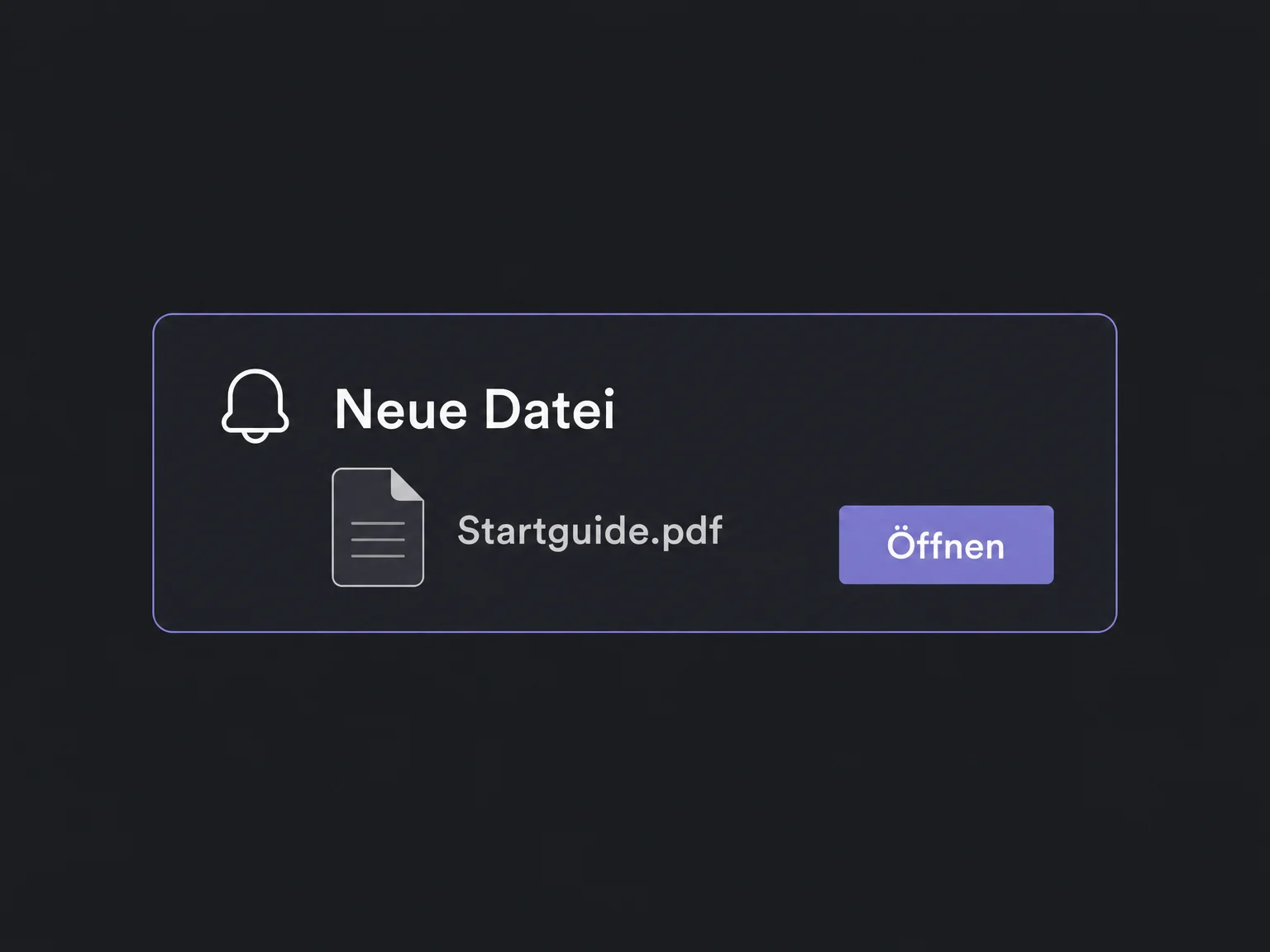
When supported files are shared, customers can receive a portal notification. In-app and push notifications depend on preferences and the device being used.
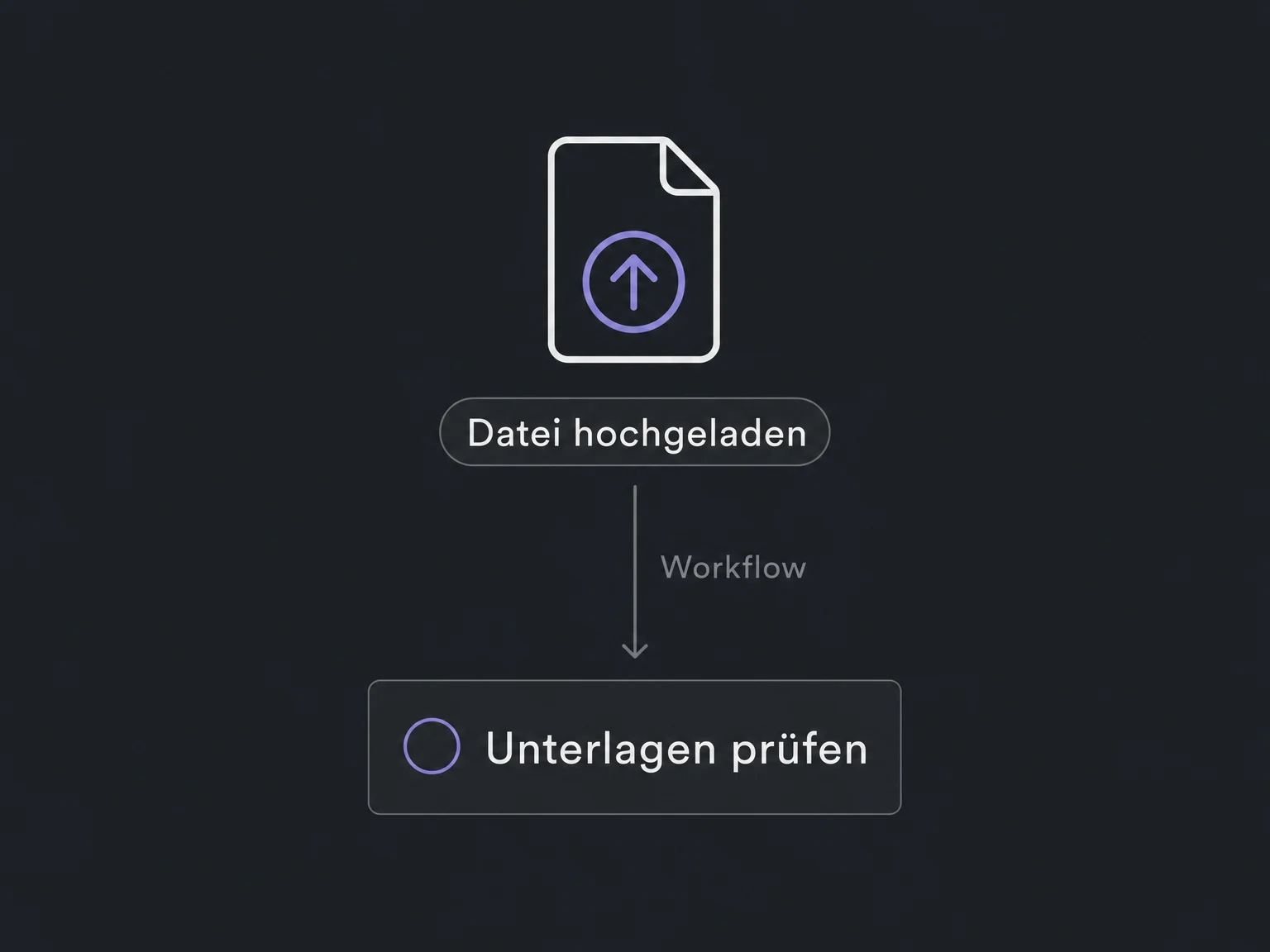
A completed customer upload can start a configured workflow, such as an internal task. Simply sharing a file does not trigger this upload workflow.
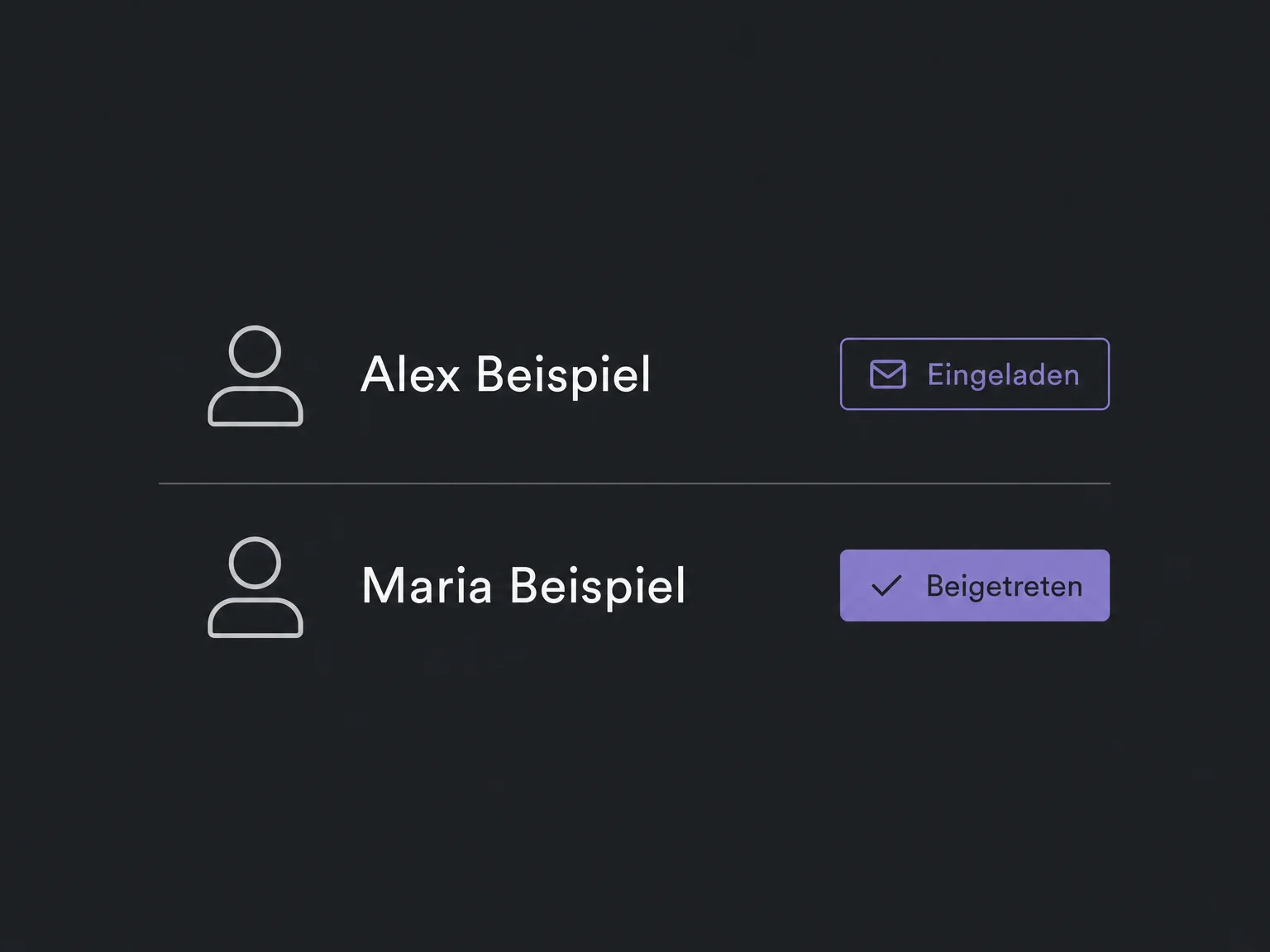
See who has been invited and who has joined the portal. An invitation alone does not mean someone has opened their content.
Simplified examples, not live account data.
We check the available portal version, activation, domain, invitations and required modules. Course, community and file access are configured separately. Test the full experience with a sample contact before inviting a real customer.
Portal access belongs to the individual contact. Uploaded files appear among that contact’s received documents. Configure, test and publish a workflow if tasks or confirmations should follow.
Availability and any add-on or usage costs are confirmed for your ONE LOOP account before implementation.
You can invite existing contacts or send an email invitation. Direct sign-in links generated in the portal dashboard are contact-specific and expire after 15 minutes. Automated invitations use the intended dynamic values, not a copied short-lived link.
No. Module visibility is set for the whole portal, but courses, communities and files require their own access permissions. Turning off a module does not delete course progress or community data. We check module visibility separately from individual access.
The file sharing shown here is not an electronic signature. Contract delivery and signatures are a separate feature. Portal file access can be revoked without deleting the file. Preview and upload support also depend on the file type.
Yes, customers can open the portal in a mobile browser. A branded app is a separate offering and is not automatically included. Appointment management is currently available in the new web portal, not yet in that app. Rescheduling and cancellation follow your calendar policies.
Let’s explore your use case and what the setup requires.
Book a demo