
01
Your hours. Your booking rules.
Choose the days you offer appointments and how long each meeting lasts. A buffer leaves room between bookings. Connected calendars selected for conflict checks account for time that is already busy.

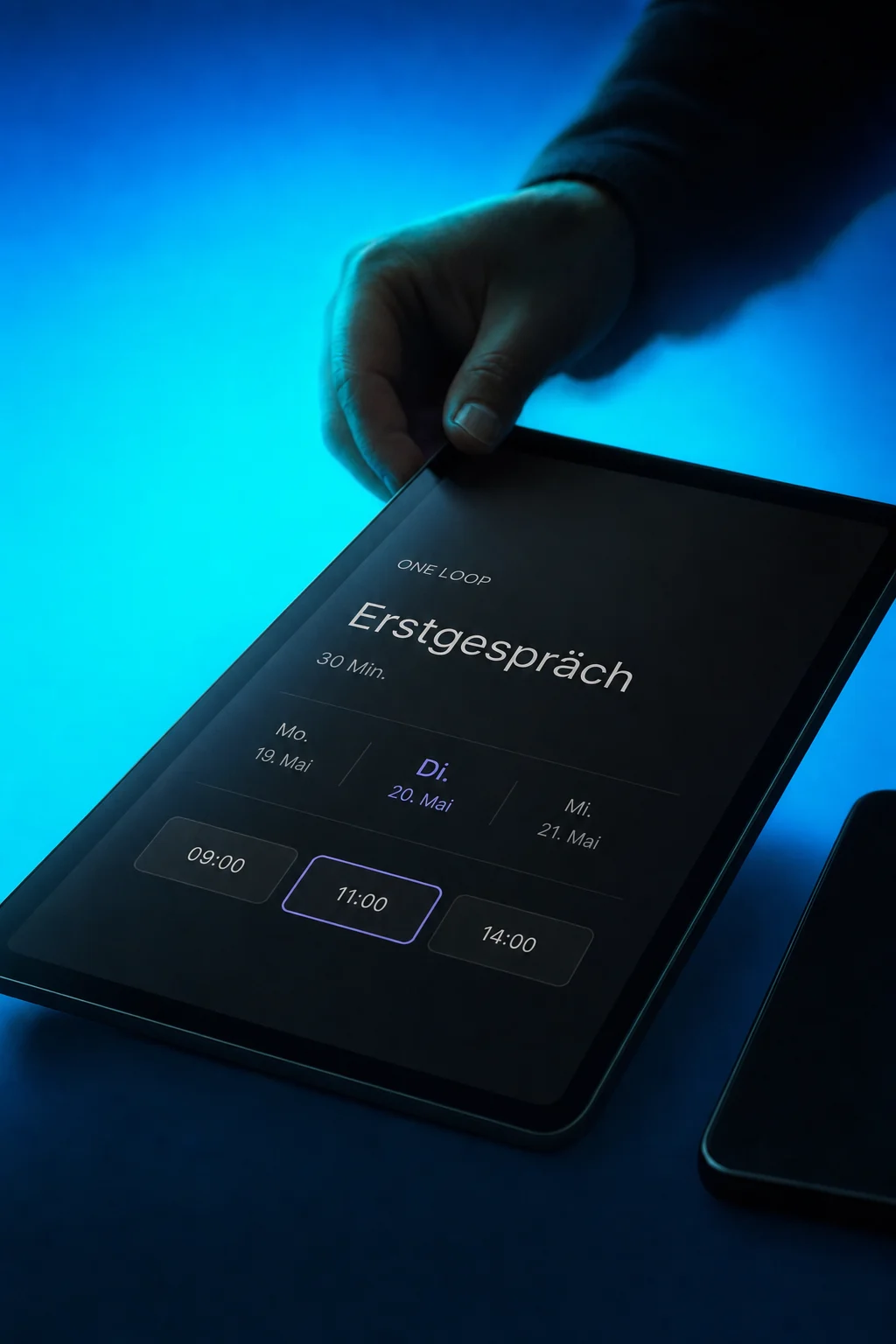
Calendar & Booking
Share a booking link instead of exchanging suggested times. Prospects choose a slot from your availability. You decide when bookings are possible and which information arrives before the meeting.
Three examples show how you can use Calendar & Booking.
Choose the days you offer appointments and how long each meeting lasts. A buffer leaves room between bookings. Connected calendars selected for conflict checks account for time that is already busy.
Send the booking link in a conversation or embed scheduling on your website. Prospects choose an available slot and enter their contact details. You decide whether the calendar confirms new bookings automatically.

Set up confirmations and reminders with the time, location or meeting link. Choose the recipient, channel and timing. Check a test booking to make sure the message contains the right appointment details.

The practical benefits of Calendar & Booking.
Share one booking link instead of exchanging available times. The other person chooses from the slots your calendar offers under your rules.
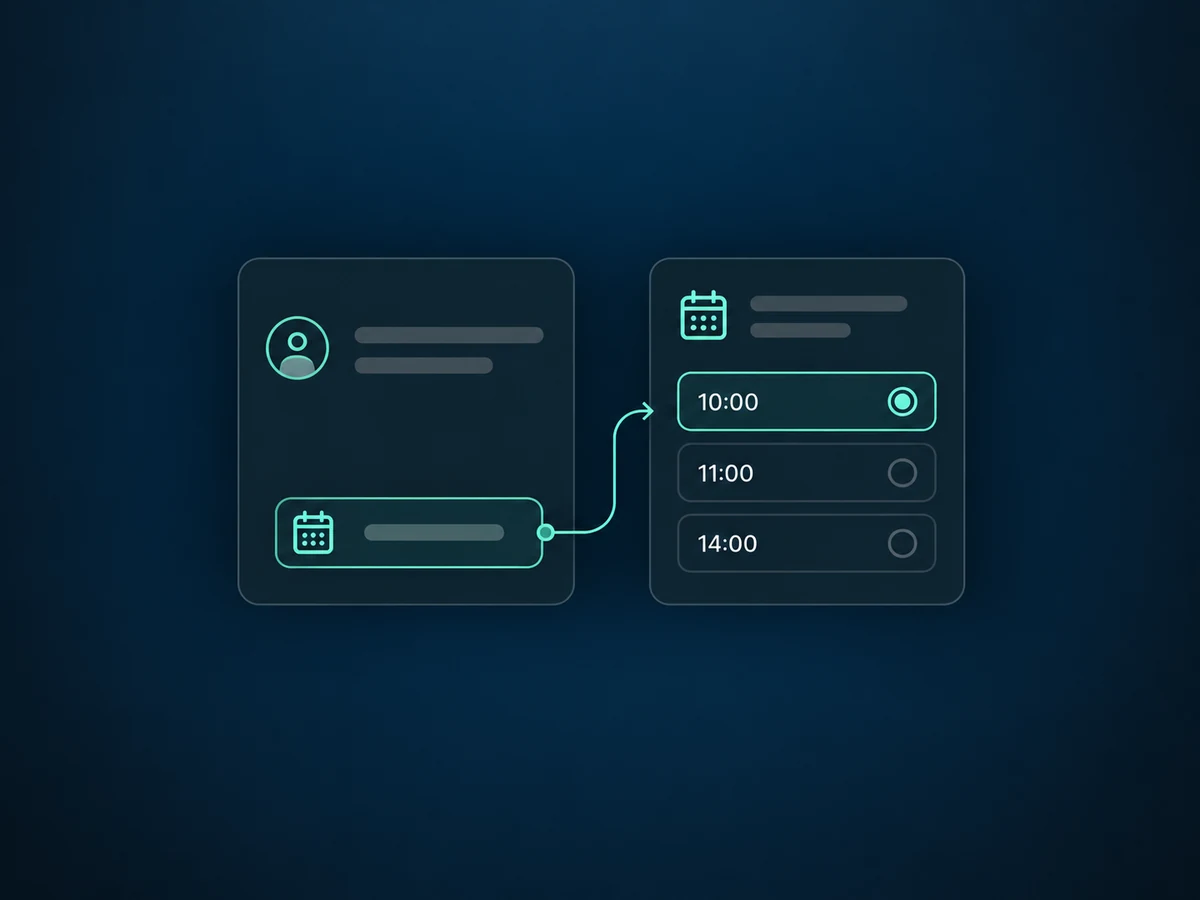
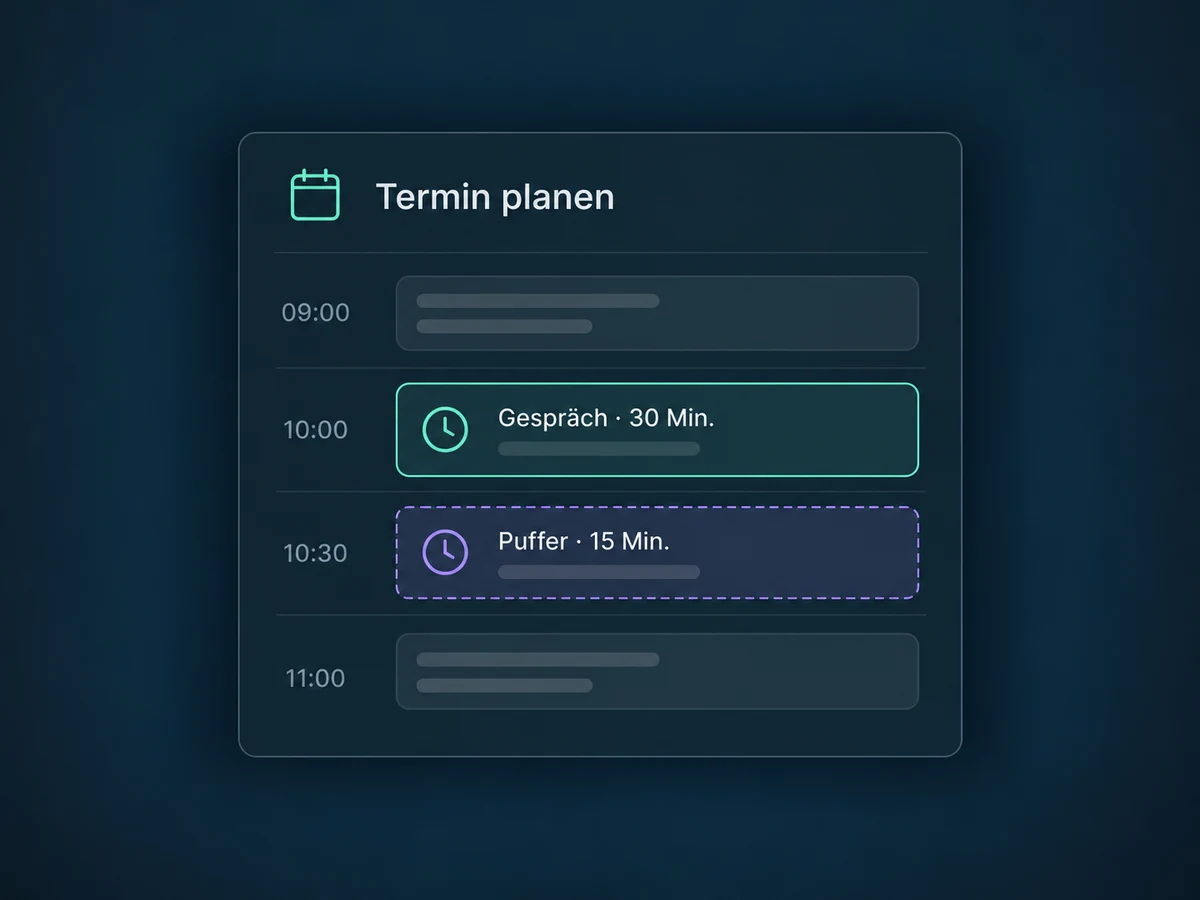
Add a buffer before or after meetings. It is included in availability calculations so the next booking does not immediately follow your appointment.
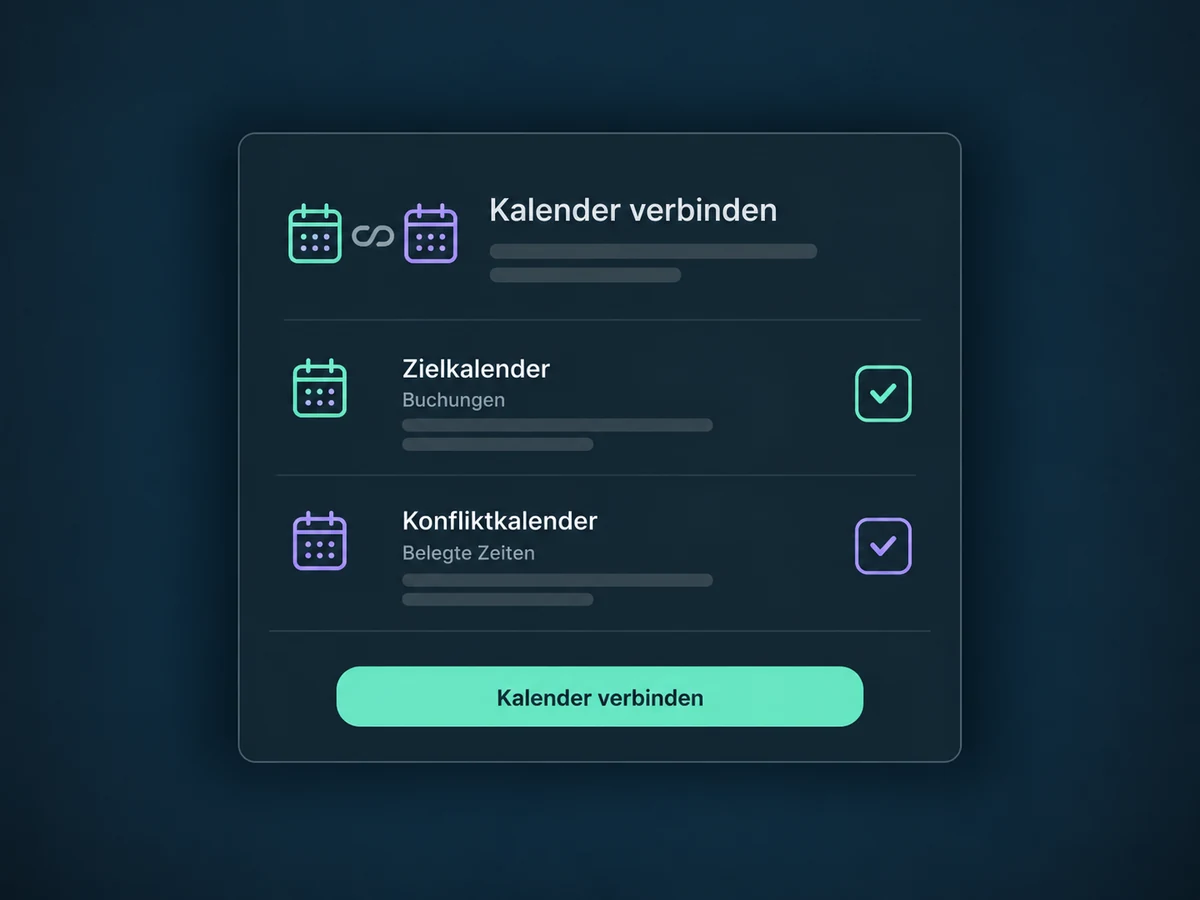
For each person, choose which connected calendars to check for busy time. A separately selected linked calendar receives new bookings. The connection and permissions must remain valid.
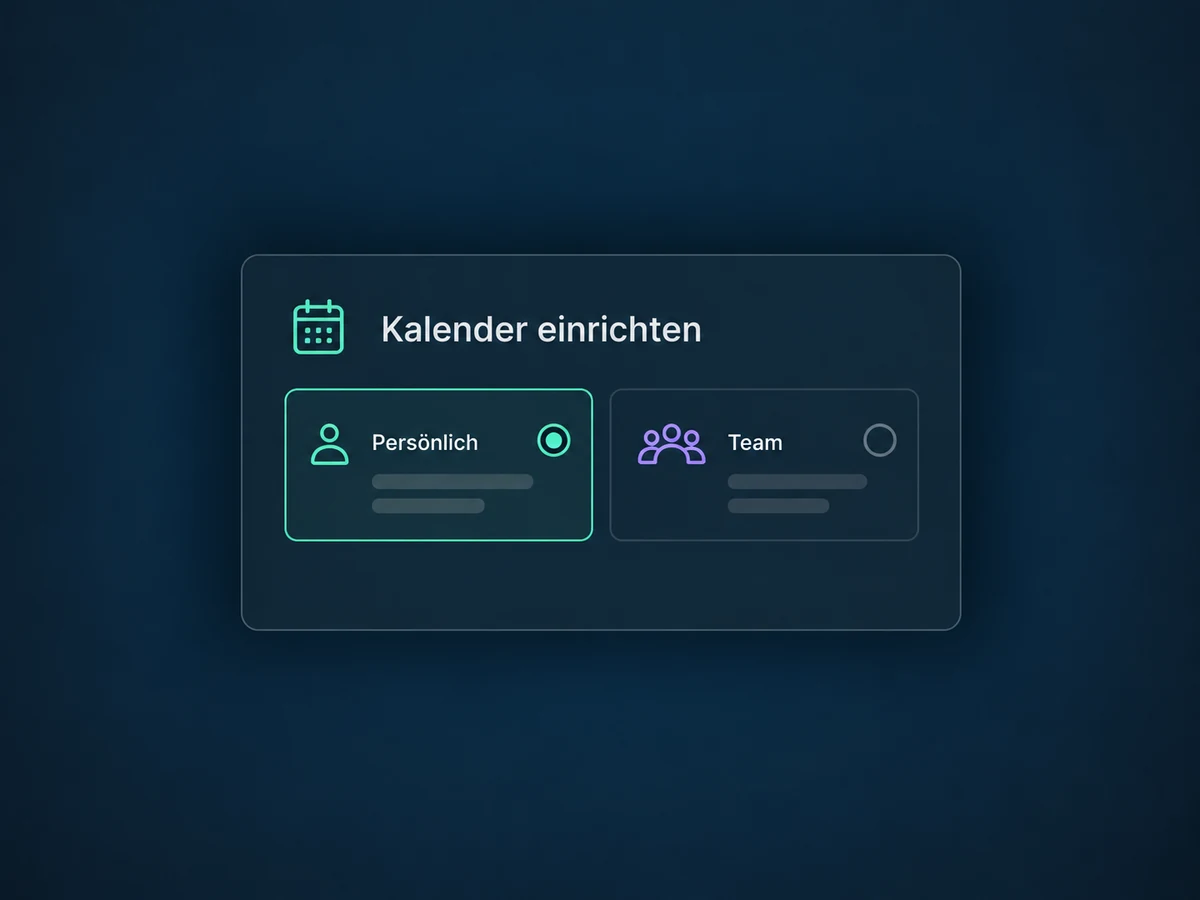
Use a personal calendar for meetings with one specific person. If several team members should take appointments, we configure a suitable team calendar with their availability.
When enabled, customers can reschedule or cancel through a link. You decide how long those links remain available. After the cutoff, customers contact your team to make a change.
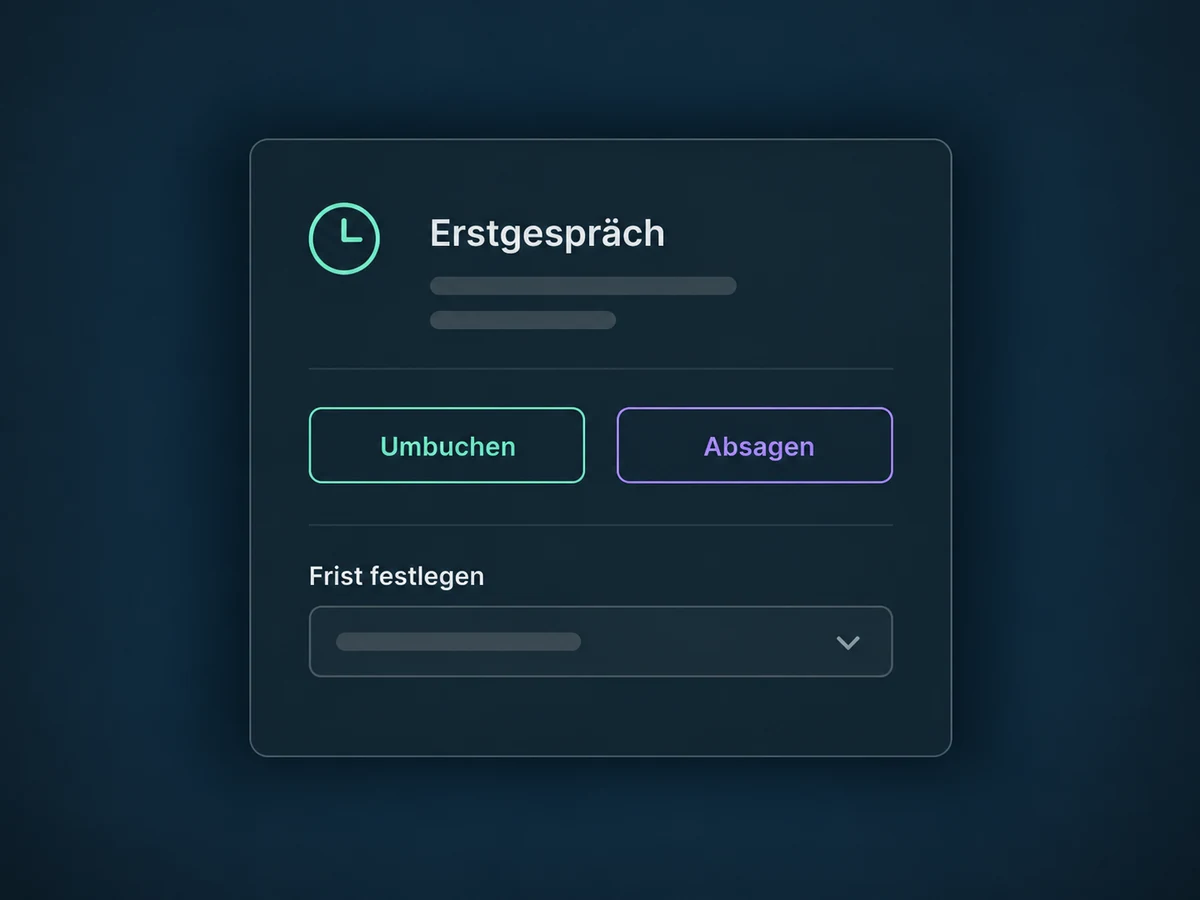
Simplified examples, not live account data.
We check package scope and access, then configure calendar type, hosts, timezone, booking hours and buffers. We test calendar connections, meeting links and notifications with a complete booking. Message channels require their own setup and may incur additional charges.
The booking belongs to the contact in ONE LOOP. A separately configured workflow can create preparation or follow-up tasks. We agree during setup who will host the appointment and who will own the contact.
Availability and any add-on or usage costs are confirmed for your ONE LOOP account before implementation.
Booking checks more than an empty space: availability, duration, buffers, minimum notice, booking limits and busy time in selected calendars all matter. User and calendar timezones must also be correct. We check these rules together rather than promising that every empty space is bookable.
Yes, supported calendar accounts can be connected per user. We check the specific provider, required permissions, linked calendar and conflict calendars. Expired authentication, deleted calendars or revoked permissions can interrupt syncing. A connection is therefore not a guarantee against every double booking.
After setup: enable the notification and choose its channel, recipient, content and timing. Email, SMS and WhatsApp require suitable sending setup; WhatsApp also needs approved templates. We check costs and possible duplicate messages from calendar settings and workflows with a test booking.
Yes, when you enable the relevant options. The invitation then includes the links, and a configured cutoff limits their use. After that, customers contact your team. If a workflow sends the links, it needs an appointment-based trigger and the relevant appointment data; otherwise, the link fields may be blank.
Let’s explore your use case and what the setup requires.
Book a demo