01
Give your course a clear structure.
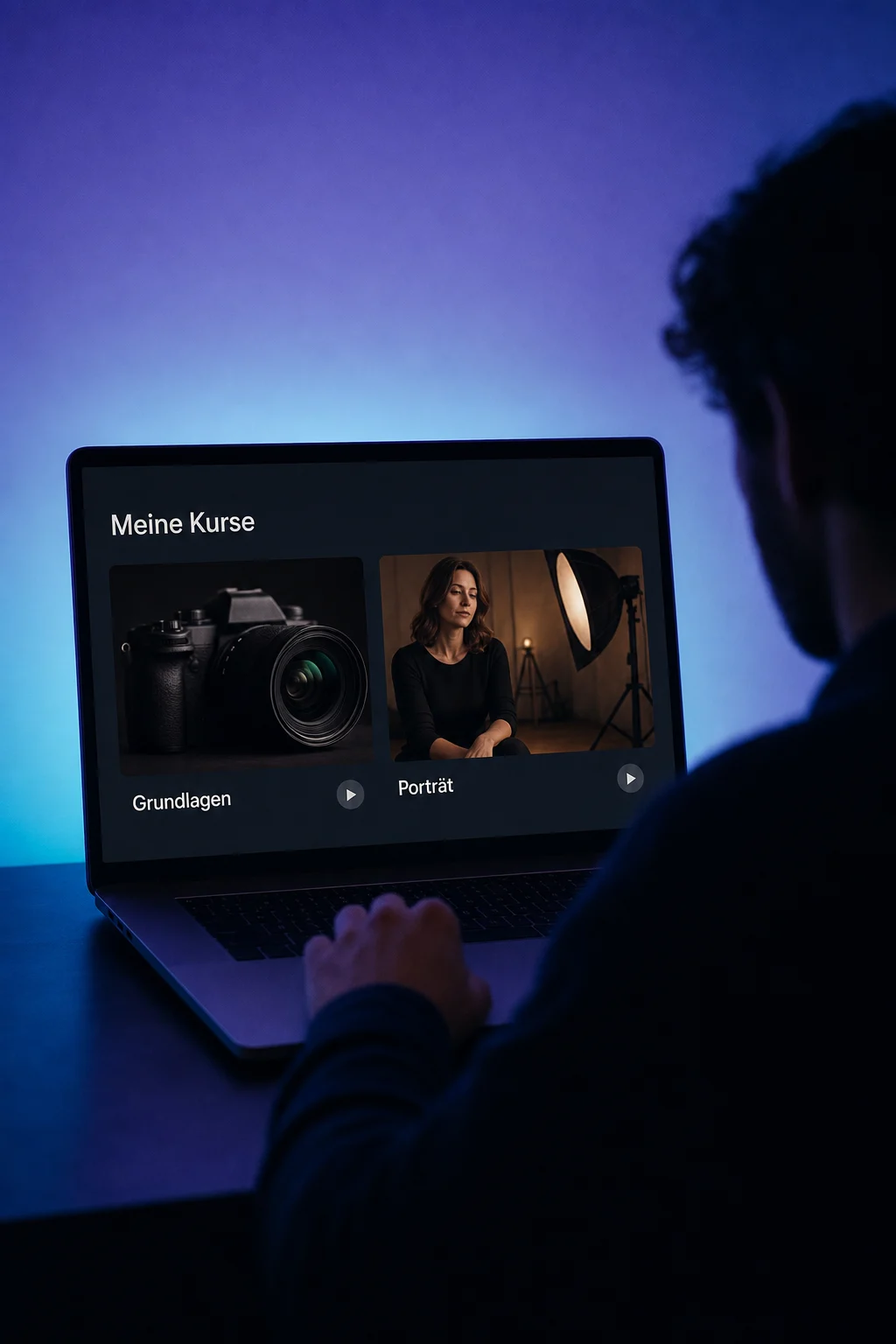
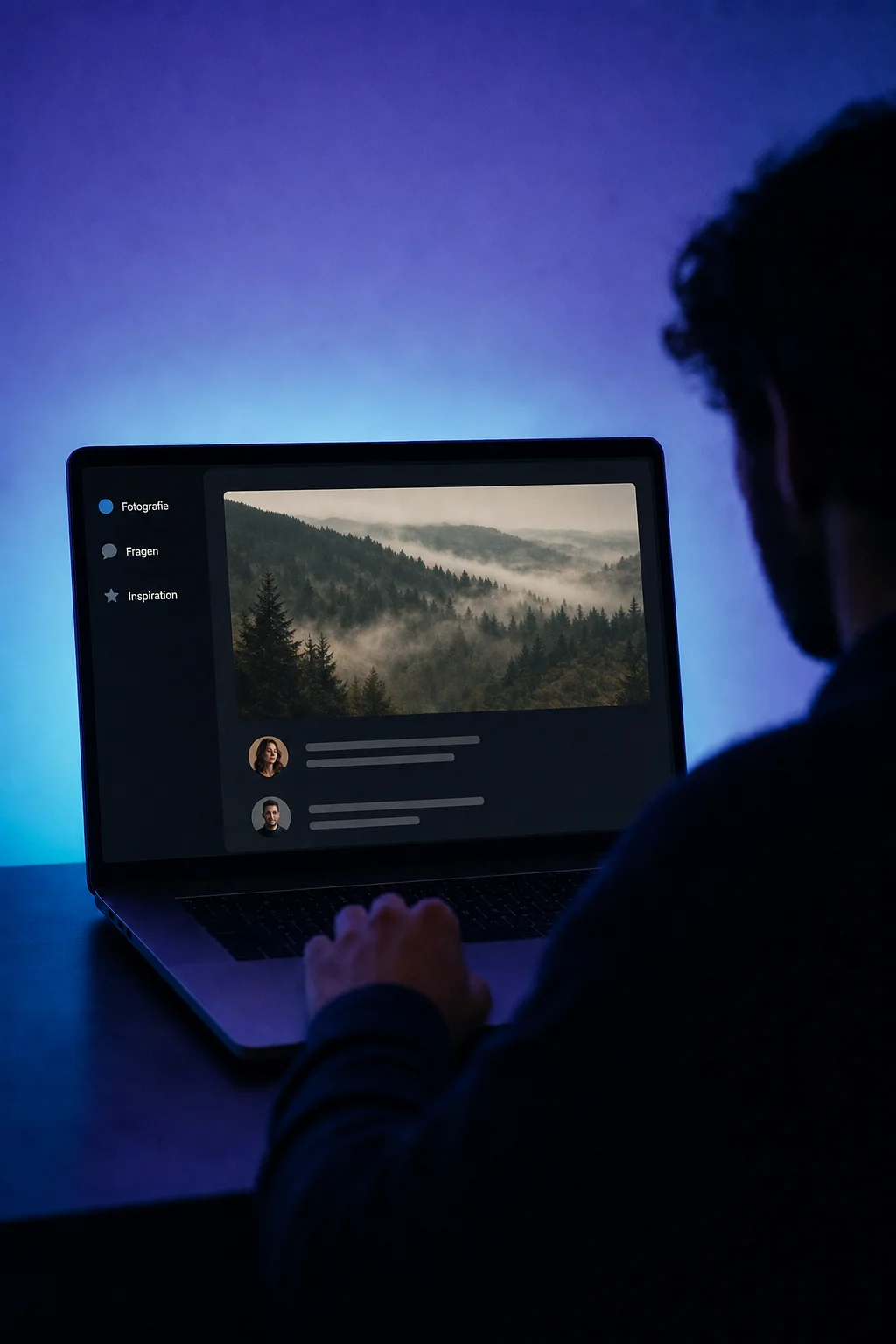
Create modules, reorder lessons with drag and drop, and edit the selected content alongside the outline. Keep the whole course in view.


Courses
Organise your knowledge into lessons, add videos and exercises, and support your learners in a dedicated course area.
Three examples show how you can use Courses.
Create modules, reorder lessons with drag and drop, and edit the selected content alongside the outline. Keep the whole course in view.
Upload your video and add the supporting material. Keep the lesson in draft until you have reviewed and published it.

Add a quiz with single- or multiple-choice questions. You set the questions and grading so learners can check what they have learned.

The practical benefits of Courses.
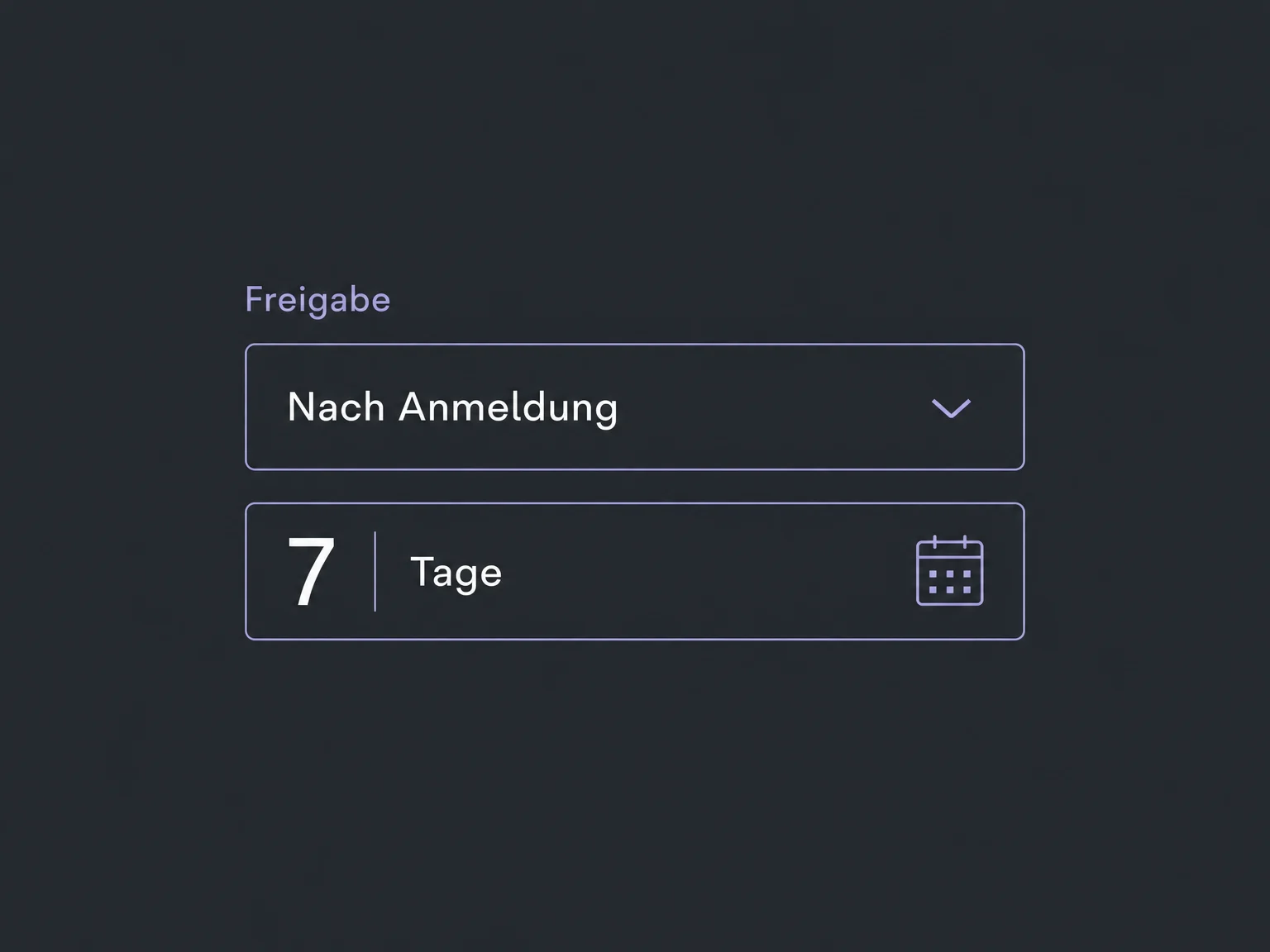
Use timed releases to decide when further lessons become available. Deliver your course in manageable stages.
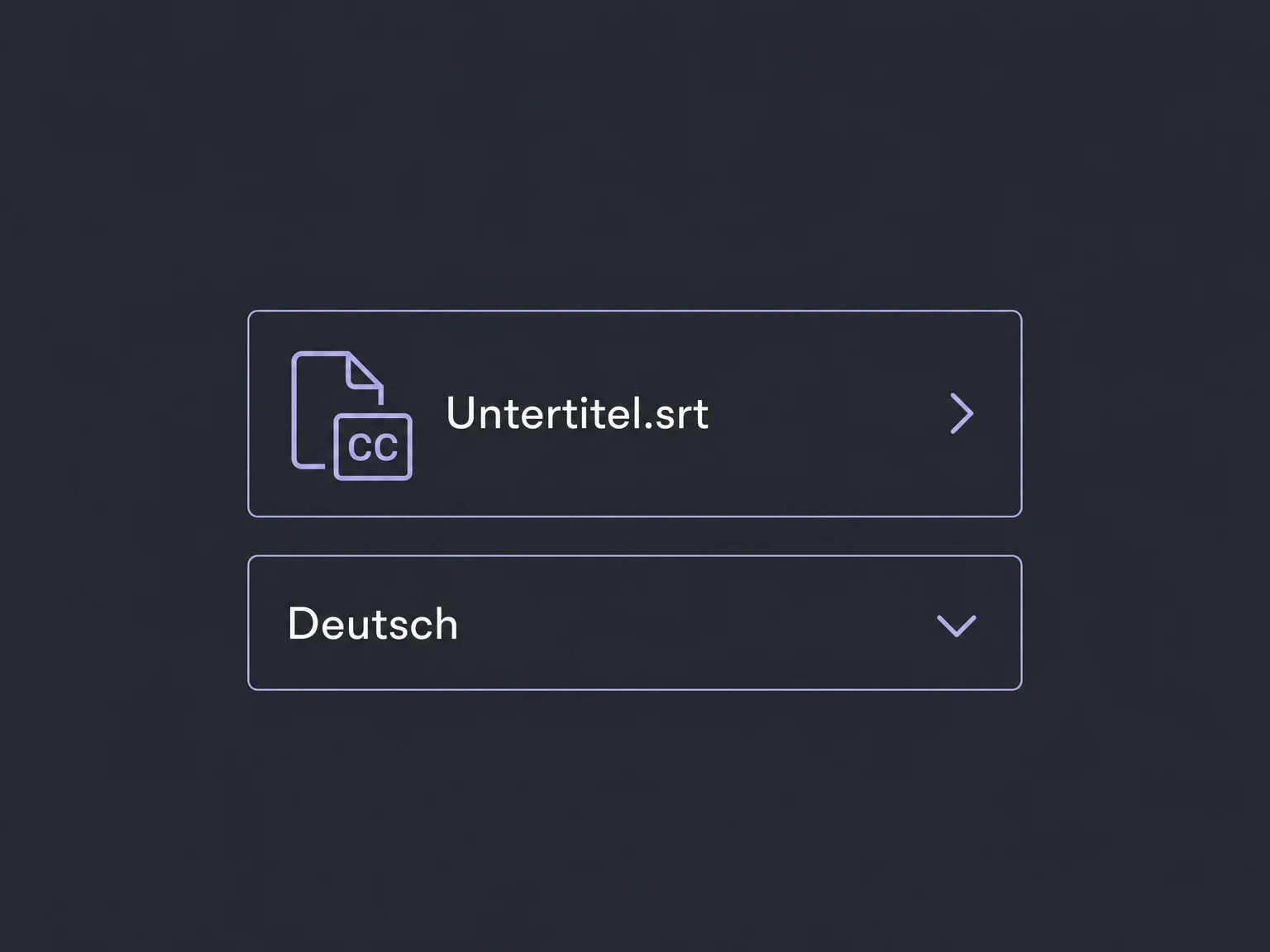
Add SRT subtitles in the languages you need. Edit the text and timing; translations are not supplied automatically.
Set an assignment with instructions and a template. Choose whether to grade it or use it as an ungraded exercise.
Review course progress and recent access to guide your follow-up. Completing a course alone does not prove that someone has mastered the subject.
Publish announcements for one course or all courses. Enable an additional email notification when you want to send one.
Simplified examples, not live account data.
You provide the content and usage rights. Together we check course access, file formats, enabled features and package scope, then test the learner experience before launch.
Courses hold your learning content. Memberships manage access; the customer portal and communities can support participation. These connections are configured separately.
Availability and any add-on or usage costs are confirmed for your ONE LOOP account before implementation.
A course contains lessons, videos and assignments. Memberships and course offers determine who can access them. A course does not have to require a recurring subscription.
Text, video and supporting files, plus course quizzes and assignments. We check supported file formats and sizes in advance. Make sure you have the necessary rights for images, video and materials.
No. Publishing content and granting course access are separate. We configure access for your learners, for example through a course offer. Direct course pricing is not available in every account version. A login link alone does not grant permission.
Yes. Course progress shows participation and completion; assessment results show answers and grades. These are different kinds of information. A certificate or completion message requires separate setup.
Let’s explore your use case and what the setup requires.
Book a demo