
01
Make your services bookable.
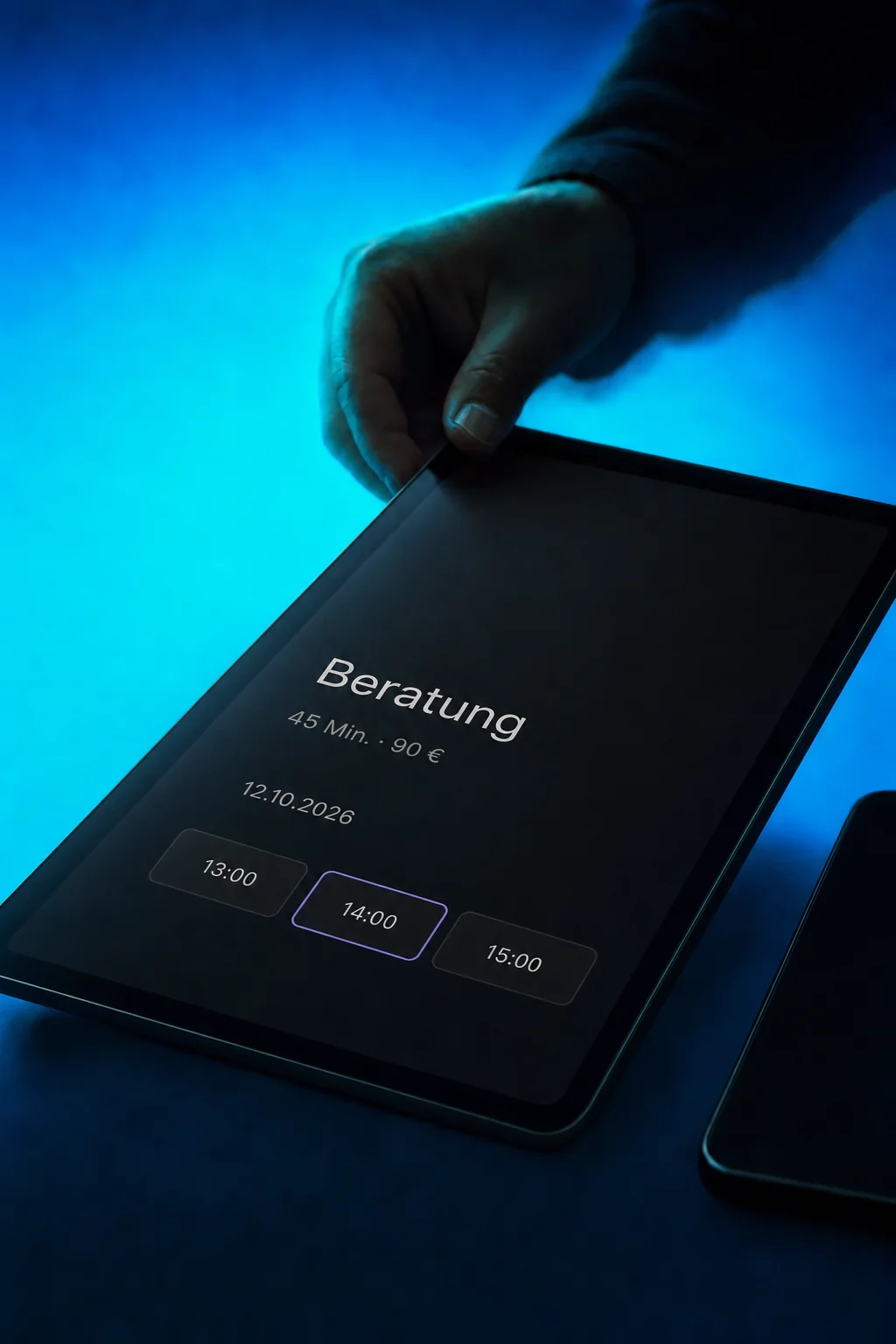
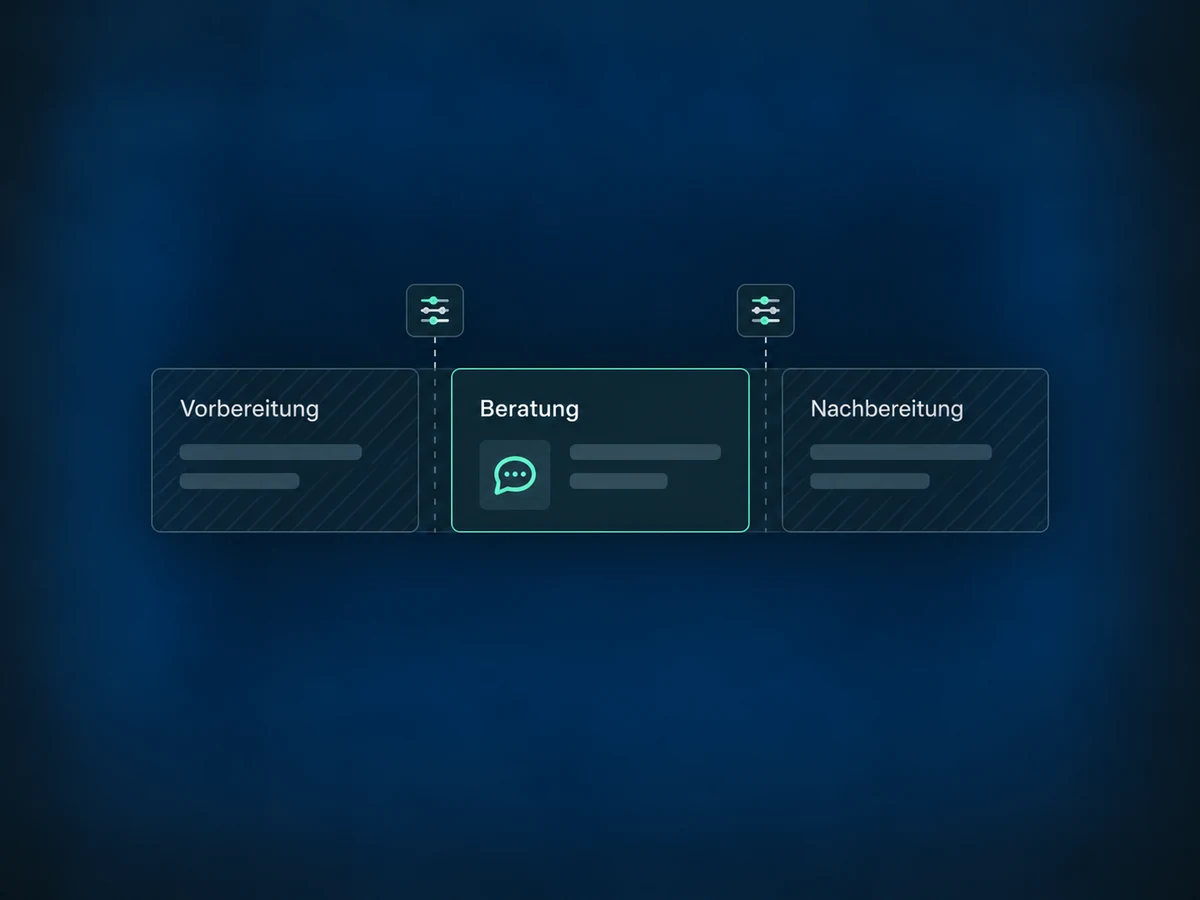
Set the service, duration and price, then assign the right staff. This example sets up a 45-minute consultation. Customers can see what they are choosing before they book.

Service Booking
Consultations, treatments or training: customers choose a service and an available time. You keep track of staff, rooms and booking details.
Three examples show how you can use Service Booking.
Set the service, duration and price, then assign the right staff. This example sets up a 45-minute consultation. Customers can see what they are choosing before they book.
Your booking page shows available times for the selected service. Configured working hours and required rooms help determine availability. You can also let customers choose a member of your team.

Open an appointment to see the customer, service, assigned staff and room together. If the time needs to change, you can share a rescheduling link. Paid bookings have additional editing restrictions.

The practical benefits of Service Booking.
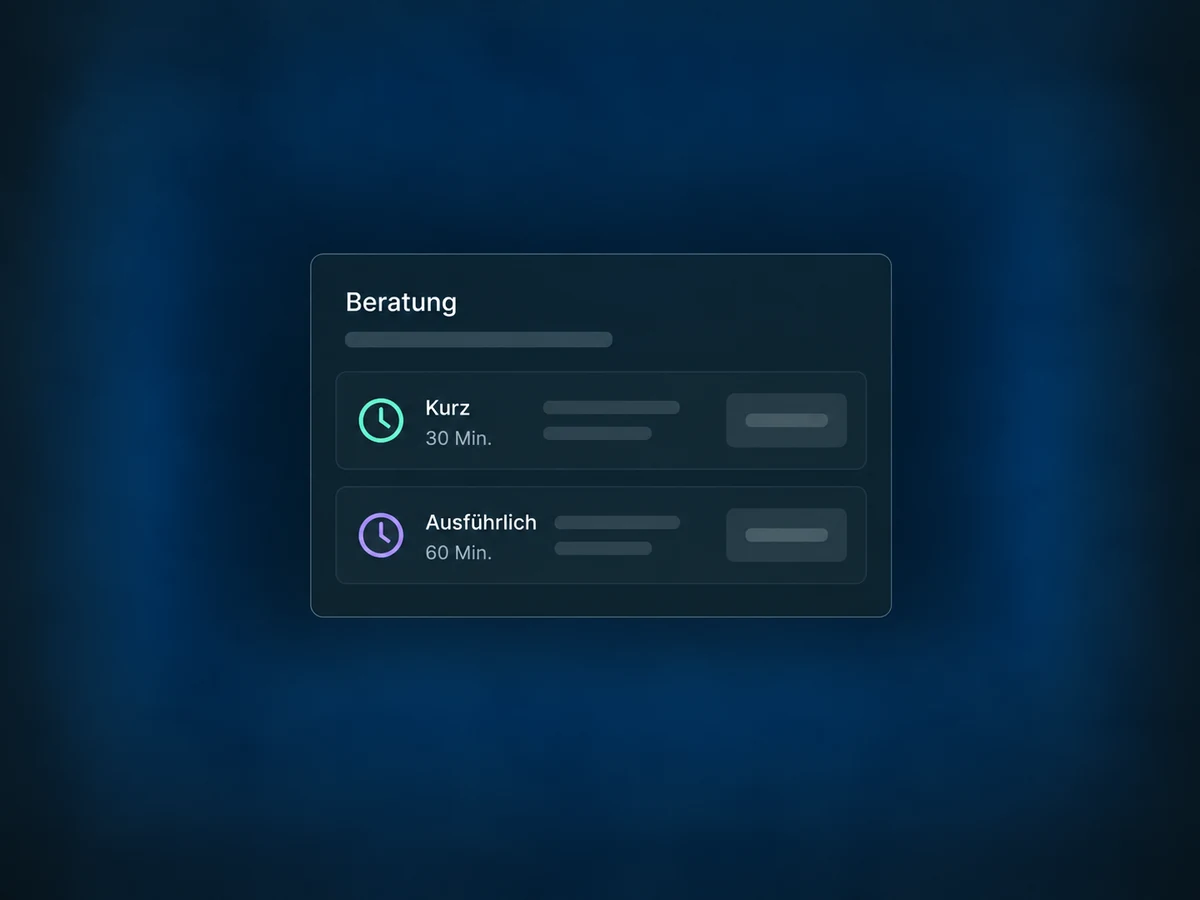
Create service variants with their own duration and price. The same service can offer a brief consultation or a longer appointment.
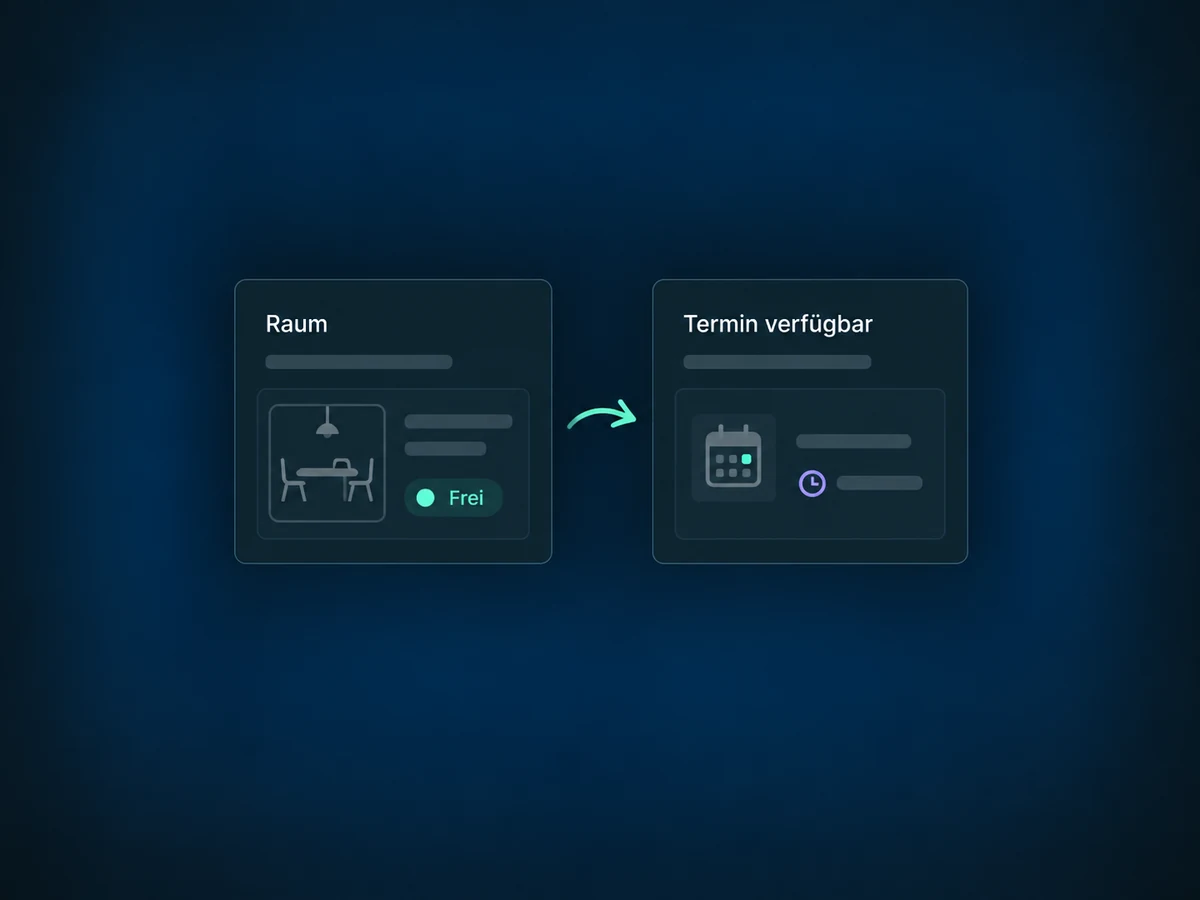
Link a service to a required room or workstation. If no suitable resource is available, the time is not offered. Each booked service is assigned one resource.
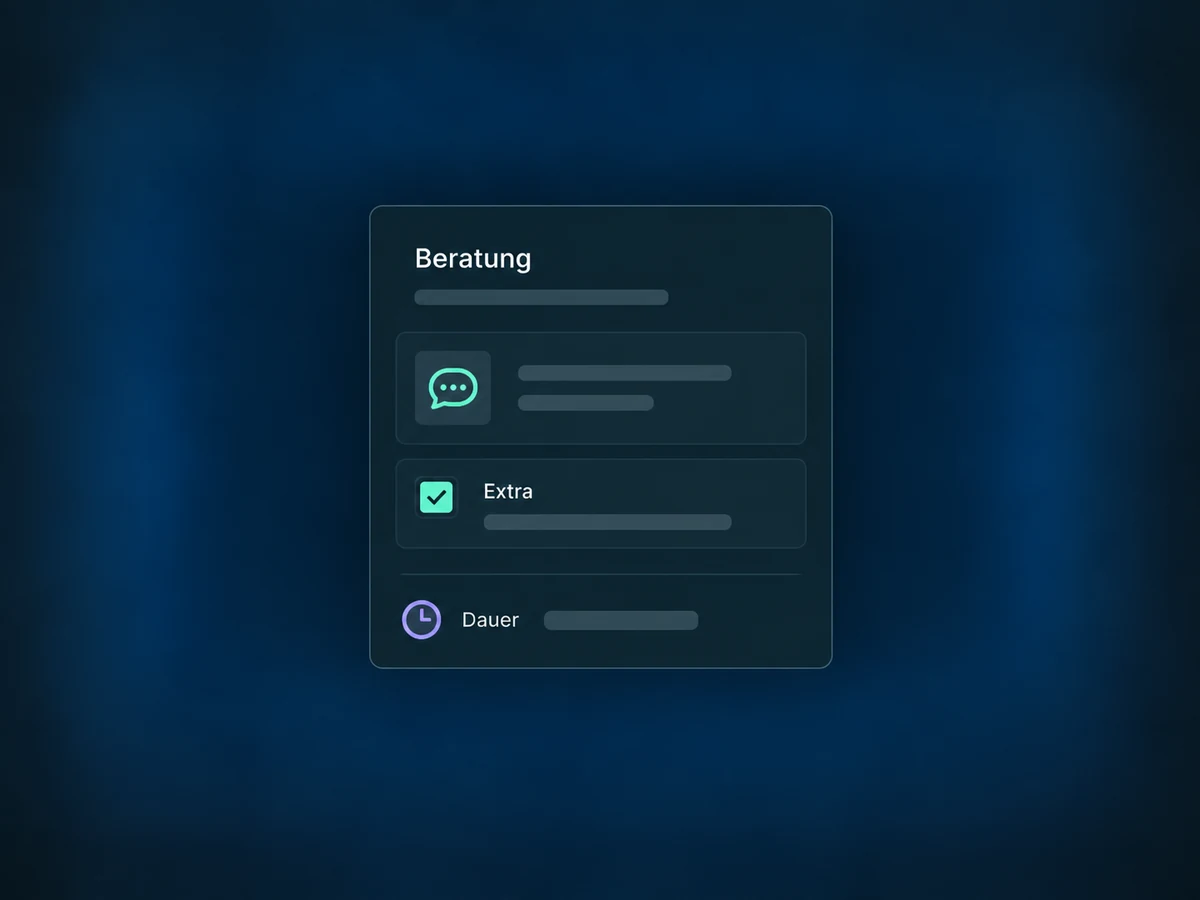
Add optional extras with their own price and, where needed, extra time. The selection becomes part of the booking instead of a separate arrangement.
Add buffers around a service. Leave time between appointments to prepare the room or finish your notes.
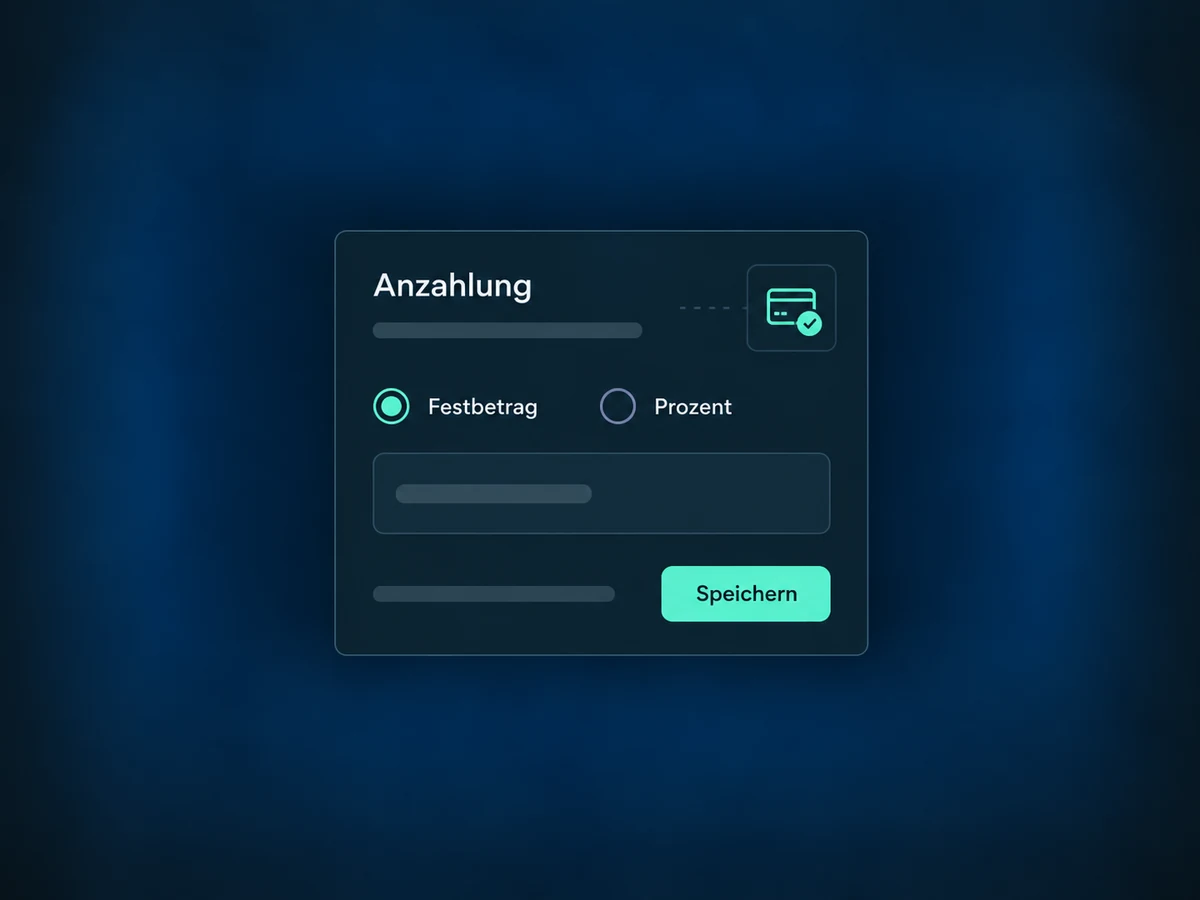
With a payment provider connected, you can set a fixed or percentage deposit. Decide in advance whether to collect payment online and which terms apply.
Simplified examples, not live account data.
We check feature access and configure services, staff, locations and availability. We add required rooms, payment methods and booking messages, then test the complete booking flow.
Set up confirmations and follow-up using the service-booking trigger. It works with the whole booking, even when it contains multiple services. Status filters determine when the follow-up starts.
Availability and any add-on or usage costs are confirmed for your ONE LOOP account before implementation.
Here, booking starts with your service offering: duration, price, variants and suitable staff. Customers can combine several services in one booking. A regular booking link is suited to a single introductory meeting, for example. Both booking types can run alongside each other.
Check that the service is active and assigned to staff with the right location and working hours. Any required resource must also be available. Date-specific hours and buffers can further limit the times offered.
You can reschedule without changing the original payment. Changes to services or staff are restricted for paid bookings. A different service selection may require a new booking. Review its payment handling separately.
A single-service booking can sync both ways with a supported connected calendar. With multiple services, individual appointments are sent to the assigned staff calendars, but changes made there do not sync back. Edit those bookings directly in ONE LOOP.
Let’s explore your use case and what the setup requires.
Book a demo