01
Make it easy for customers to pay.
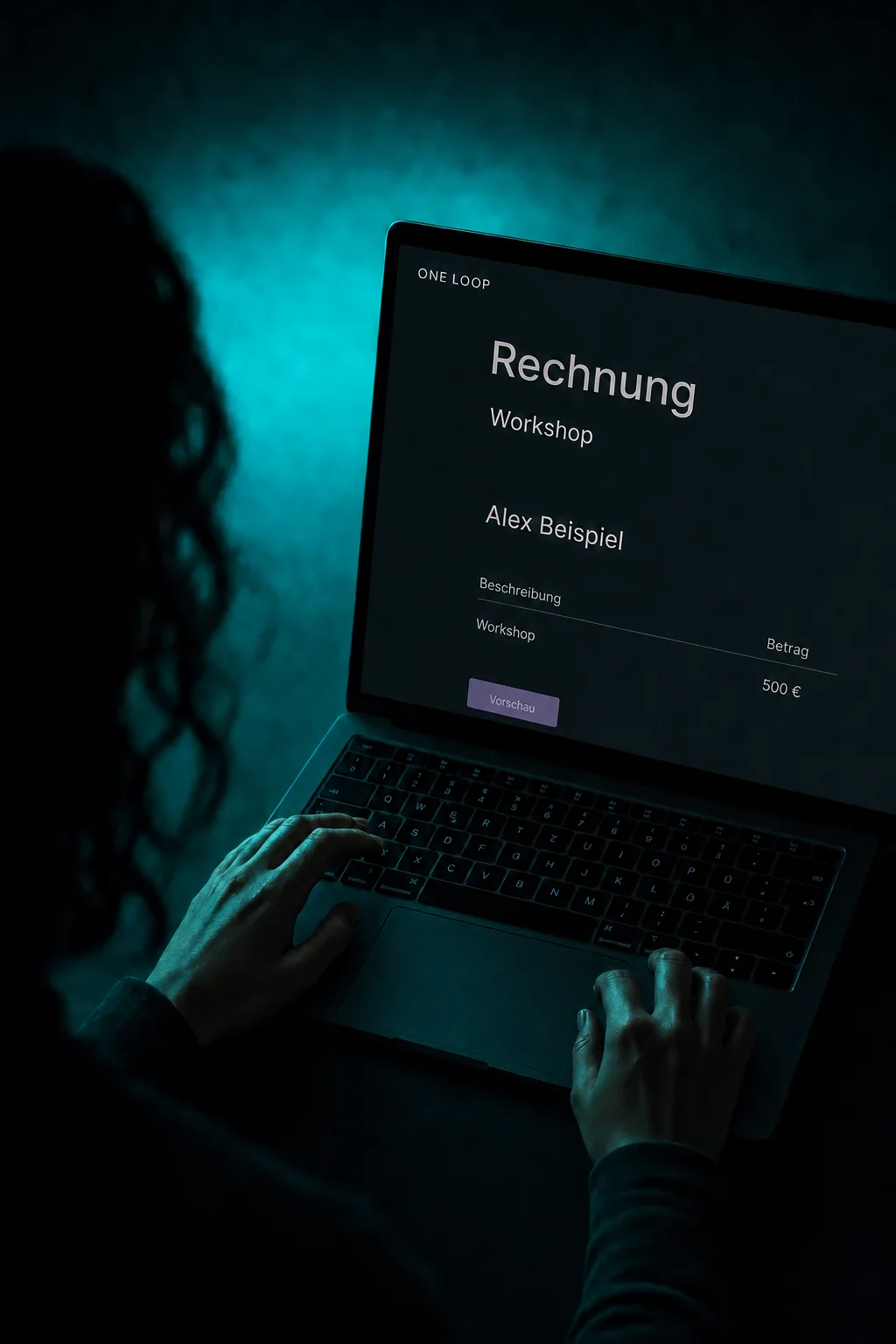
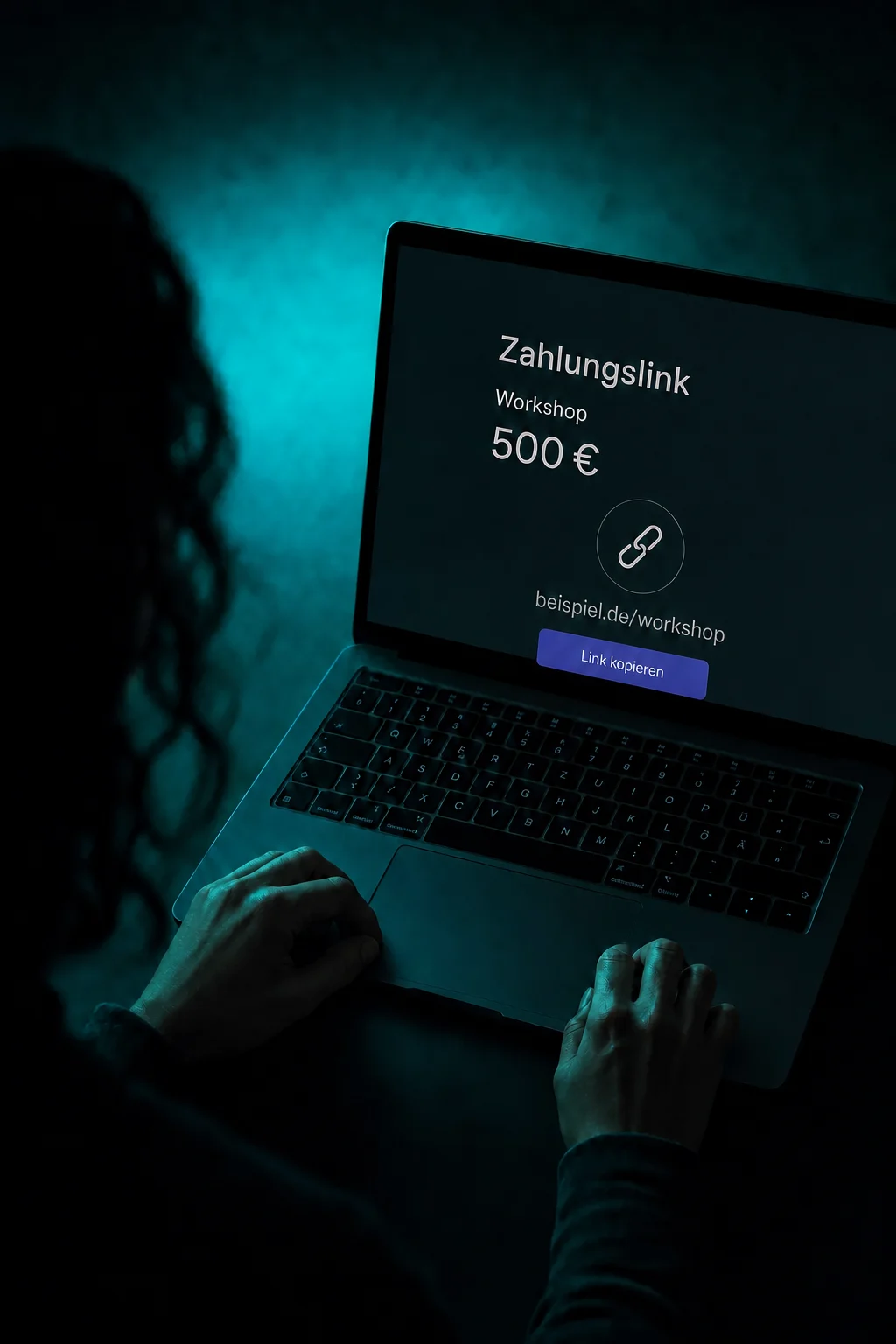
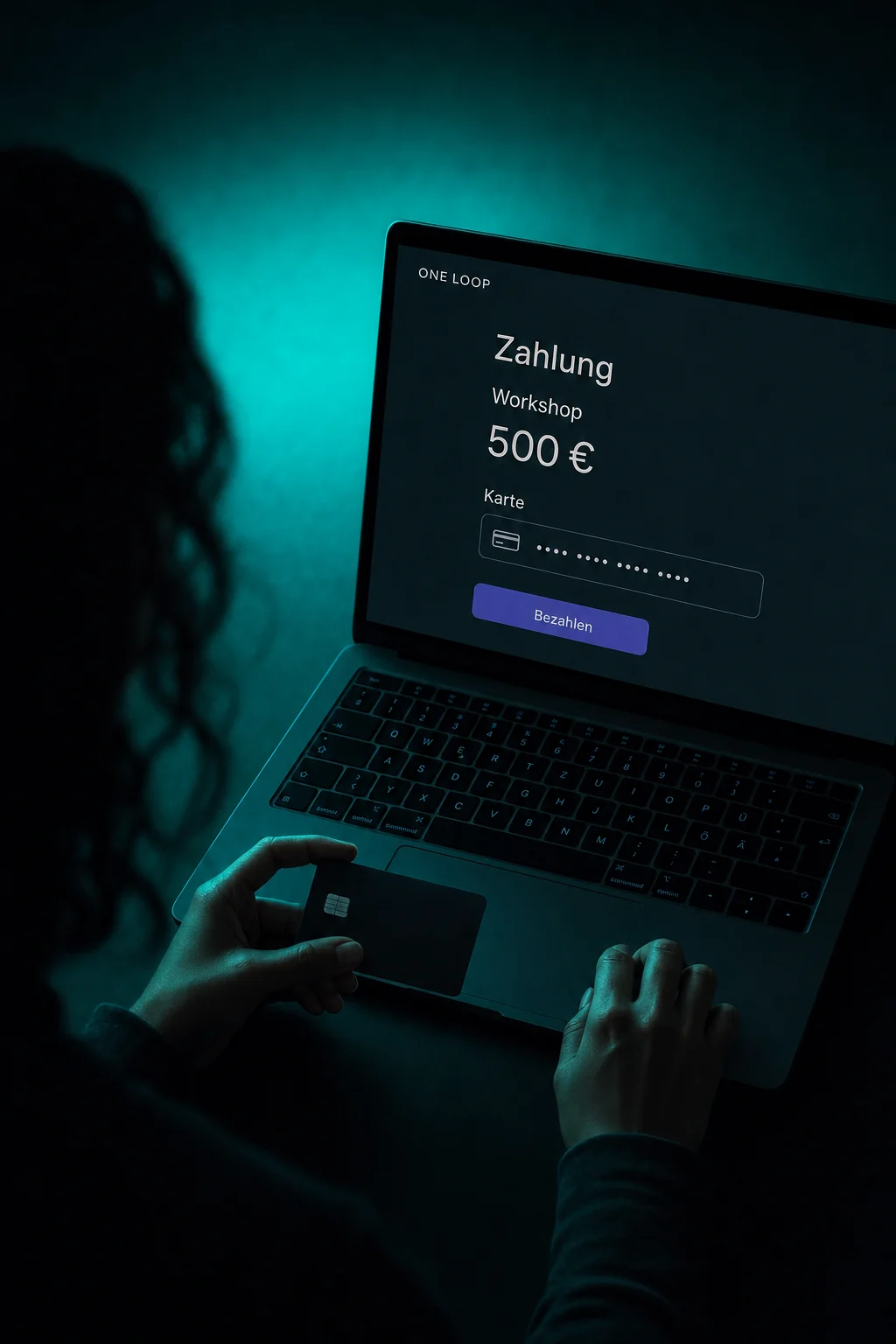
Your customer sees the item and amount and pays using an available method. Connect a supported provider to your checkout, invoice or payment link first.

Payments
Let customers pay online and see whether their payment succeeded in ONE LOOP. You can also manage refunds for supported transactions.
Three examples show how you can use Payments.
Your customer sees the item and amount and pays using an available method. Connect a supported provider to your checkout, invoice or payment link first.
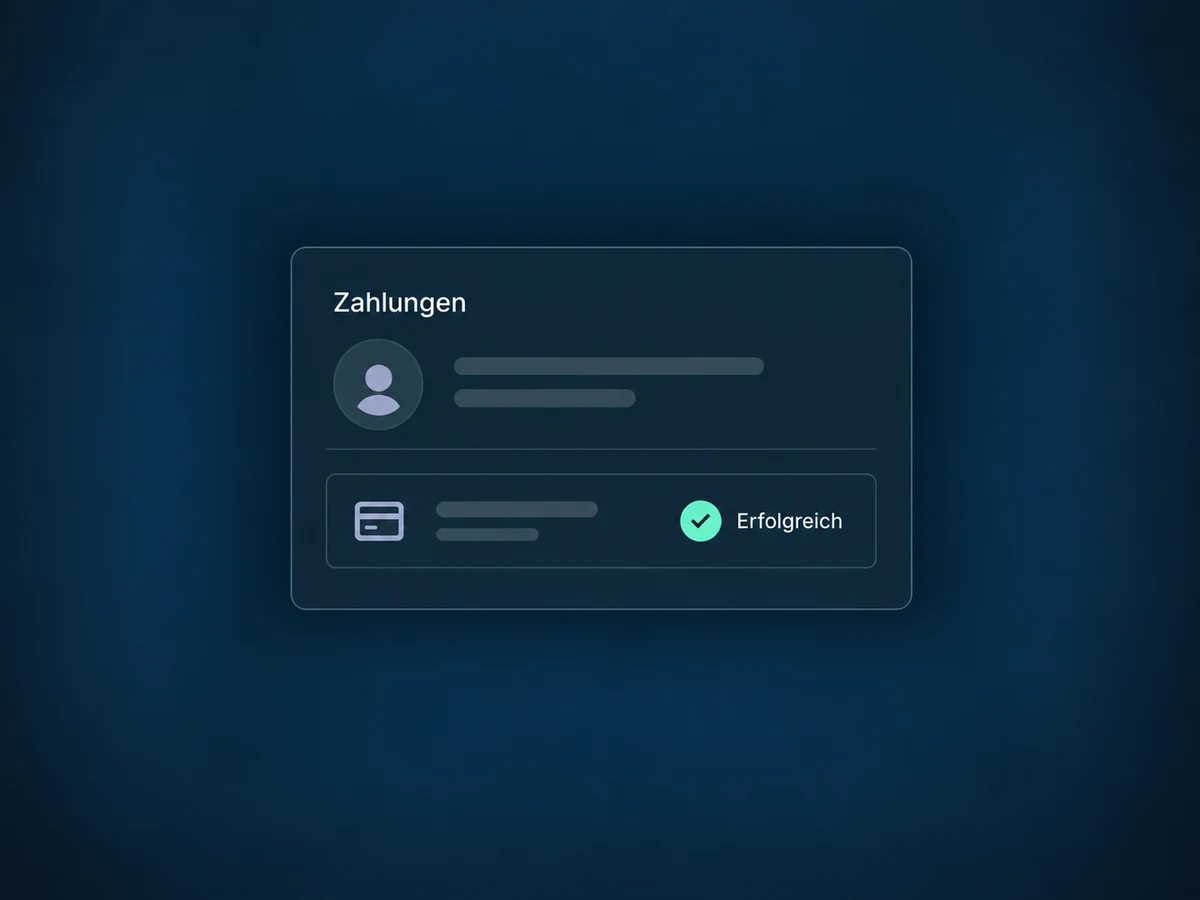
Open the transaction to check the customer, amount and status. Distinguish a successful payment from one that is still pending or has failed.

For a supported transaction, choose a full or partial refund. Review the amount before confirming, then check the refund status.

The practical benefits of Payments.
The contact profile shows associated payments and their status, giving your team context when a customer asks about a charge.
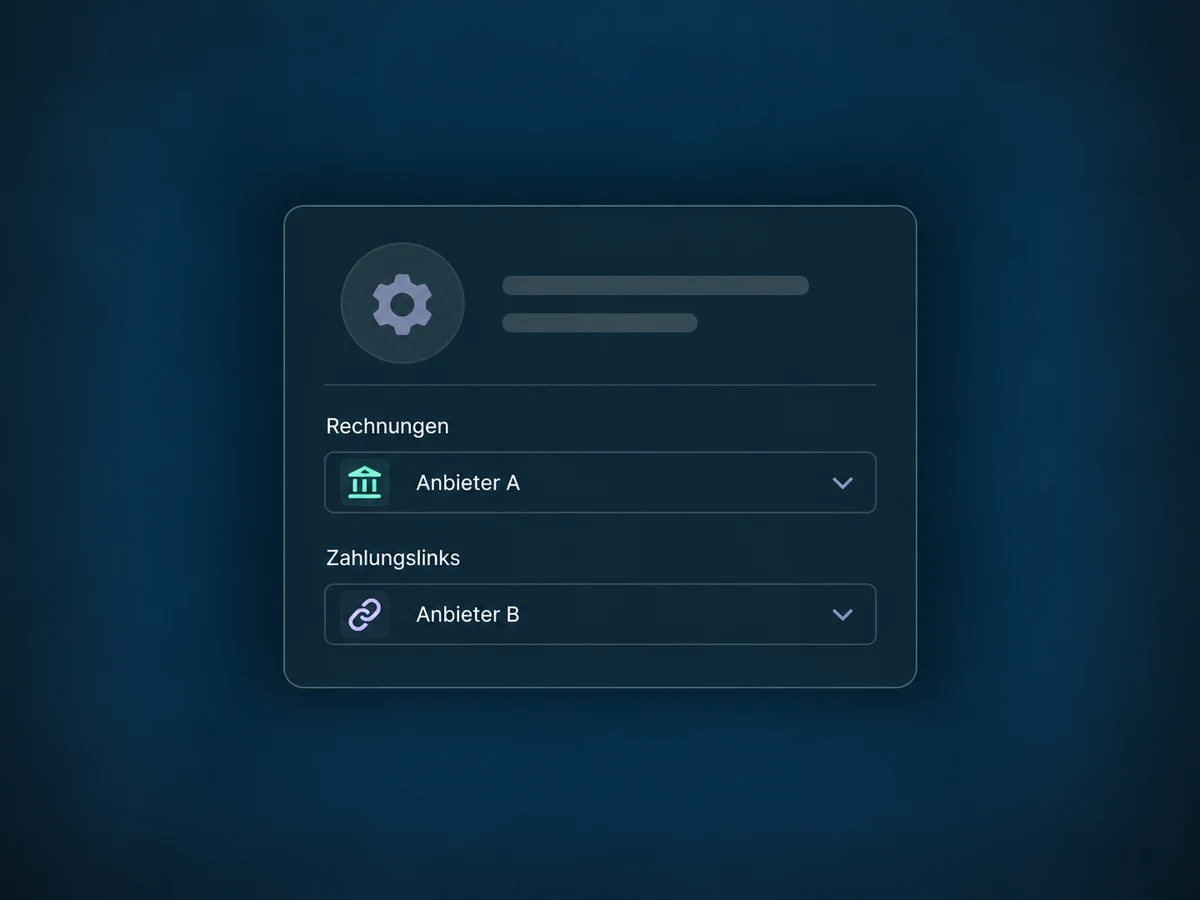
Set different connected providers for channels such as invoices and payment links. If no channel-specific choice is set, the default provider applies.
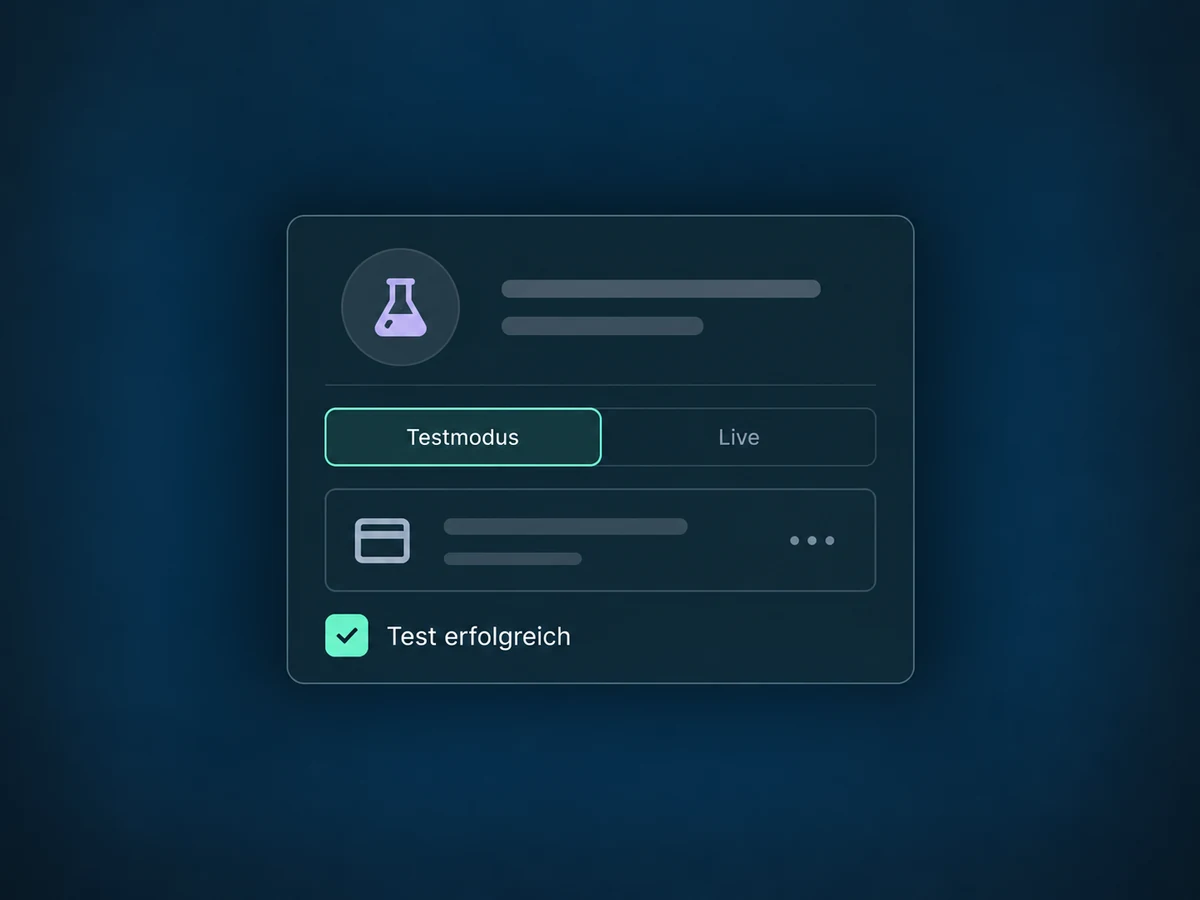
Check the flow in a supported test mode without processing real payments. Test and live providers are configured separately.
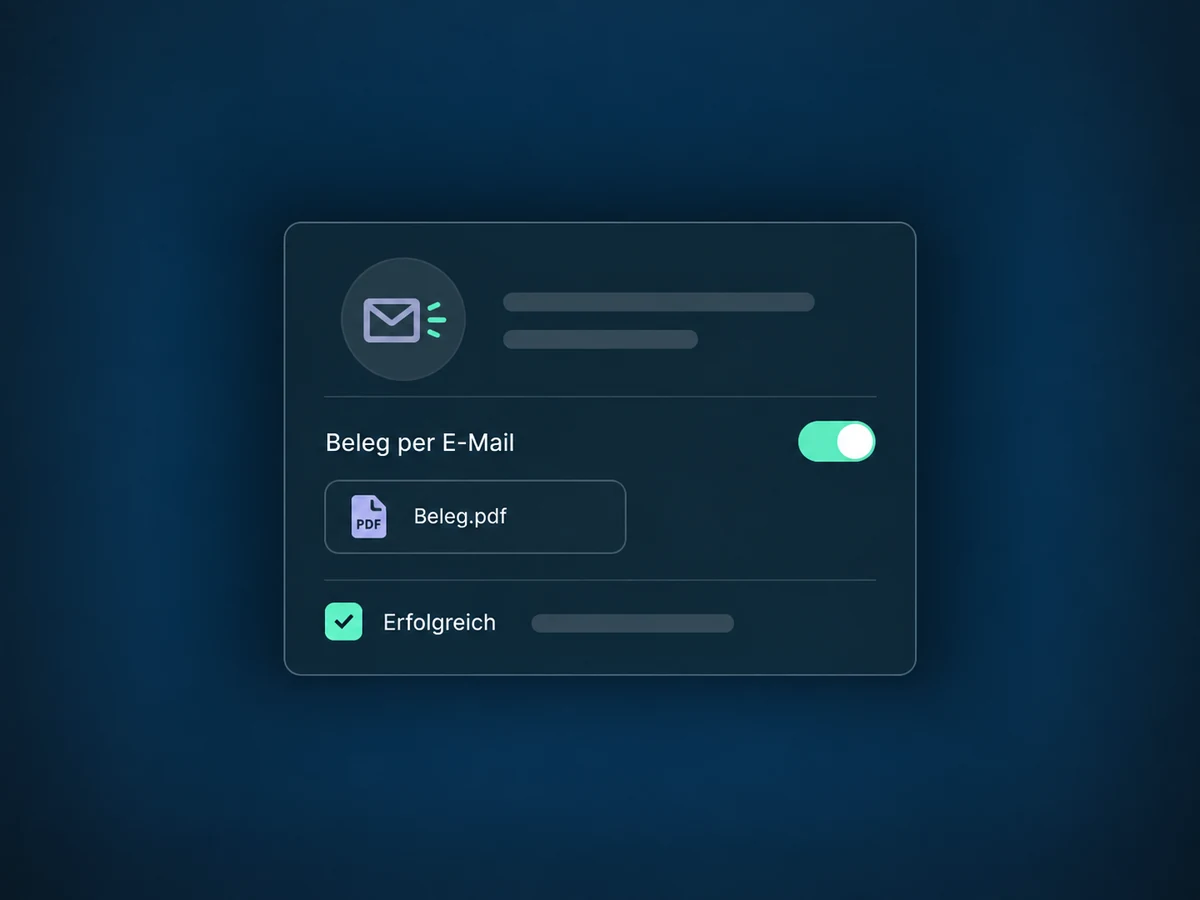
Enable emailed PDF receipts for supported payments, such as invoices or bookings. Review existing confirmations to avoid duplicate messages.
A configured workflow can notify your team after payment succeeds. Explicitly filter by payment status and the relevant source.
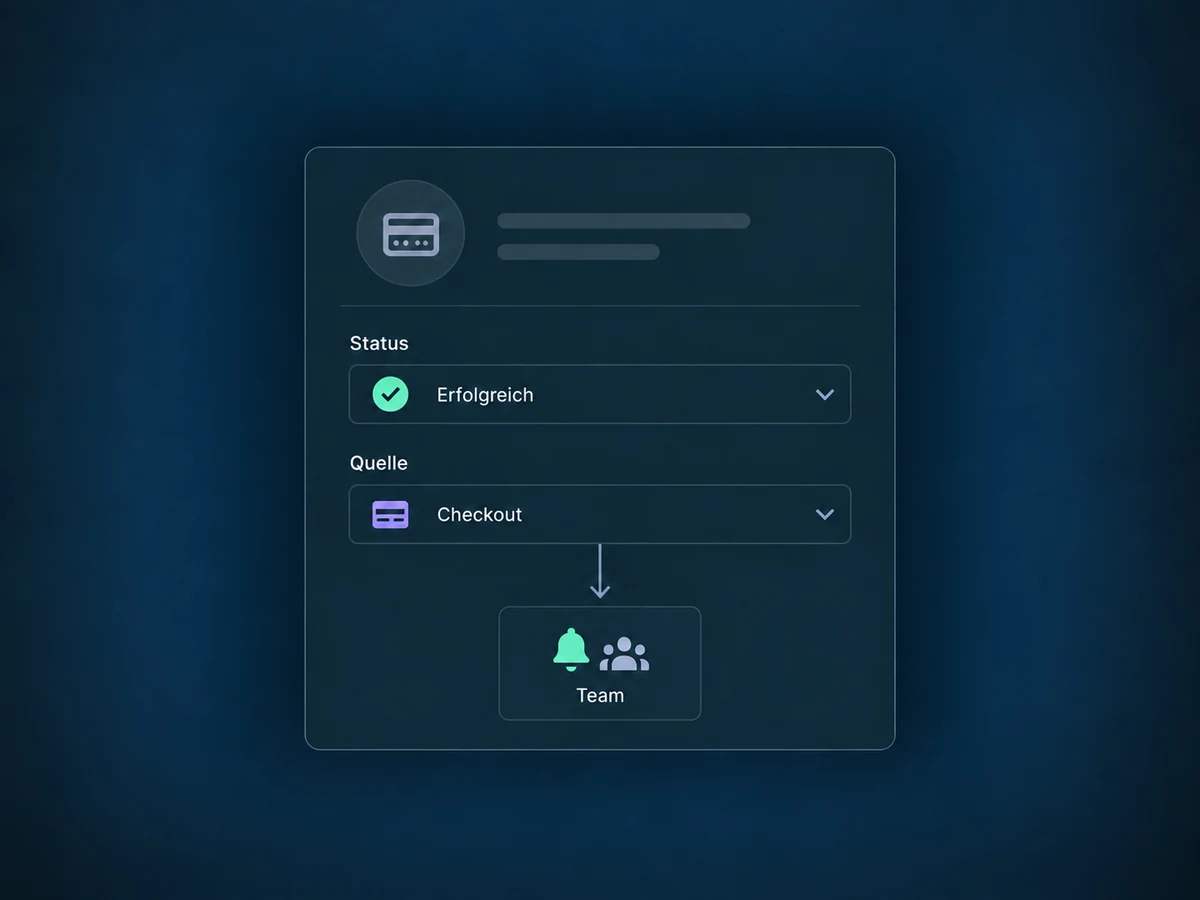
Simplified examples, not live account data.
We check access, provider, country, currency and fees for your sales channel. Before launch, we configure payment methods, amounts and receipts and test the intended follow-up actions.
The CRM provides customer context, while configured workflows handle follow-up. Quotes, invoices, payment links and subscriptions remain separate features: an accepted quote or submitted form is not a successful payment.
Availability and any add-on or usage costs are confirmed for your ONE LOOP account before implementation.
Card payments are one example; other methods depend on the supported connection. Availability varies by provider, country, currency, sales channel and access. A method that supports one-off payments may not support subscriptions. We check your specific combination before launch.
No. The transaction status describes the customer payment. Payout to your bank account follows your payment provider’s process. Clicking Pay alone does not confirm a payment either. Payouts and accounting need separate reconciliation.
Yes, if the provider and transaction support refunds. Change the amount before confirming; total refunds cannot exceed the original payment. Check the status afterwards. When the customer receives the funds also depends on the provider and their bank.
Payment providers may charge transaction fees and other costs. These are not automatically included in your ONE LOOP package. We clarify the payment flow, access and potential extra costs before setup; refunds are not universally free either.
Let’s explore your use case and what the setup requires.
Book a demo