01
Turn your work into an invoice
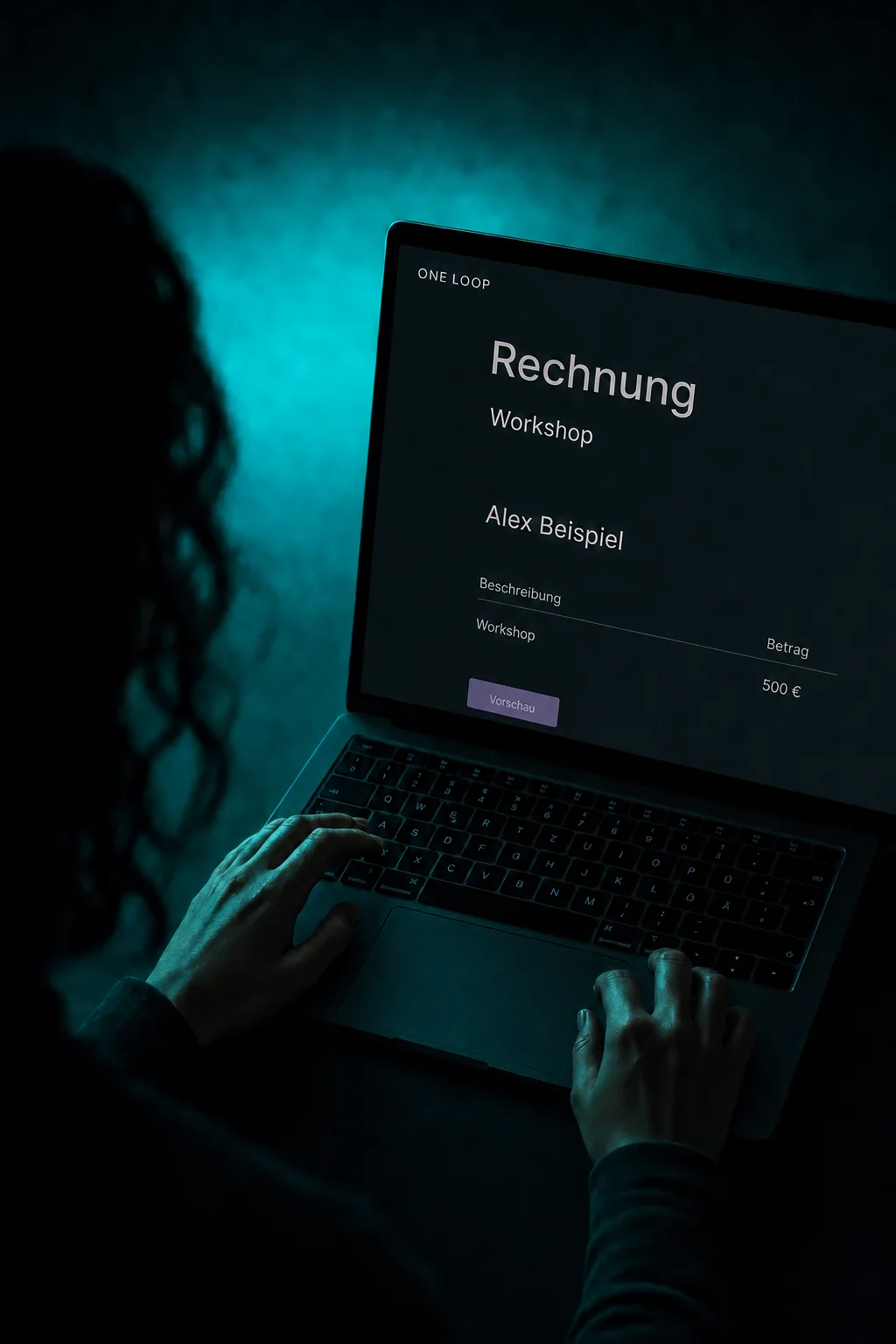
Select the customer and add services, quantities and prices. Check the invoice number, due date and tax details before saving the draft.

Invoices
Bill for your work, send the invoice and see how much remains unpaid.
Three examples show how you can use Invoices.
Select the customer and add services, quantities and prices. Check the invoice number, due date and tax details before saving the draft.
After saving, open the separate preview to check the customer view. Send the invoice by email or text. Online payment uses your configured payment options.

Paid in full or only in part? The invoice view shows recorded payments and the remaining balance, so you know which invoices still need follow-up.

The practical benefits of Invoices.
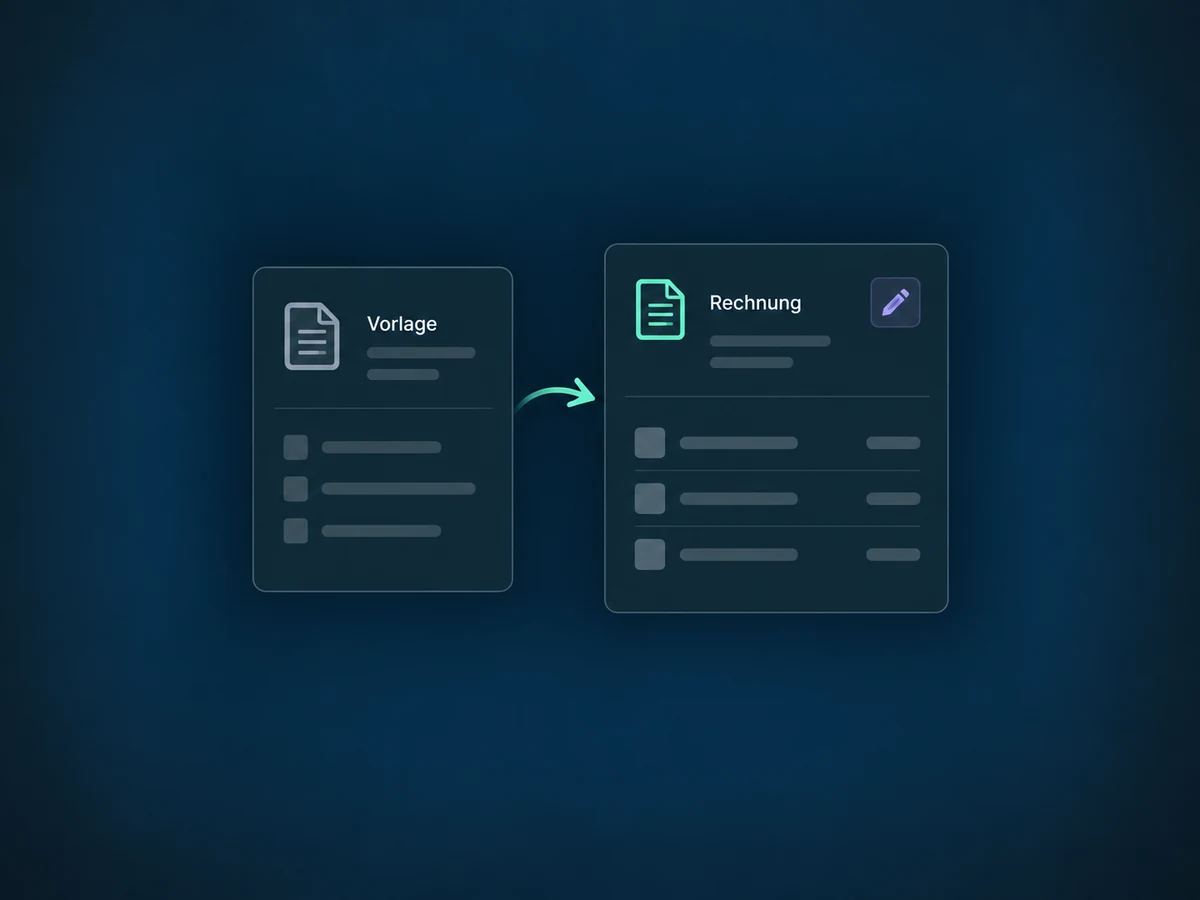
Prepare templates for services you bill regularly. Use one for your next invoice and adjust the details.
Attach a supporting document, such as a service record, to the initial invoice email. It travels with the invoice instead of in a separate message.
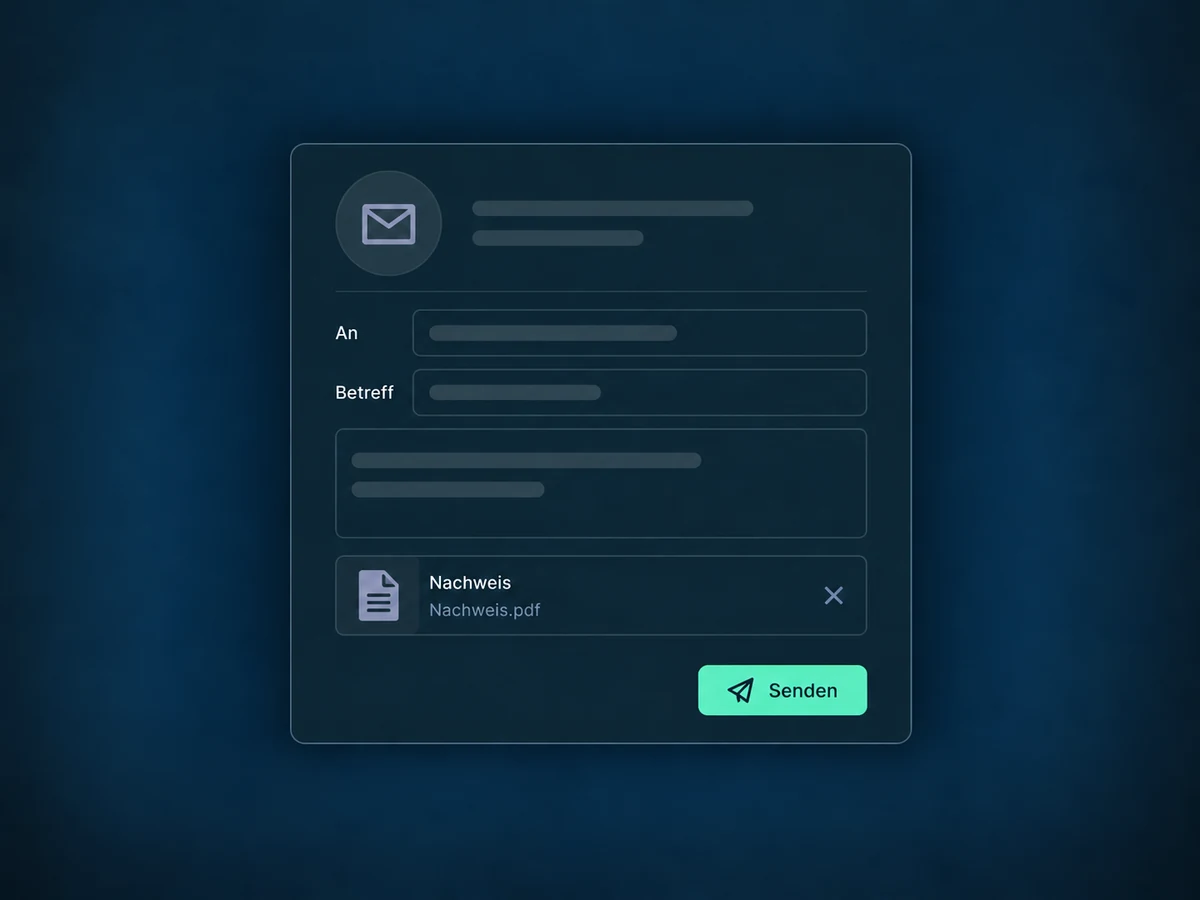
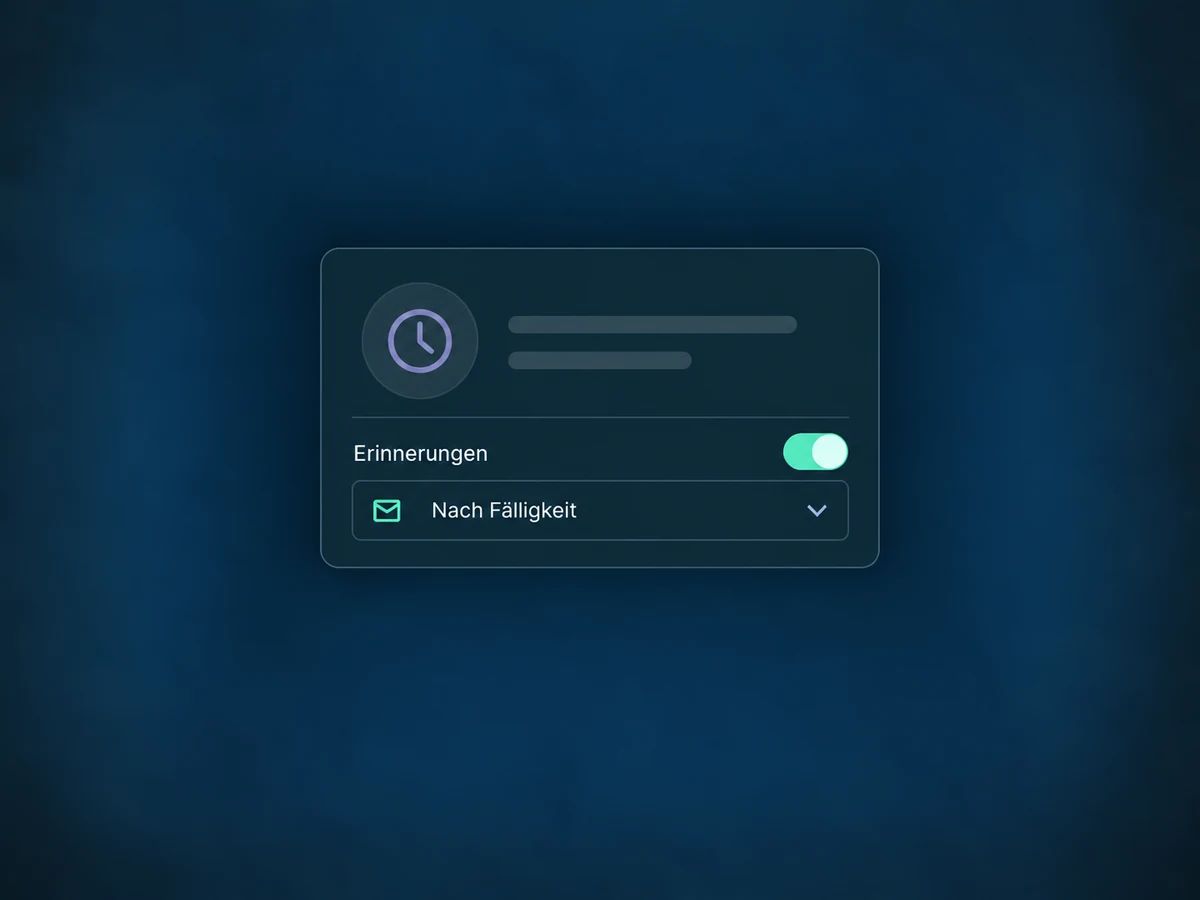
Choose when and how often to send a reminder. Enable the schedule deliberately; it applies to invoices created afterwards.
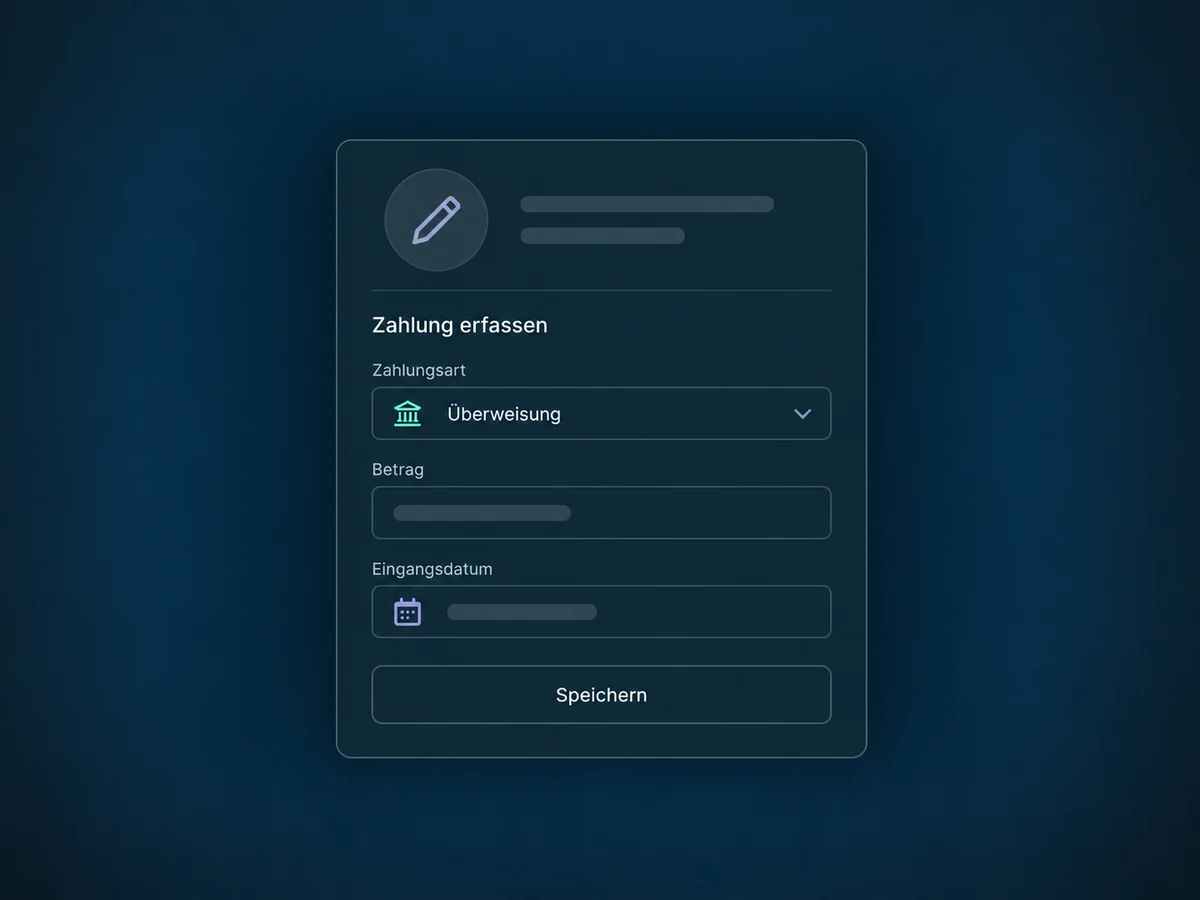
If payment arrived outside ONE LOOP, manually record the confirmed receipt. This updates the invoice without making another charge.
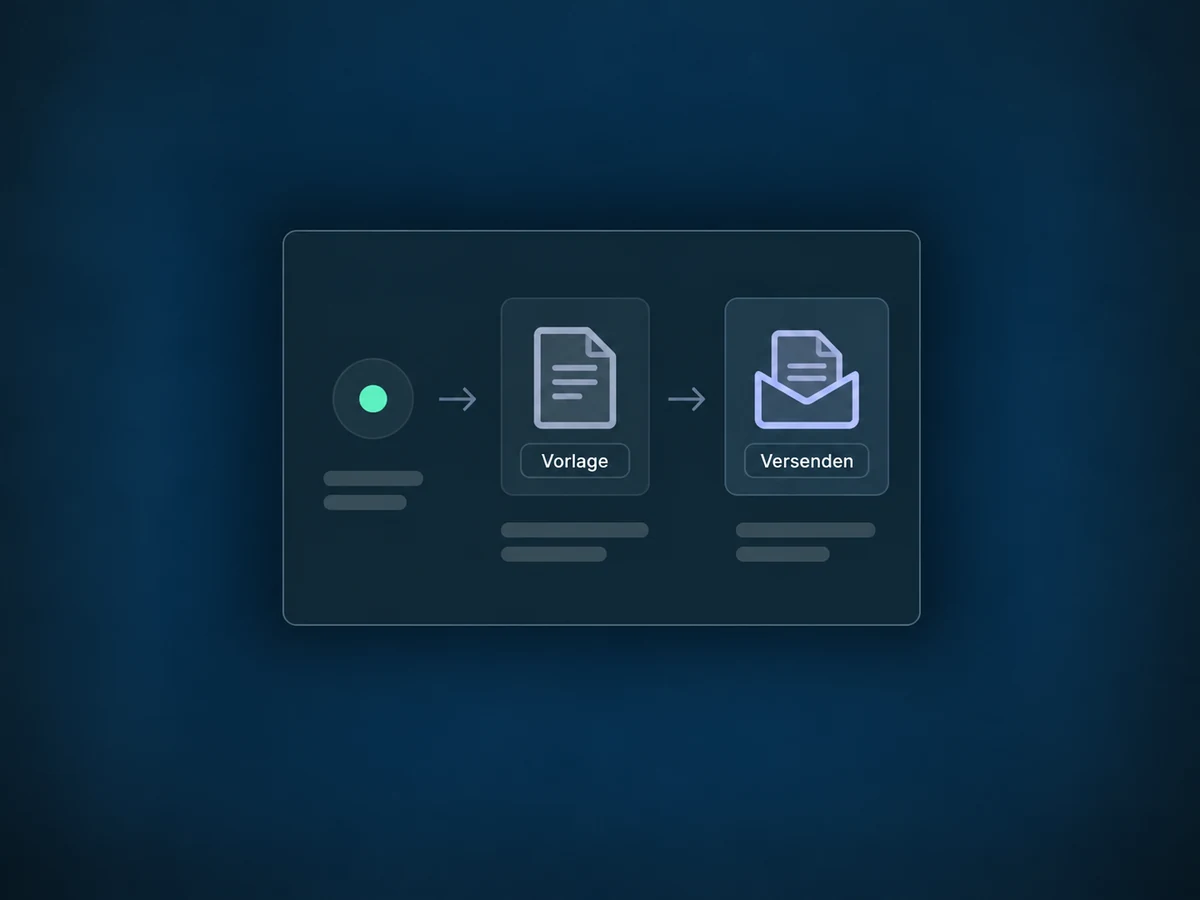
A configured workflow can create and send an invoice from your chosen template. Set its trigger, sender and channel, then test it before enabling it.
Simplified examples, not live account data.
Before use, we check access, sender details, required invoice fields, taxes, currency and payment provider. We test delivery and payment, and assess accounting and required e-invoice formats separately.
Invoices stay linked to the customer. Payment processing, subscriptions and accounting are separate topics: sending an invoice confirms neither payment nor a bank payout.
Availability and any add-on or usage costs are confirmed for your ONE LOOP account before implementation.
Yes, with a supported payment connection and partial payments enabled. You set a minimum proportion; the customer can pay that amount or more. The invoice stays partially unpaid until the full balance is paid. A payment plan with fixed instalments and due dates is configured separately.
No. An enabled reminder rule applies to invoices created afterwards. Earlier invoices, including overdue ones, need separate follow-up. In a manually composed message, check the amount, invoice number and due date yourself; those invoice fields are not filled in automatically.
Not necessarily for a one-time invoice with manual payment recording. For example, you can record a bank transfer you have actually received. Online payments need a suitable connection and access. Recording payment is different from charging a card; confirm receipt before adding a manual entry.
No. A plain PDF is not a structured e-invoice format. The formats, required fields and retention processes needed for your situation must be checked before use. Sending invoices is not the same as complete accounting or confirmed e-invoicing compliance. This does not replace tax advice.
Let’s explore your use case and what the setup requires.
Book a demo