
01
One company profile for the details you need.
Create a company record with its contact details. Add fields such as industry or customer type instead of repeating the same company information for every person.


Companies & Contacts
Keep company details in one place and link the people you work with. Your team can see who belongs to each customer account.
Three examples show how you can use Companies & Contacts.
Create a company record with its contact details. Add fields such as industry or customer type instead of repeating the same company information for every person.
Associate existing contacts with their company. Open the company profile to see its people and find the right contact. Each person keeps their own contact record.

Filter companies by city, industry or custom fields. With Smart Lists enabled, save the view and return to it with up-to-date data.

The practical benefits of Companies & Contacts.
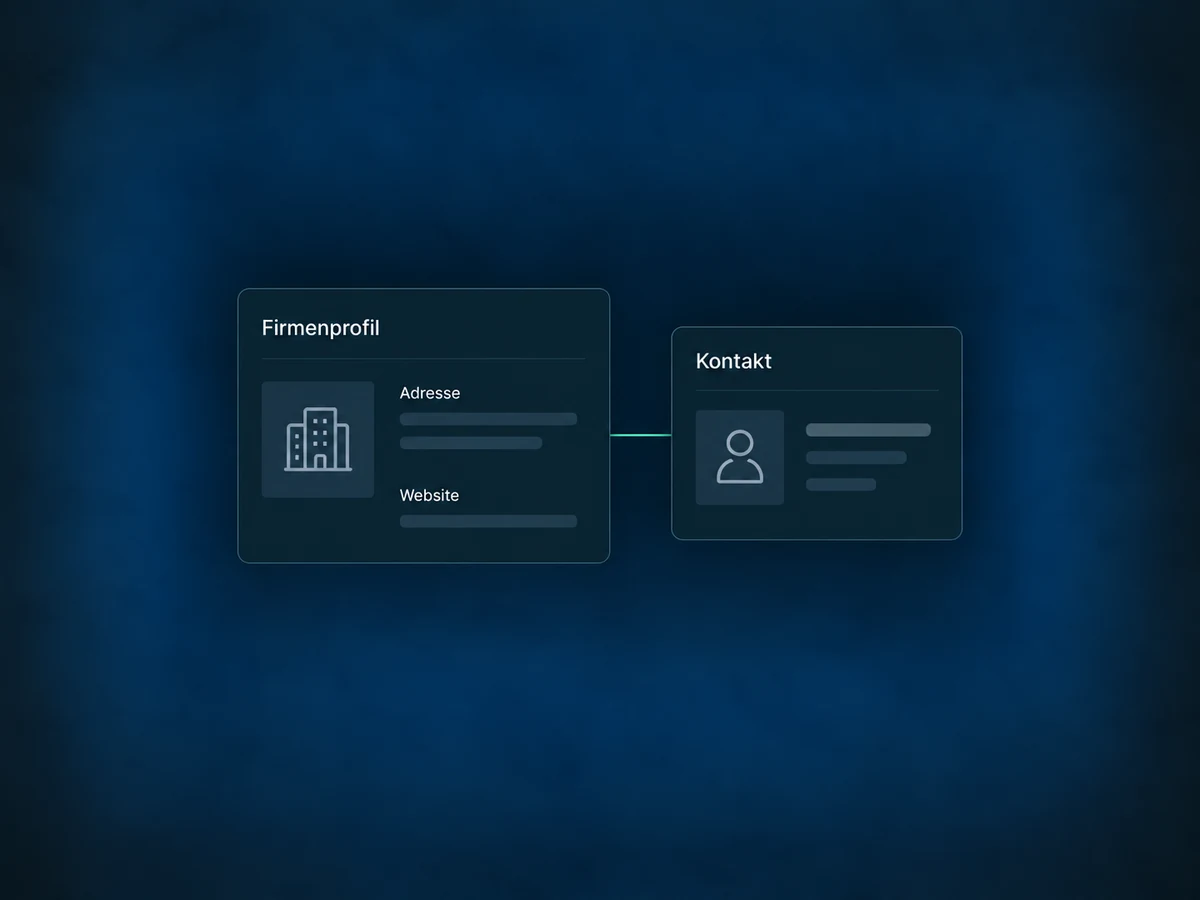
Store the address, website and other company information on the company record. Keep it separate from personal contact details instead of maintaining several copies.
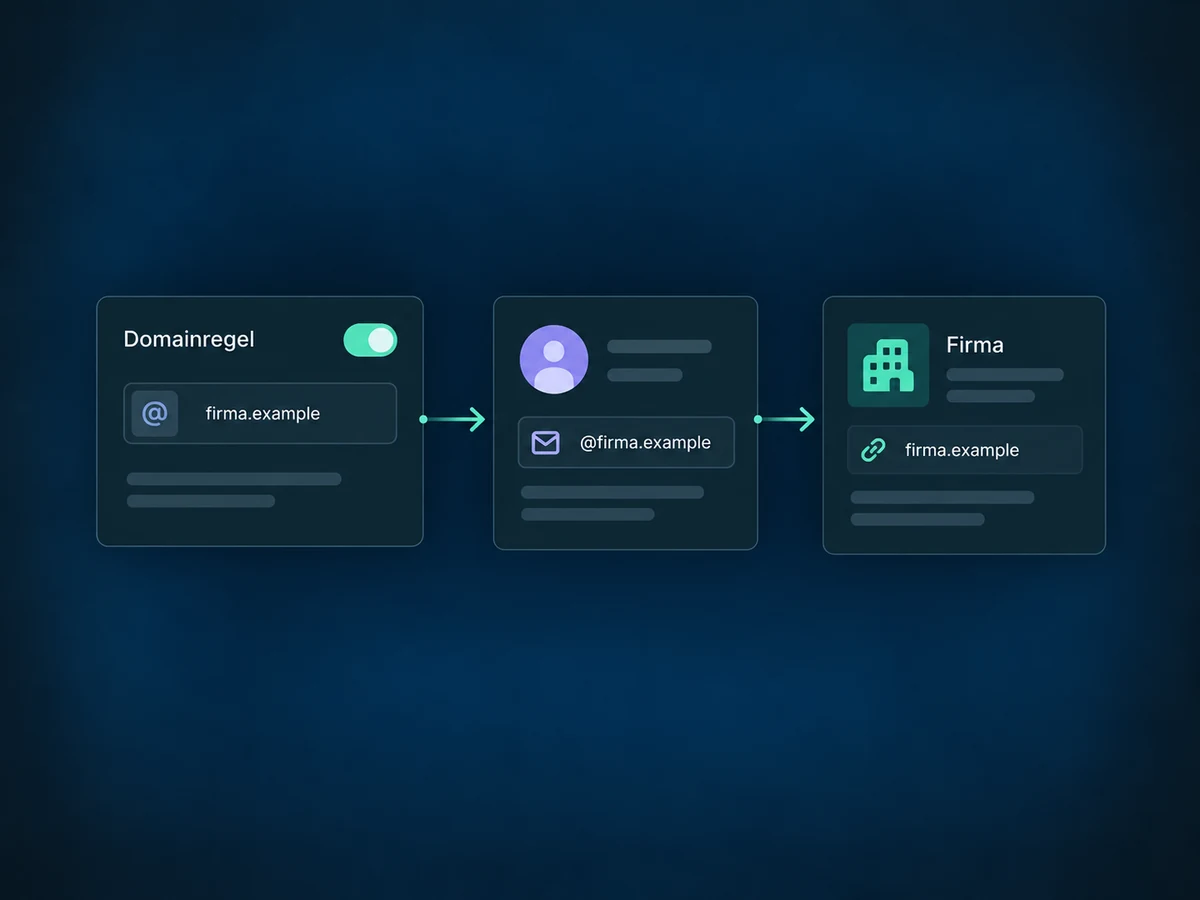
Once enabled and configured, business email domains can match new contacts to their company. Personal email addresses and contacts already linked to a company are not treated as new company matches.
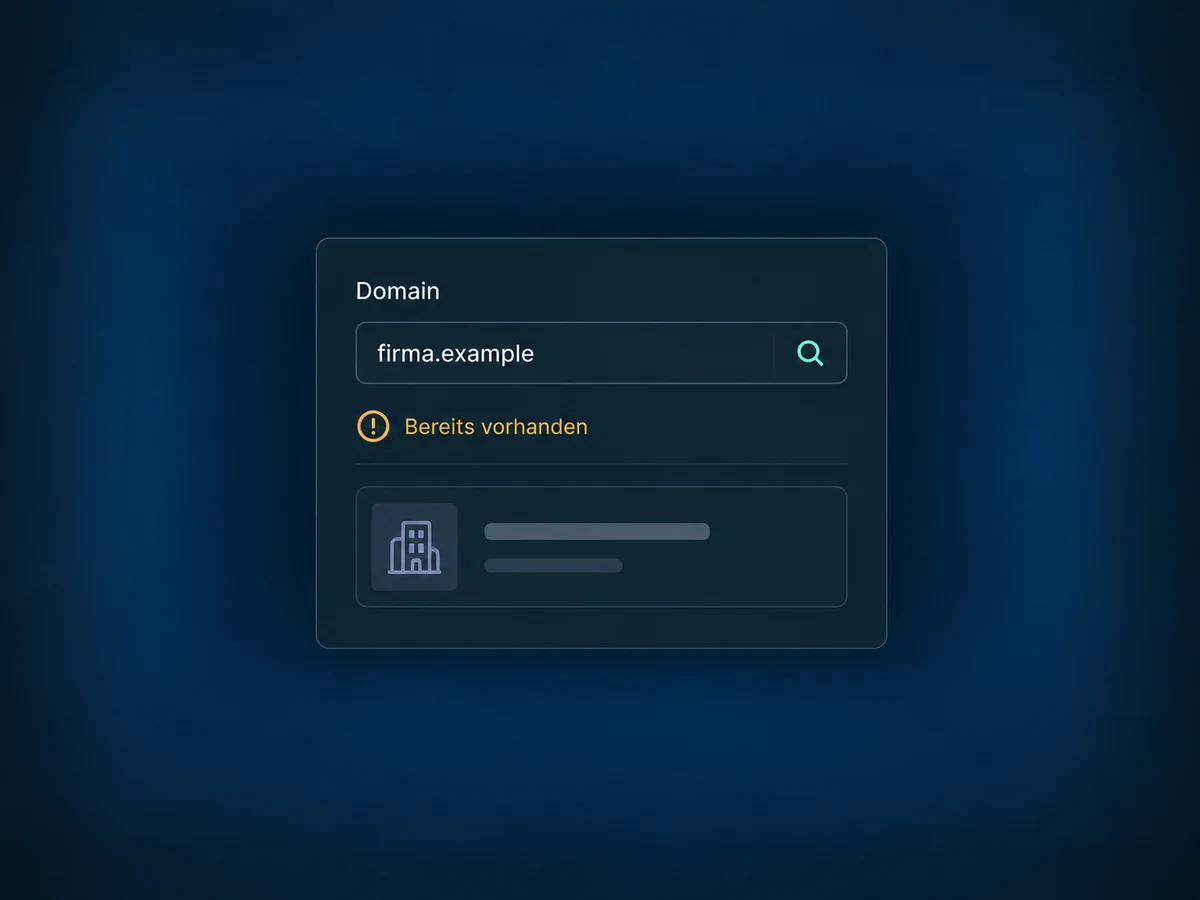
Enabled duplicate prevention blocks multiple companies from using exactly the same domain. It does not merge existing duplicates; we first review domains shared by several locations.
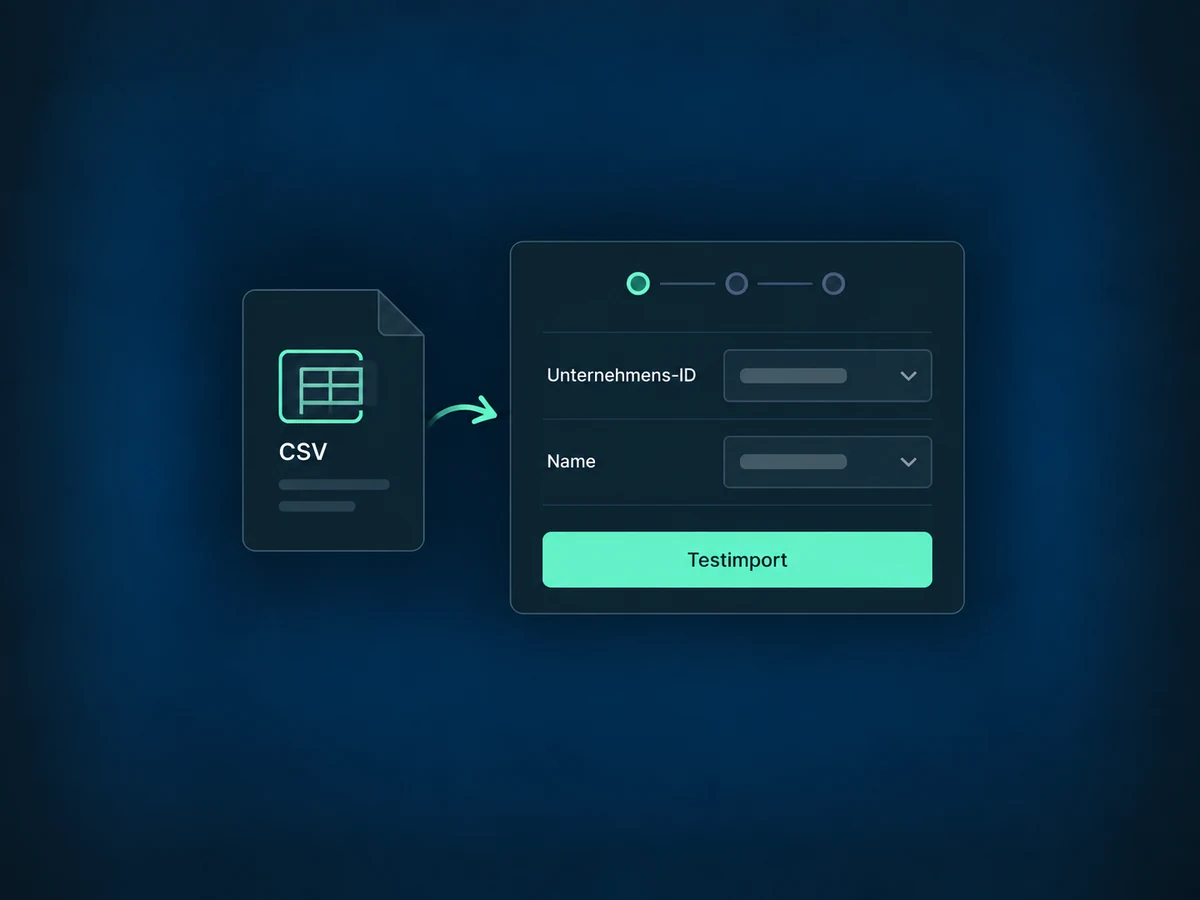
Once import is enabled, bring company data in from CSV. Map the columns and use the Company ID when updating records. Start with a small test file to check the mapping.
A configured company workflow can respond to a new record or a field change. Choose which company or associated contact fields it should then update.
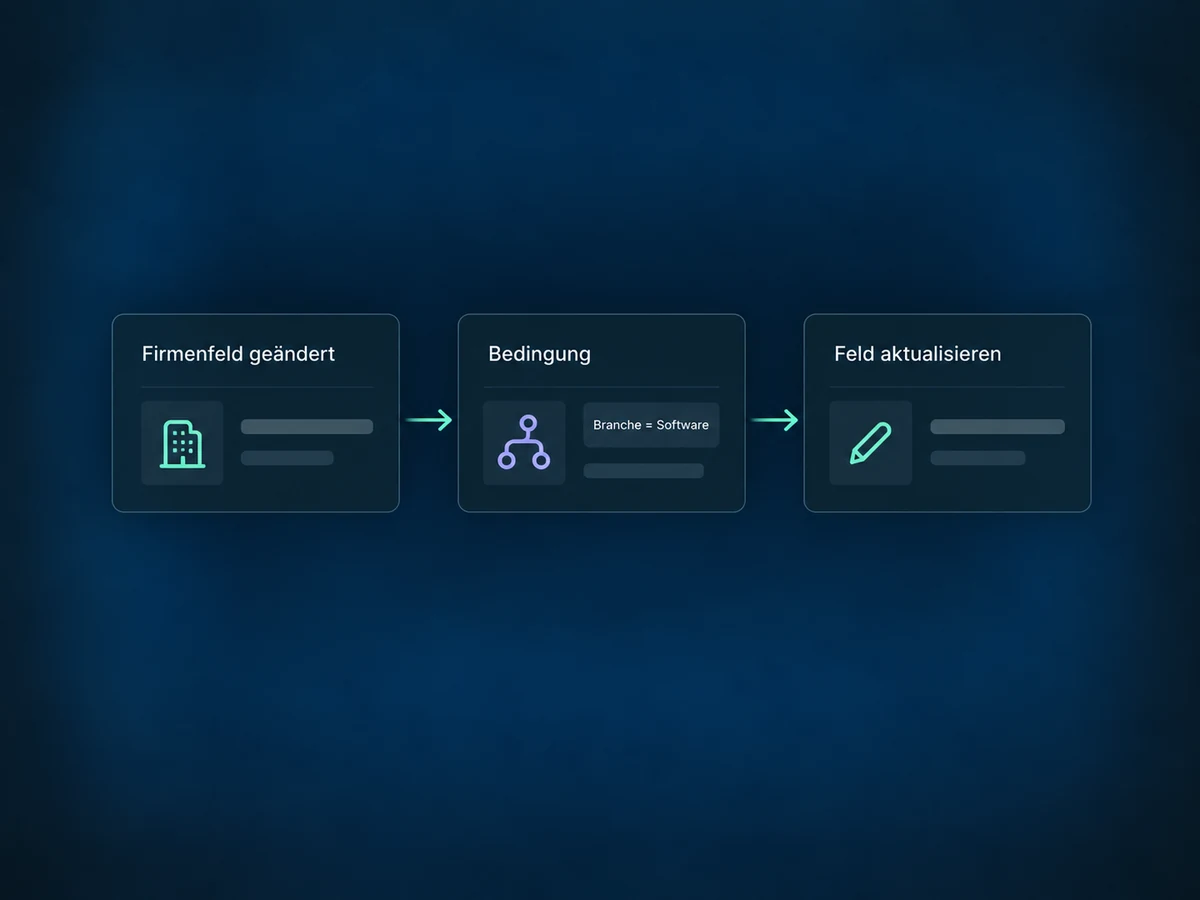
Simplified examples, not live account data.
We check feature access, company fields and contact associations. For automatic matching, we define rules and exceptions and test them with example data first.
Companies hold business details; contacts represent individual people. Opportunities and configured workflows add context. Associating someone with a company does not by itself start a message sequence.
Availability and any add-on or usage costs are confirmed for your ONE LOOP account before implementation.
The business name, address and website belong on the company record. A person's name and individual contact details belong on the contact. A company can have several contacts; the standard association links a contact to one company. We review a suitable structure for other relationship models.
Not without setup. Assign contacts manually or use enabled company automation. Matching can use a business name or a business email domain; the rules and their order matter. Existing associations stay in place, and personal email domains are not used for domain matching.
When updating from CSV, the Company ID is the key identifier. A similar company name alone is not a reliable match. Optional domain duplicate prevention is a separate rule and does not merge old records. We check IDs, field mapping and a small test file before the full import.
Yes, when company Smart Lists are enabled in the account. Save the filters, sorting and visible columns, then share the view with selected users. Choose whether they can only view it or also change its configuration.
Let’s explore your use case and what the setup requires.
Book a demo