
01
A text, straight from the customer conversation.
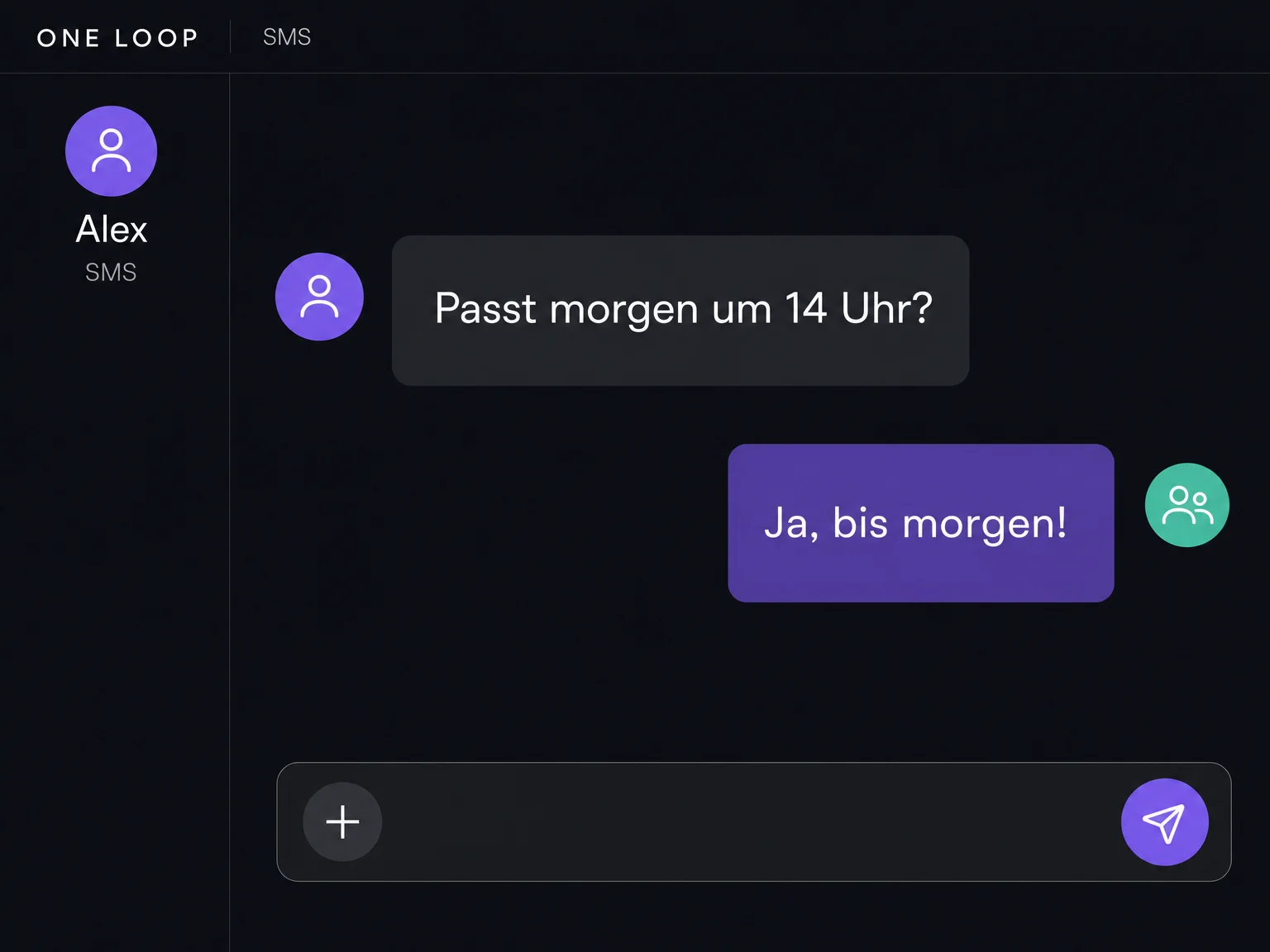
Open the conversation, choose SMS and write your message. With a number that supports sending and receiving, incoming replies appear with the same contact, where your team can pick them up.

SMS
A quick confirmation, an appointment reminder or a follow-up question: send texts from ONE LOOP and handle replies with your team.
Three examples show how you can use SMS.
Open the conversation, choose SMS and write your message. With a number that supports sending and receiving, incoming replies appear with the same contact, where your team can pick them up.
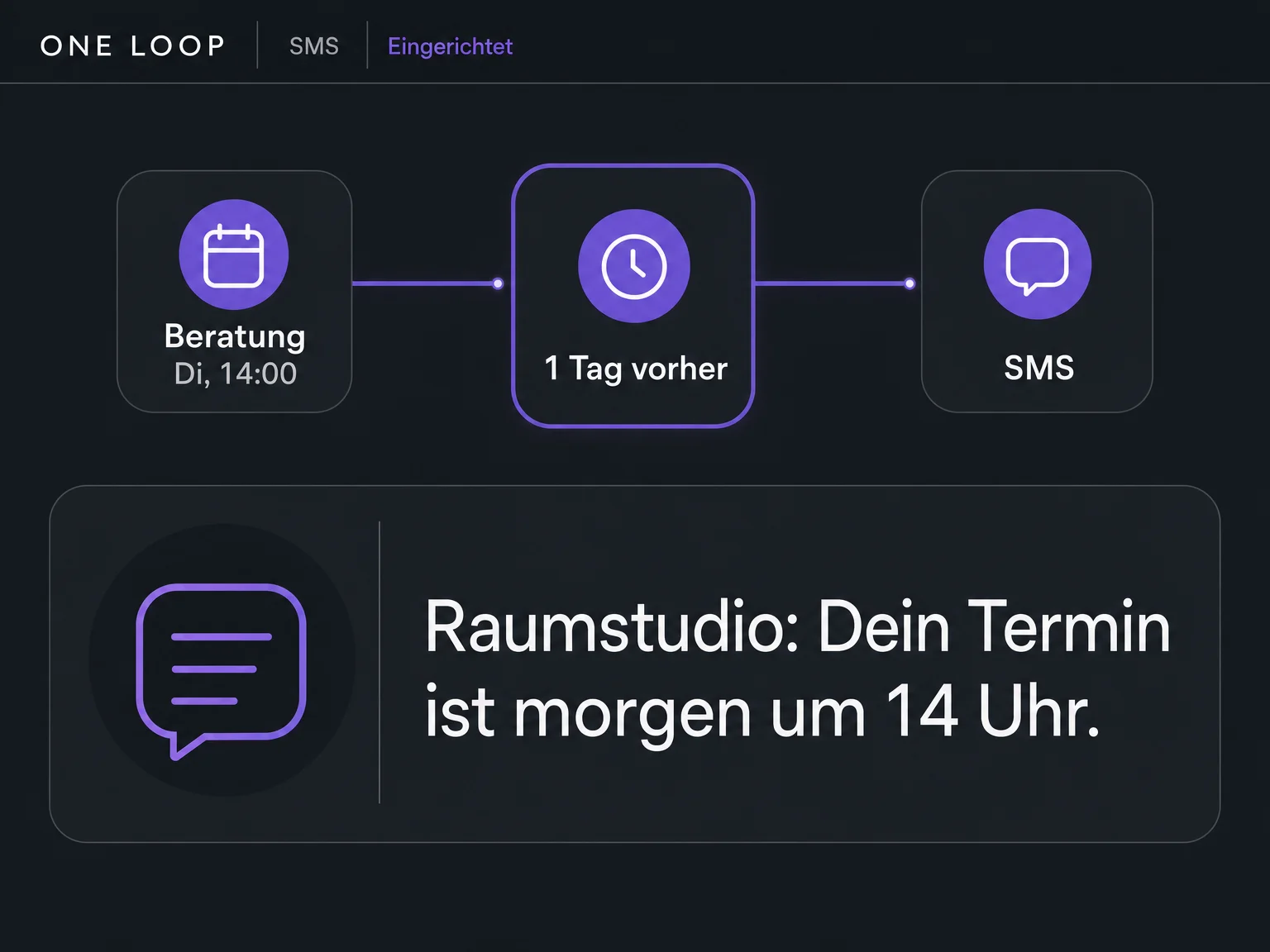
Set up a workflow to send a text before a booked appointment. Choose the timing, message and conditions, then check the sequence with a test appointment before activating it.
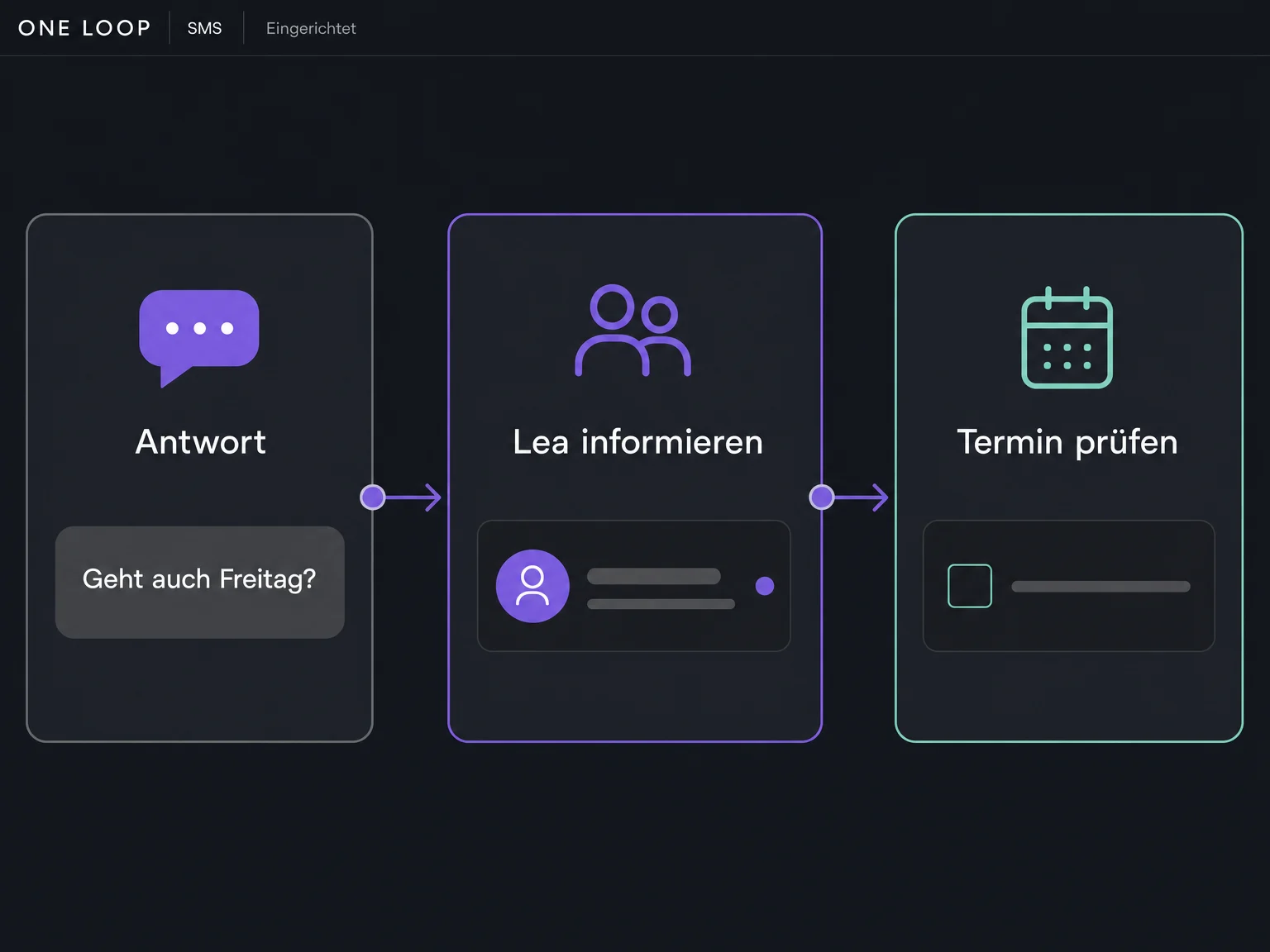
A customer needs to reschedule? A configured reply workflow can notify the person responsible and create a task. Your team reviews the request and responds in the inbox.
The practical benefits of SMS.
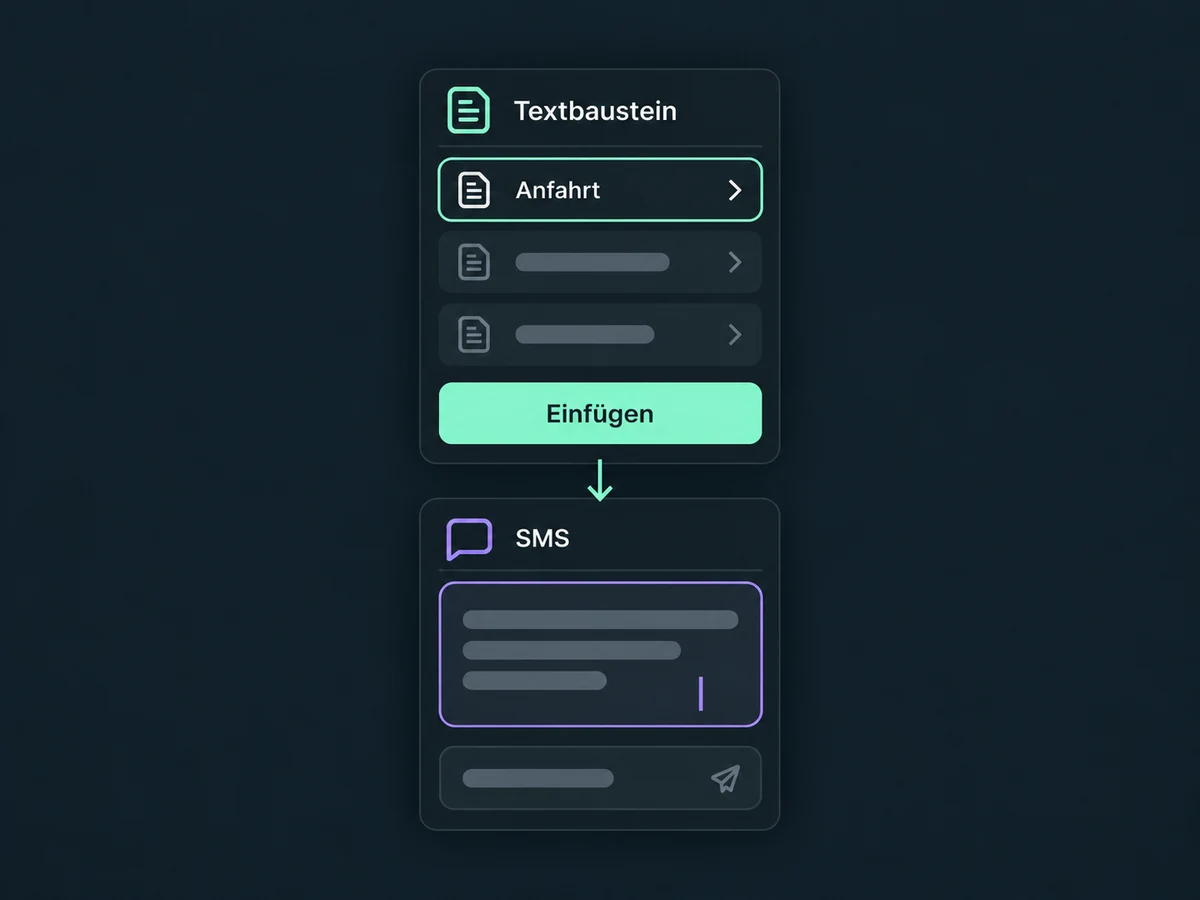
Save frequent replies as text snippets. Insert directions or opening hours, for example, then adjust the message before sending it.
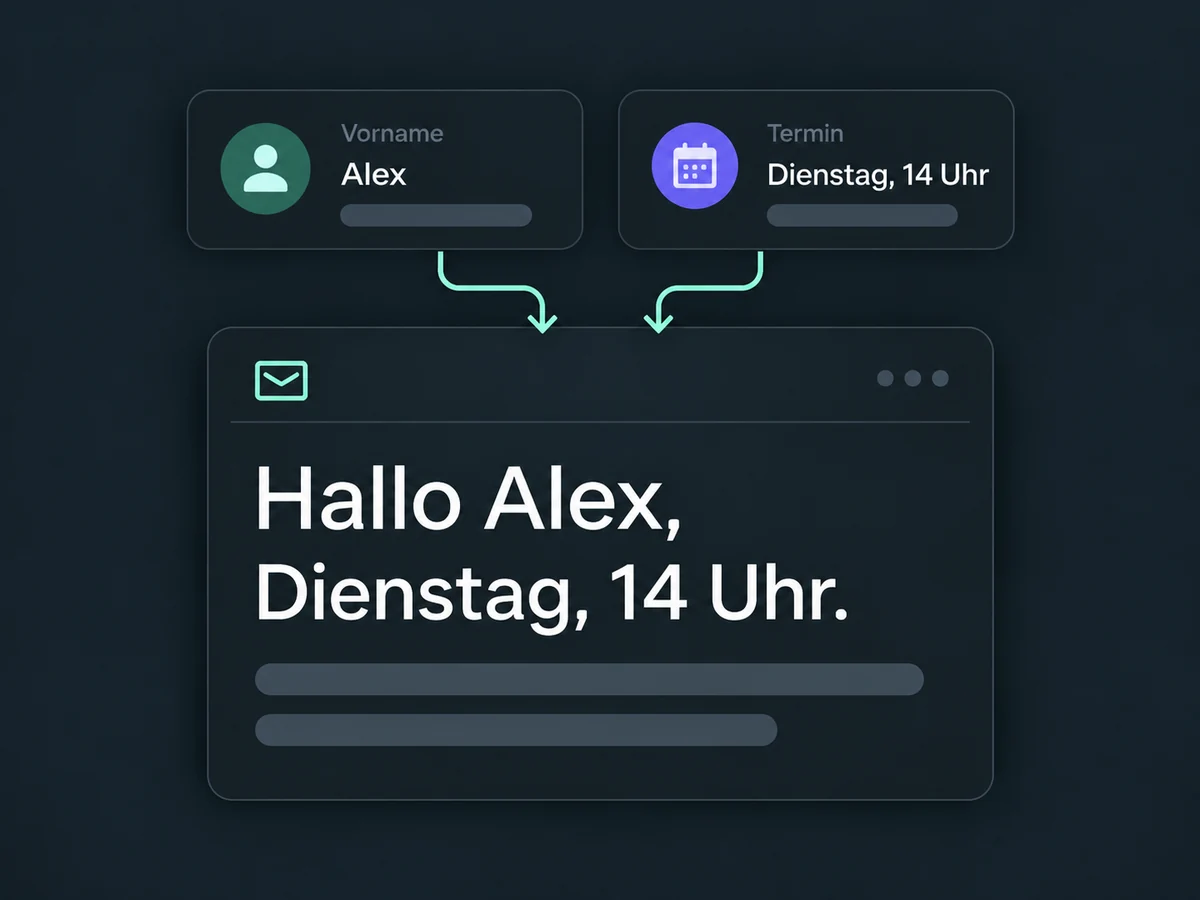
Insert existing contact or appointment details into your message. Check the populated preview so the name and time match the recipient.
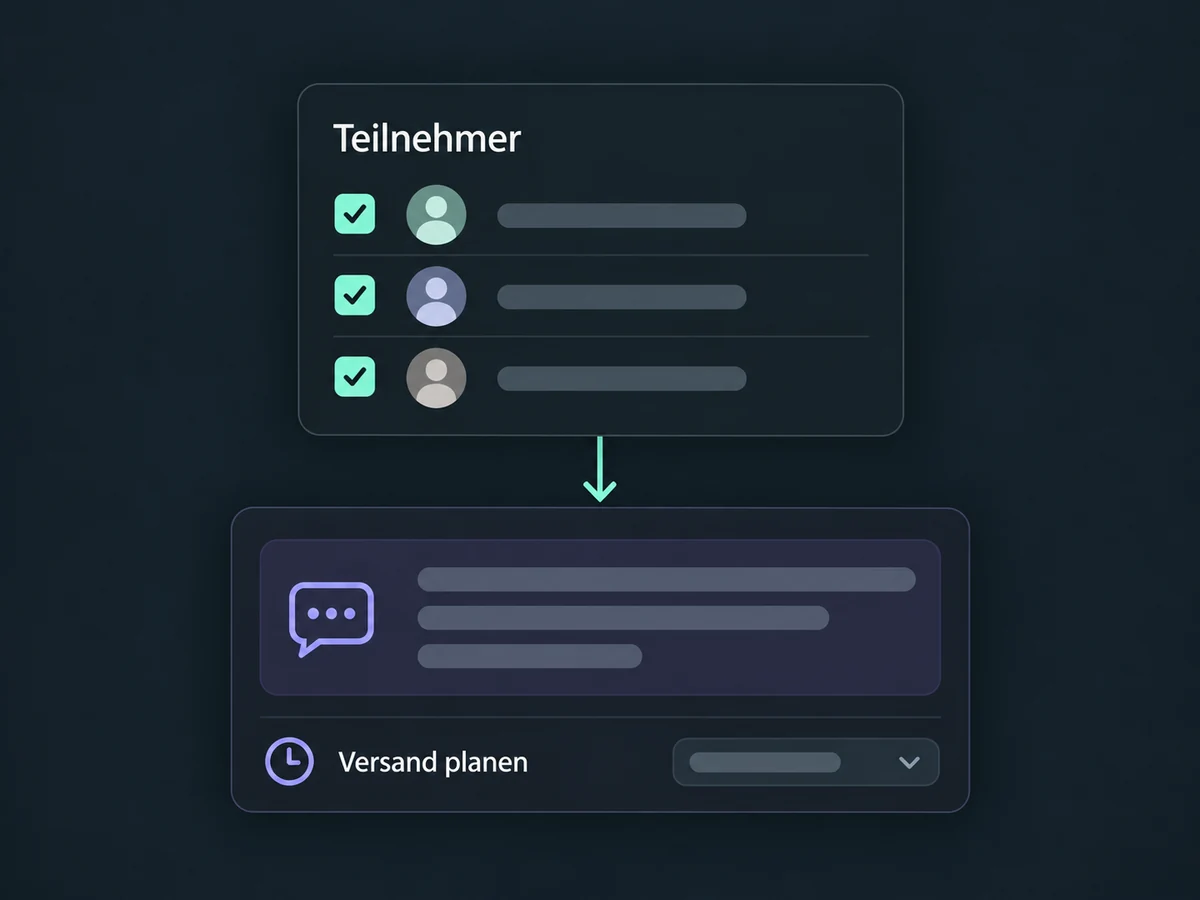
Select eligible contacts and schedule a group send, such as an update for registered attendees. Account for consent and SMS sending restrictions.
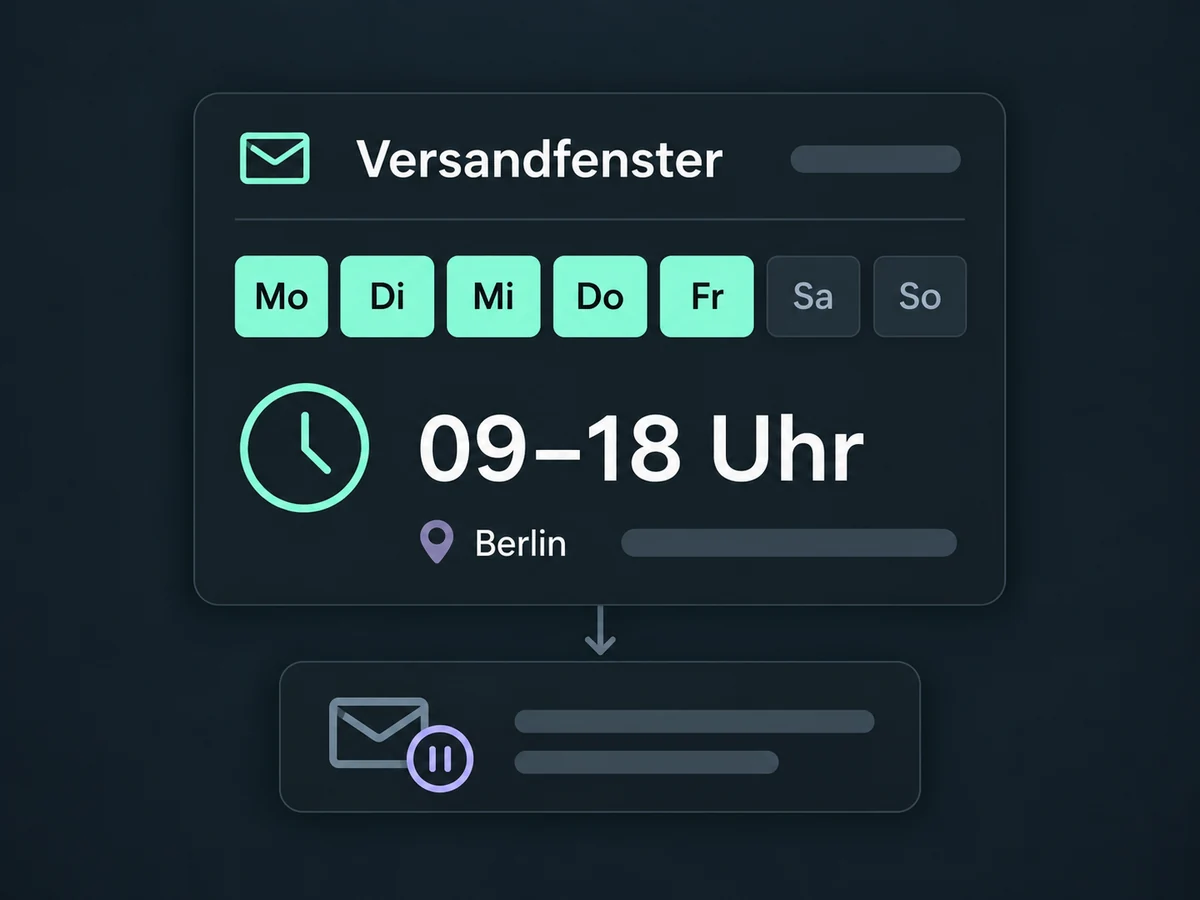
Set sending days, a time window and a timezone in the workflow. If a message falls outside that window, the sending action waits for the next permitted time.
Review available delivery and error statuses after a group send to spot skipped or failed messages. Delivered does not mean read for SMS.
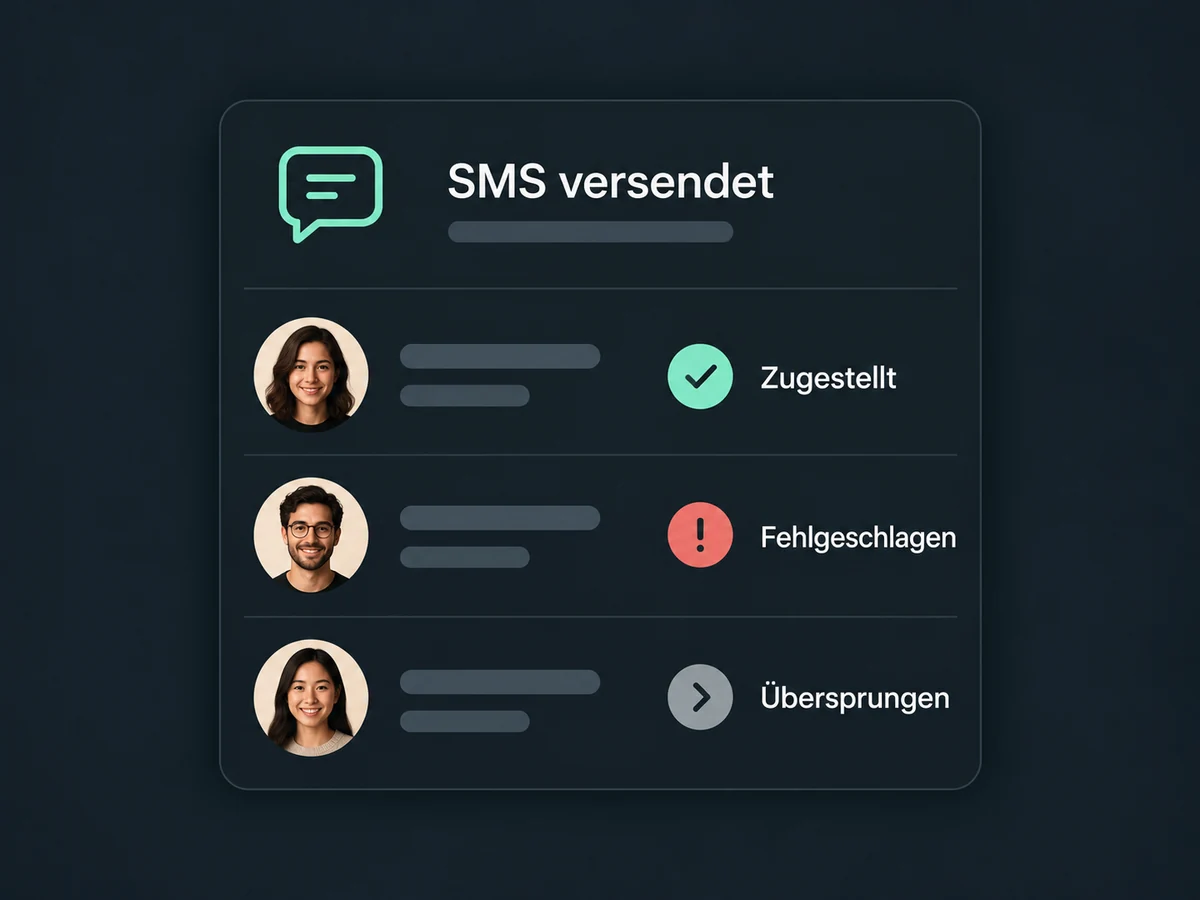
Simplified examples, not live account data.
Check your number, destination countries, required approvals and consent. Test sending, receiving and opting out with your own test number. Confirm account access, number charges and usage costs before launch.
Contacts, appointments and the inbox provide context. Active workflows define which booking triggers a text and who handles a reply; connecting the number alone does not create these actions.
Availability and any add-on or usage costs are confirmed for your ONE LOOP account before implementation.
You need an SMS connection set up in ONE LOOP that supports your destination region. To receive replies, the number must also support incoming texts. A sender name alone does not allow direct replies. Bringing an existing number depends on its type, country and provider. We check this before setup; a personal SIM card is not connected automatically.
Only after the workflow is configured, tested and activated. Check cancellations, rescheduling and existing calendar reminders to avoid duplicate sends. With Stop on Response enabled, the specific workflow ends for a contact who replies to a message from it, not every other automation. Test the team handover especially when manual messages or other workflows are running alongside it.
Record which messages a contact has agreed to receive and provide an accessible opt-out method. A stored phone number is not marketing consent. Respect SMS sending restrictions on the contact and test the supported opt-out, such as STOP where the connection supports it. Not every free-text reply is recognised as an opt-out; your team must handle those requests too. The software does not replace checking your specific sending purpose.
Costs depend on your offer, number, destination country and billed message segments. A long text can be charged as several segments even when it appears as one message on the phone. Emojis and some special characters can increase the segment count. Check the final personalised text along with possible number, inbound and outbound charges. An unsuccessful delivery attempt can still incur costs; delivery is not guaranteed.
Let’s explore your use case and what the setup requires.
Book a demo