
01
Turn your questions into a quiz
Combine choice questions and written answers across clear pages. Arrange questions in the editor and check the flow in preview.


Quiz Builder
Build a quiz for your website, evaluate responses and guide visitors to a relevant recommendation, from a short self-assessment to preparation for a consultation.
Three examples show how you can use Quiz Builder.
Combine choice questions and written answers across clear pages. Arrange questions in the editor and check the flow in preview.
Define points and categories. Use the result page to explain the outcome and link a relevant offer or consultation booking.

Enable the result fields you need, such as the highest-scoring category. After submission, the outcome appears on the contact record to help your team prepare.

The practical benefits of Quiz Builder.
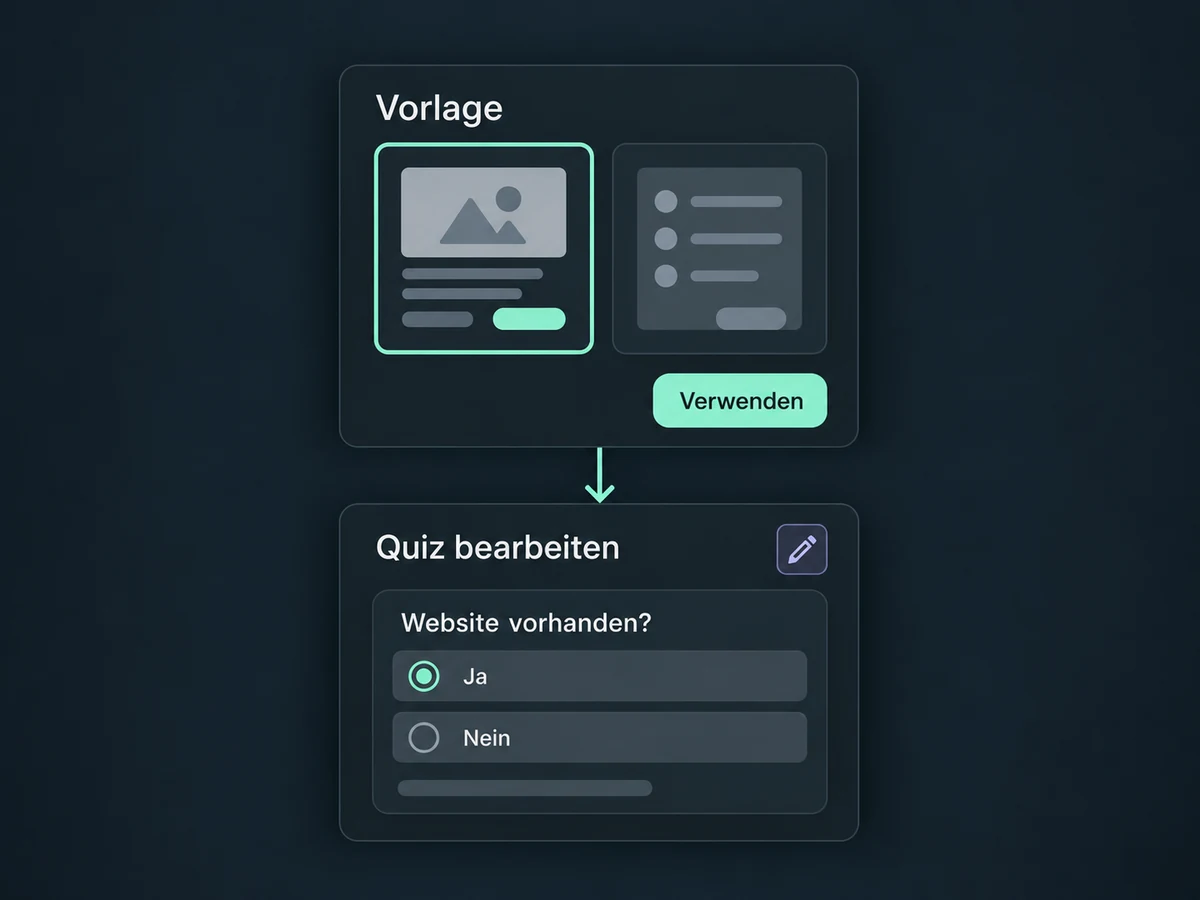
Choose a quiz template and adapt its questions, answers and design to your offer. It gives you a starting point, not a finished assessment.
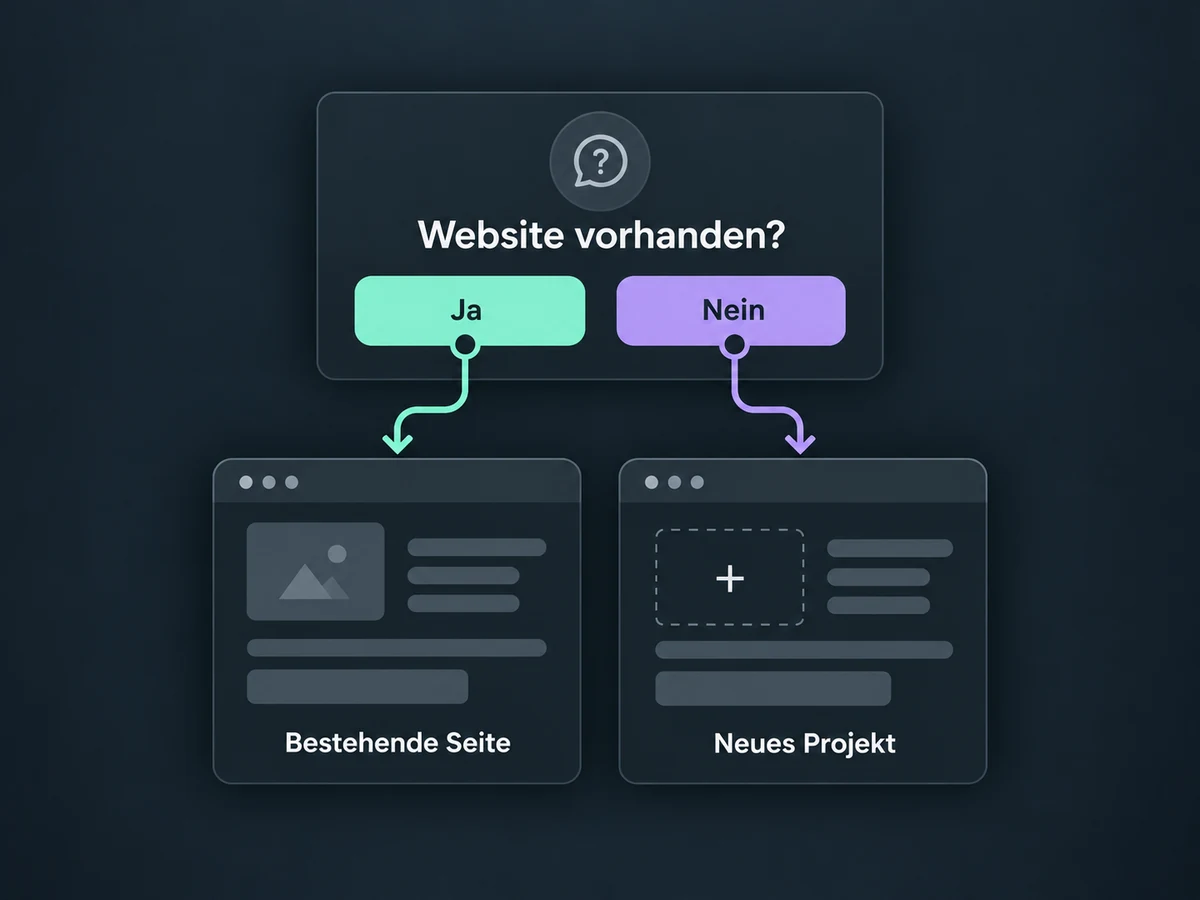
Set the next page for answers to choice questions. Test each branch so visitors stay with the relevant topic.
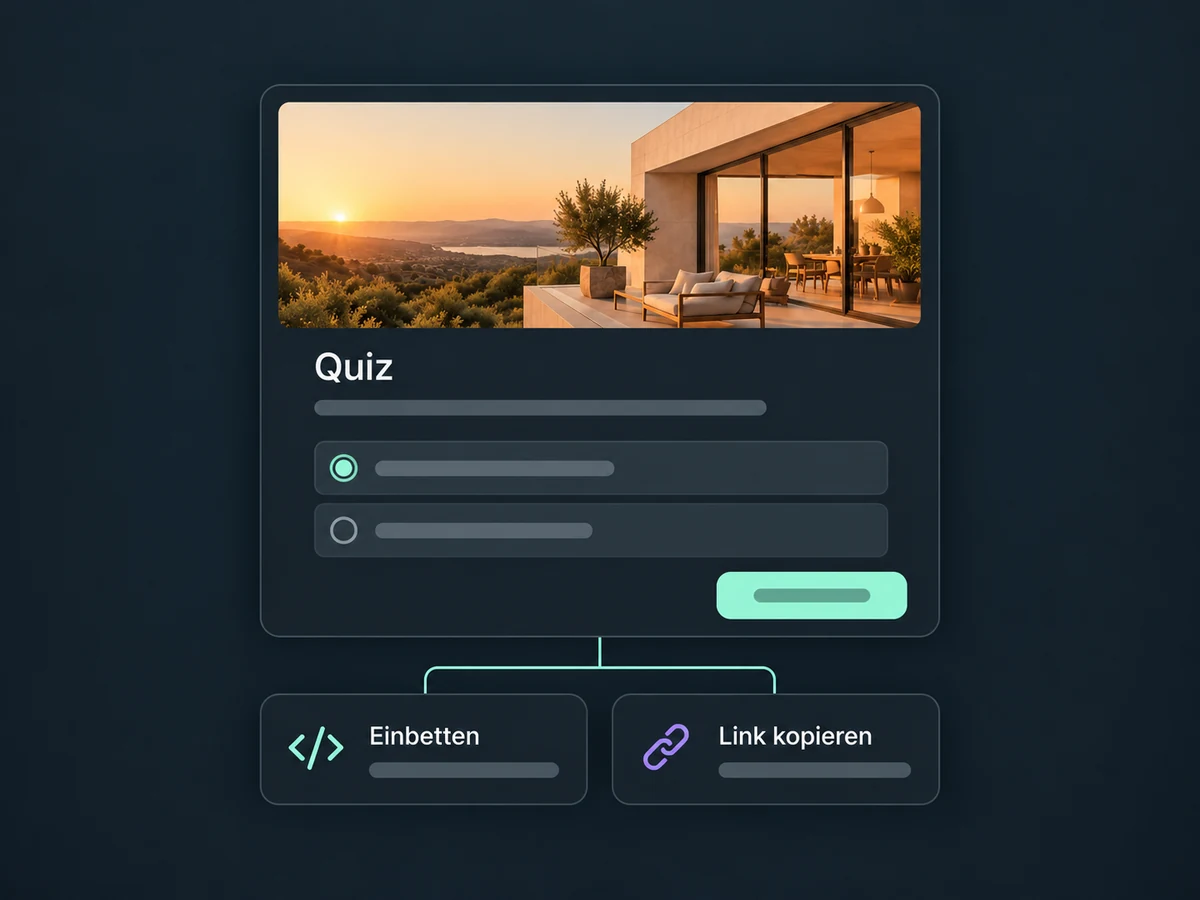
Embed the quiz in your website or funnel using its embed code. Or share the direct link, for example in an email.
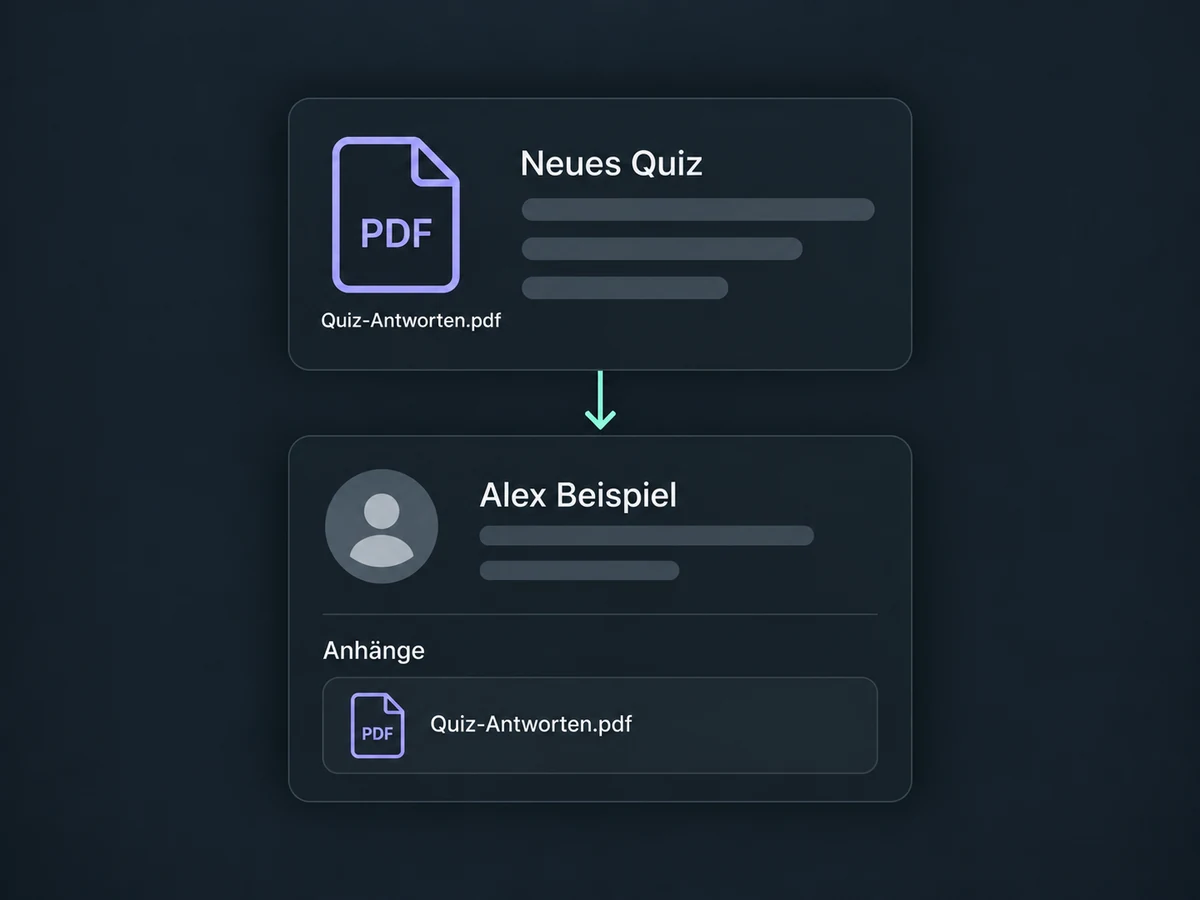
Enable document generation for the quiz. New submissions are then saved as PDFs on the contact; earlier submissions are not backfilled.
A configured workflow can create a task or send a relevant message after submission. Filters limit it to the quiz and outcome you choose.
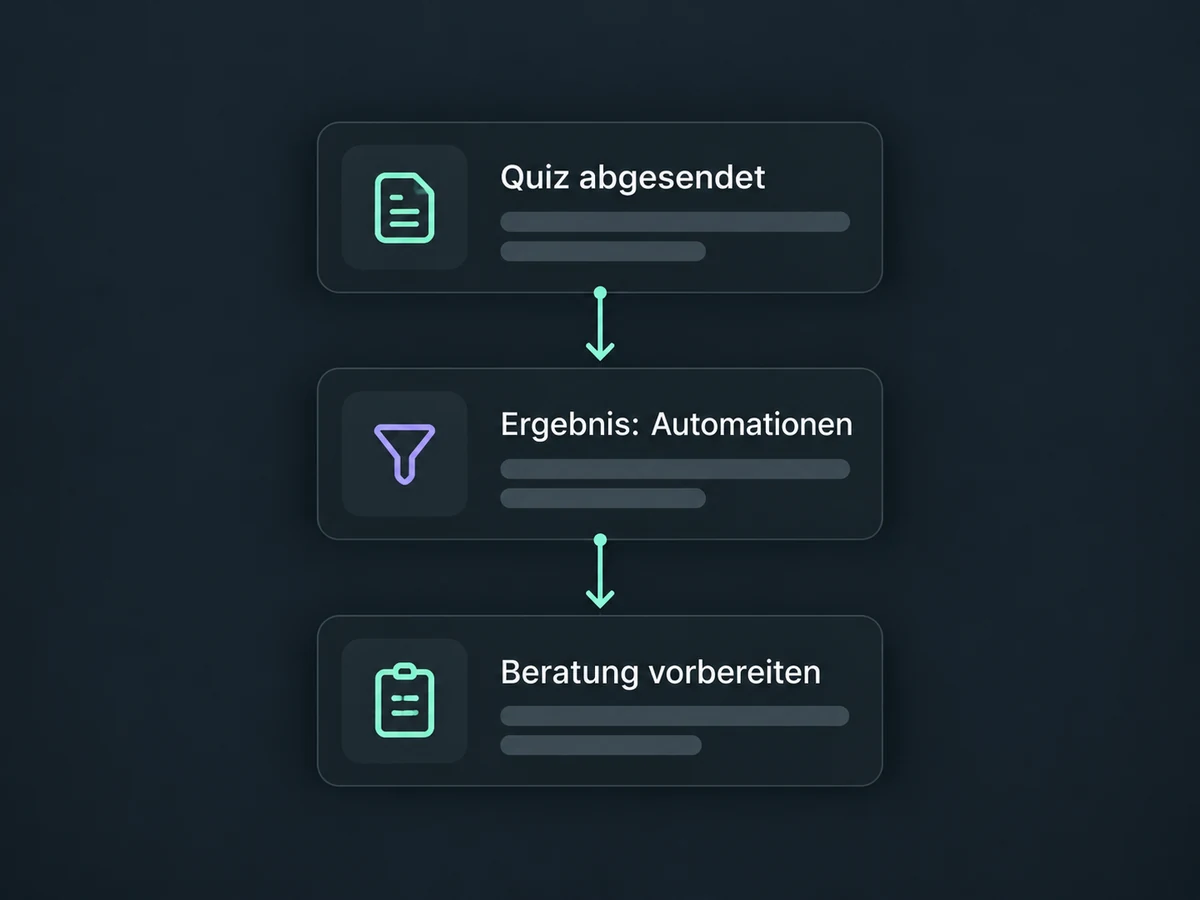
Simplified examples, not live account data.
We align questions, scoring and recommendations with your offer. Before launch, we check each answer path, result boundaries, contact fields and mobile presentation. Account access and optional messaging costs are confirmed first. A self-assessment does not replace a professional diagnosis.
Your website, quiz and contact records can work together in ONE LOOP. Result fields and follow-up workflows need to be configured. A recommendation is not an automatic booking; consent and channel rules still matter for messages.
Availability and any add-on or usage costs are confirmed for your ONE LOOP account before implementation.
You assign points and categories to answers. The result page can show content for a score range or the highest- or lowest-scoring category. You set the text and offer links. Test boundary cases in preview: the recommendation follows your rules, not an independently validated assessment.
No. A quiz score evaluates answers within that quiz. Lead scoring is a separate way to prioritise contacts. A quiz result can be one input, but creating a quiz does not automatically make it an overall contact score.
With result mapping enabled, the next submission by the same contact updates that quiz’s fields. They hold the latest values, not a list of every attempt. To document individual submissions, enable PDF generation beforehand; it only covers submissions received afterwards.
Only if you set it up. A workflow triggered by quiz submission can filter by quiz, score or category before running a defined action. Test and activate the workflow. Merely displaying a result page does not send a message or create a task.
Let’s explore your use case and what the setup requires.
Book a demo