
01
Give guests a reason to join
Show what your event is about with an image, date and location. Add an agenda and speakers if needed. Review the preview before publishing your page.


Events & Tickets
Workshop, customer event or online session: create your event page, collect registrations and keep track of tickets and guests.
Three examples show how you can use Events & Tickets.
Show what your event is about with an image, date and location. Add an agenda and speakers if needed. Review the preview before publishing your page.
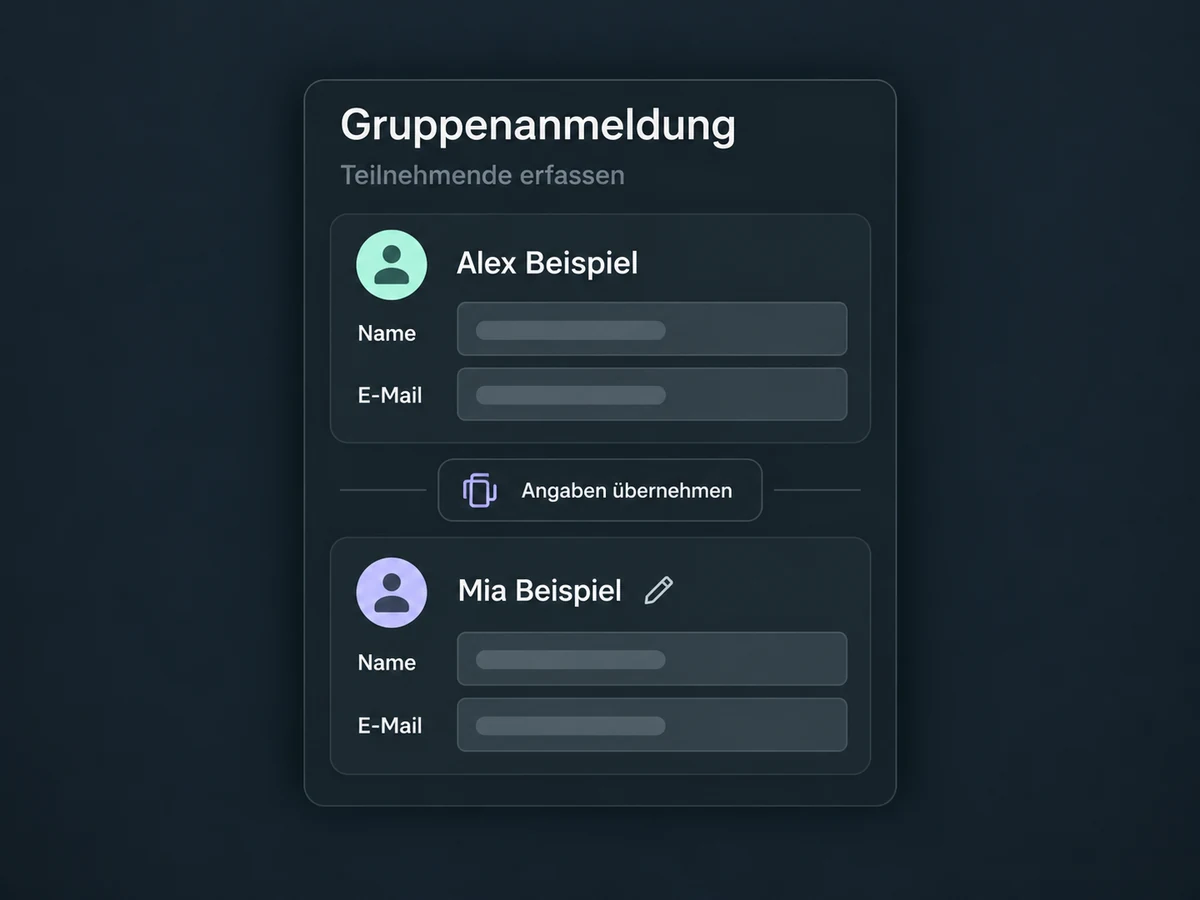
Even when someone books for the whole team, each ticket collects its own attendee details. Your list includes every registered guest, not just the buyer.

For in-person events, your team scans the ticket QR code in the mobile app. If a ticket is missing, staff can check the guest in manually after verifying their identity. Registration and attendance stay separate.

The practical benefits of Events & Tickets.
Within one booking, reuse details already entered and adjust them for the next guest. Keep each person's name and email accurate.
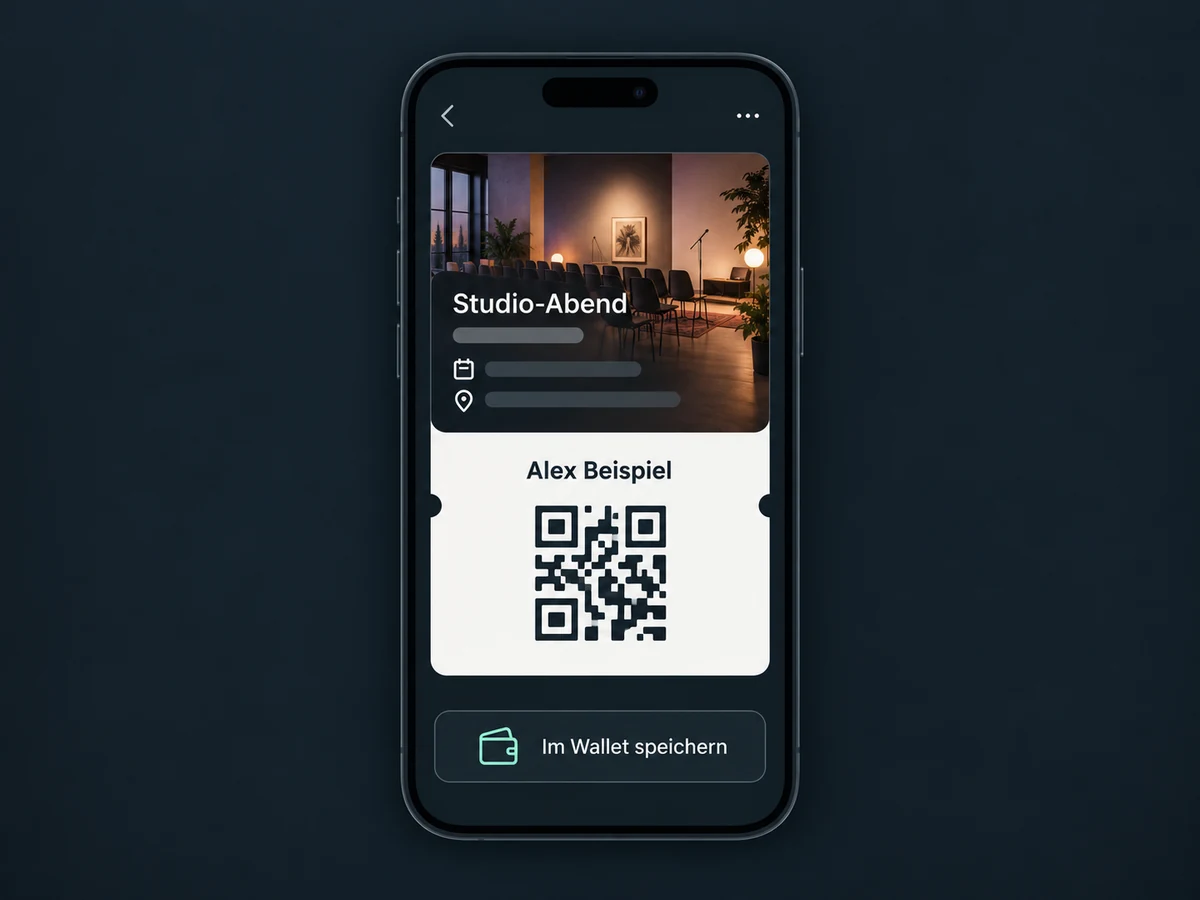
Guests at in-person events can save their ticket to Apple Wallet or Google Wallet. Each pass belongs to one ticket and contains its check-in code.
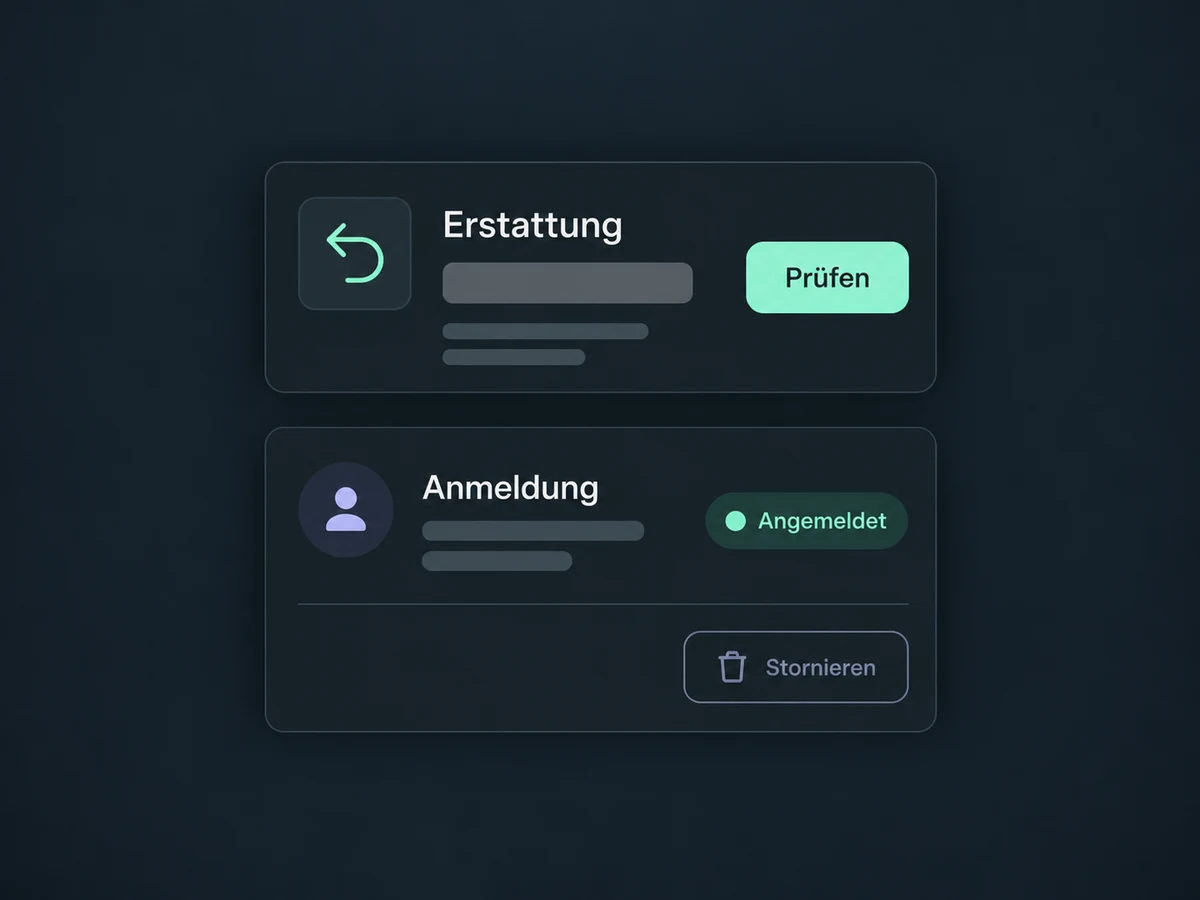
Refund eligible payments in full or in part. Decide separately whether to cancel the registration, then review which payment statuses are allowed at check-in.
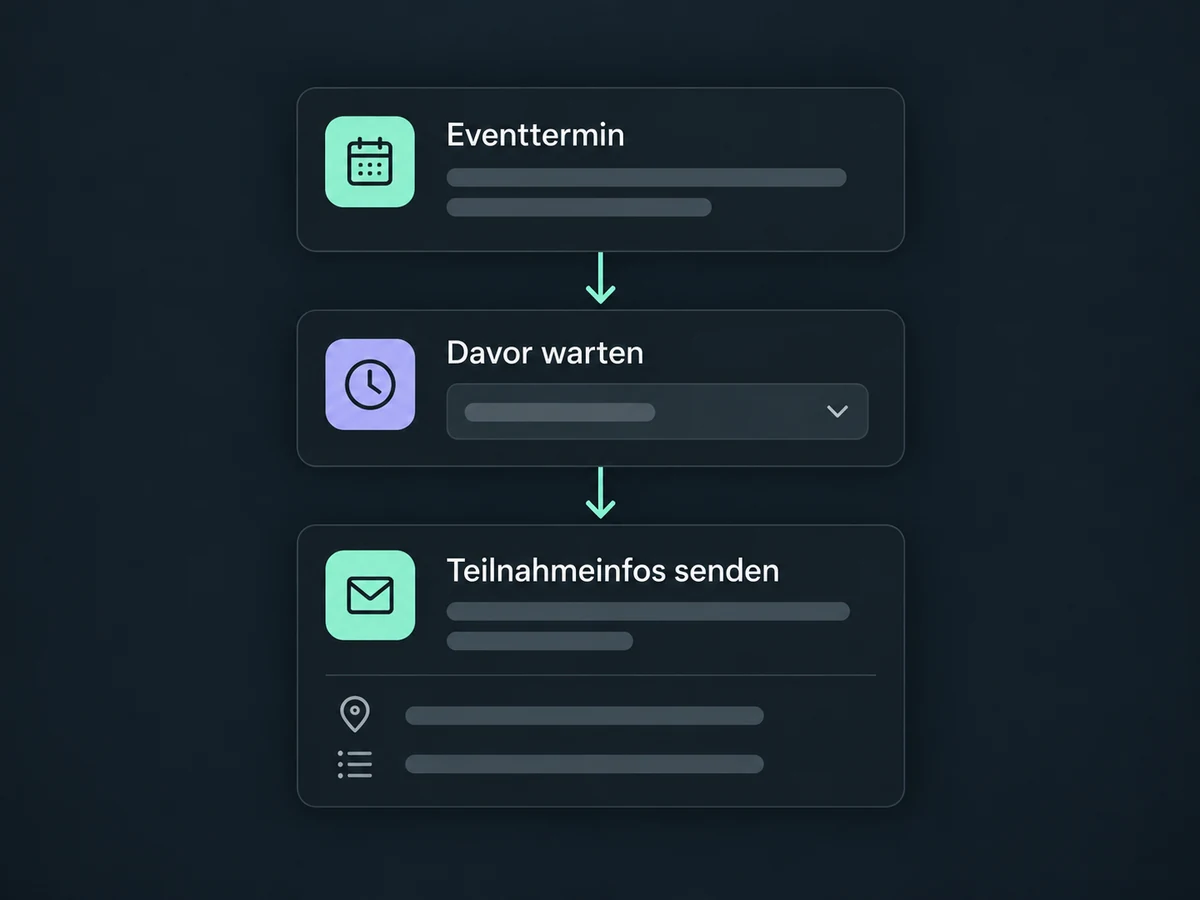
A configured workflow waits until your chosen interval before the event, then sends joining details. Set the channel, sender and intended recipients first.
Use a recorded check-in to trigger a workflow, such as sharing materials after the event. Registration alone does not mark a guest as having attended.
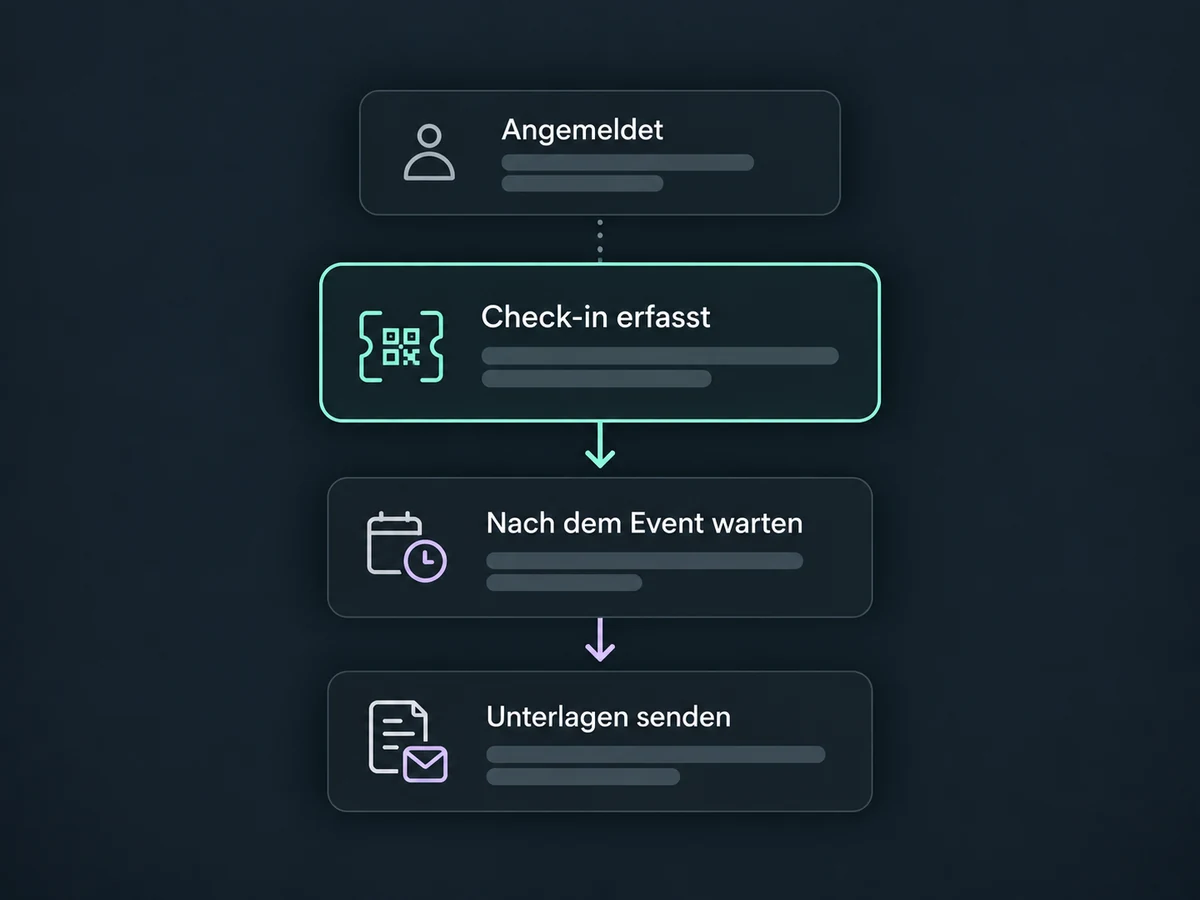
Simplified examples, not live account data.
We check access, costs, payment setup and the mobile app for your ONE LOOP account. Choose the event type, timezone and entry rules. Test registration and notifications before enabling publishing and live payments.
Registration and check-in are separate workflow triggers. Filter by event or ticket type, then send messages or create tasks. Configure and activate these workflows, and coordinate them with event notifications to avoid duplicate messages.
Availability and any add-on or usage costs are confirmed for your ONE LOOP account before implementation.
Choose RSVP for a free confirmation without payment. A ticketed event can combine free and paid ticket types. You cannot switch between RSVP and ticketed after creation, so decide on the registration format first.
Yes, with an online attendee page and a meeting link whose visibility you control. QR check-in and wallet tickets are for in-person events, not proof of online attendance. The Events module does not replace a video-conferencing service.
No. Cancellation and refund are separate actions that you can deliberately combine. Cancellation releases the seat and invalidates the QR pass. A refund alone does not remove the registration. Refund timing depends on the connected payment provider; it is not guaranteed to be instant.
Staff can find the guest in the attendee list, verify their identity and check them in manually. A repeat scan shows that the ticket is already checked in. Tickets for a different event are flagged as invalid. Test app access and the entry process before event day.
Let’s explore your use case and what the setup requires.
Book a demo