
01
Show what makes your product worth choosing
Keep images, descriptions, prices and variants with each product. Add options such as colours or sizes and choose which items appear in your store.

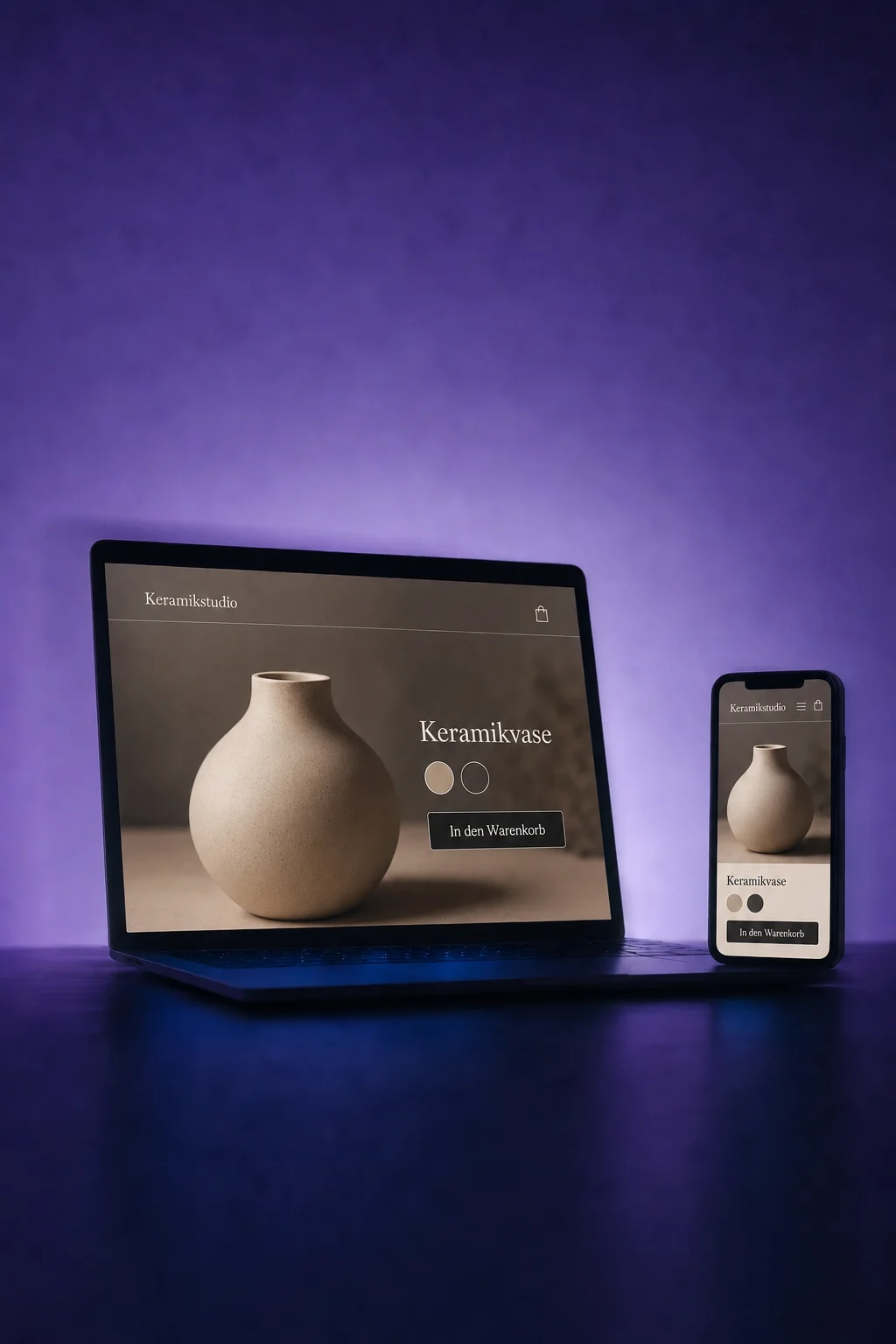
Online Store
Show your range, guide customers through cart and checkout, and manage their orders in ONE LOOP.
Three examples show how you can use Online Store.
Keep images, descriptions, prices and variants with each product. Add options such as colours or sizes and choose which items appear in your store.
Customers choose a variant, review their cart and continue to checkout. You style the store pages and configure payment methods, delivery options and the information you need.

Open an order to see its items and customer details. Review payment and fulfilment separately, then add shipment details when dispatching it. A paid order is not yet a shipped parcel.

The practical benefits of Online Store.
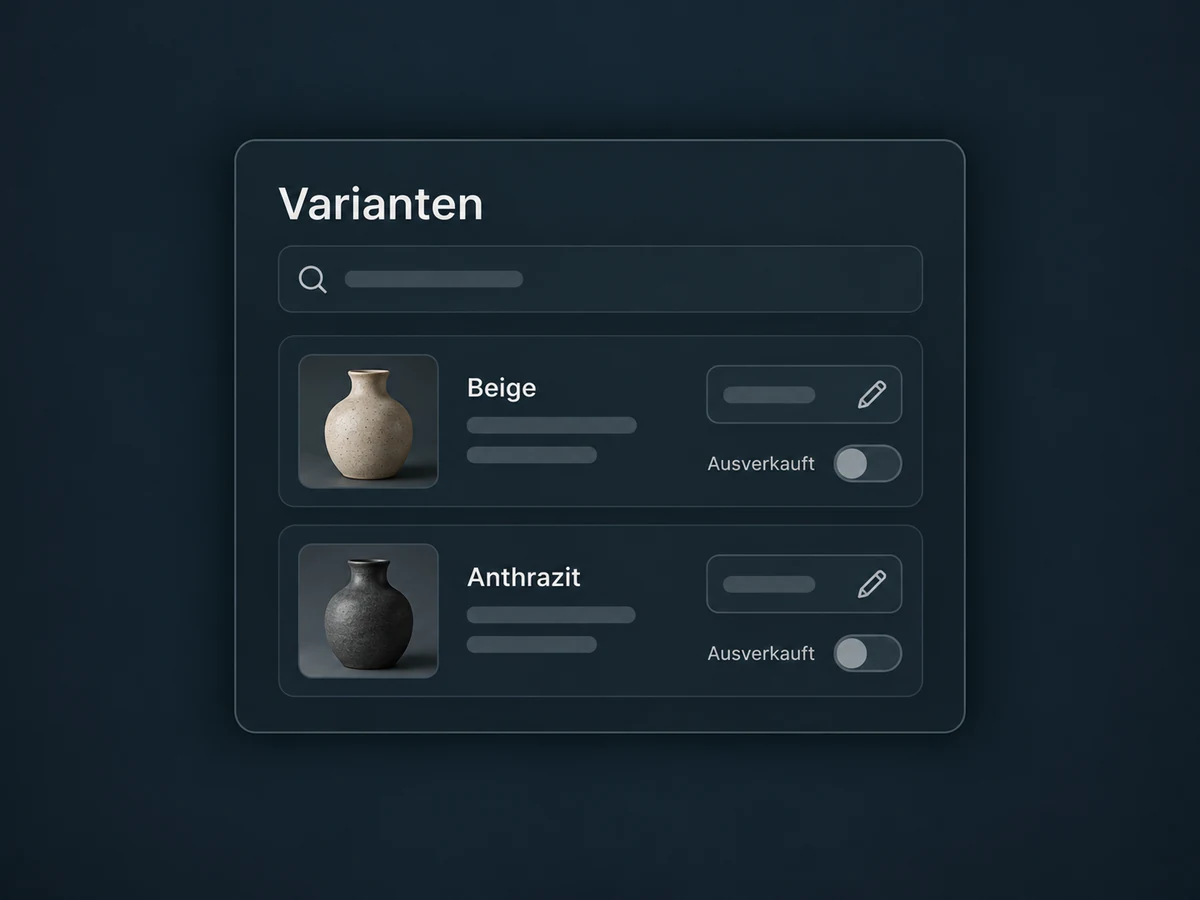
Update available quantities and search by SKU or variant. Decide whether an out-of-stock item can still be ordered.
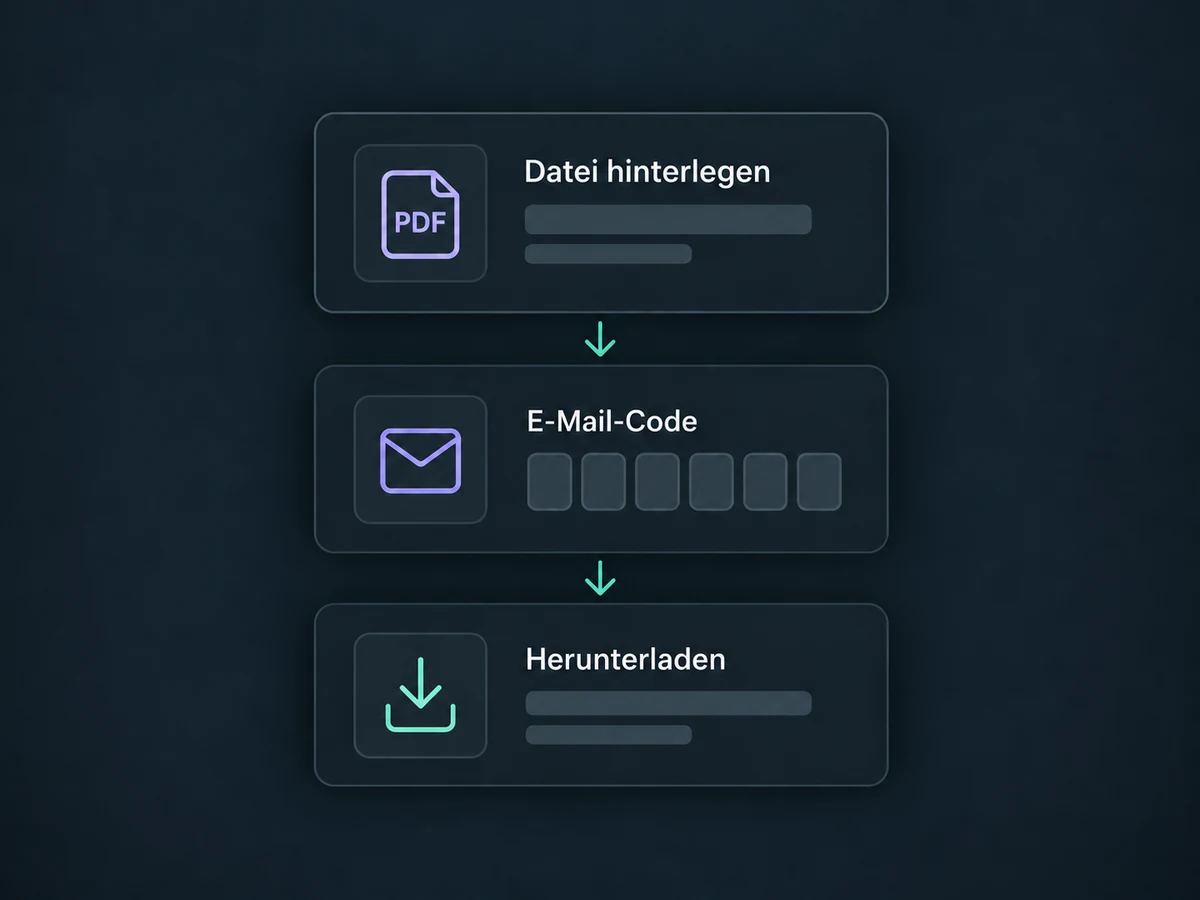
Attach files to the digital product variant. After a store purchase, customers can access downloads using an email code; without an uploaded file, no download appears.
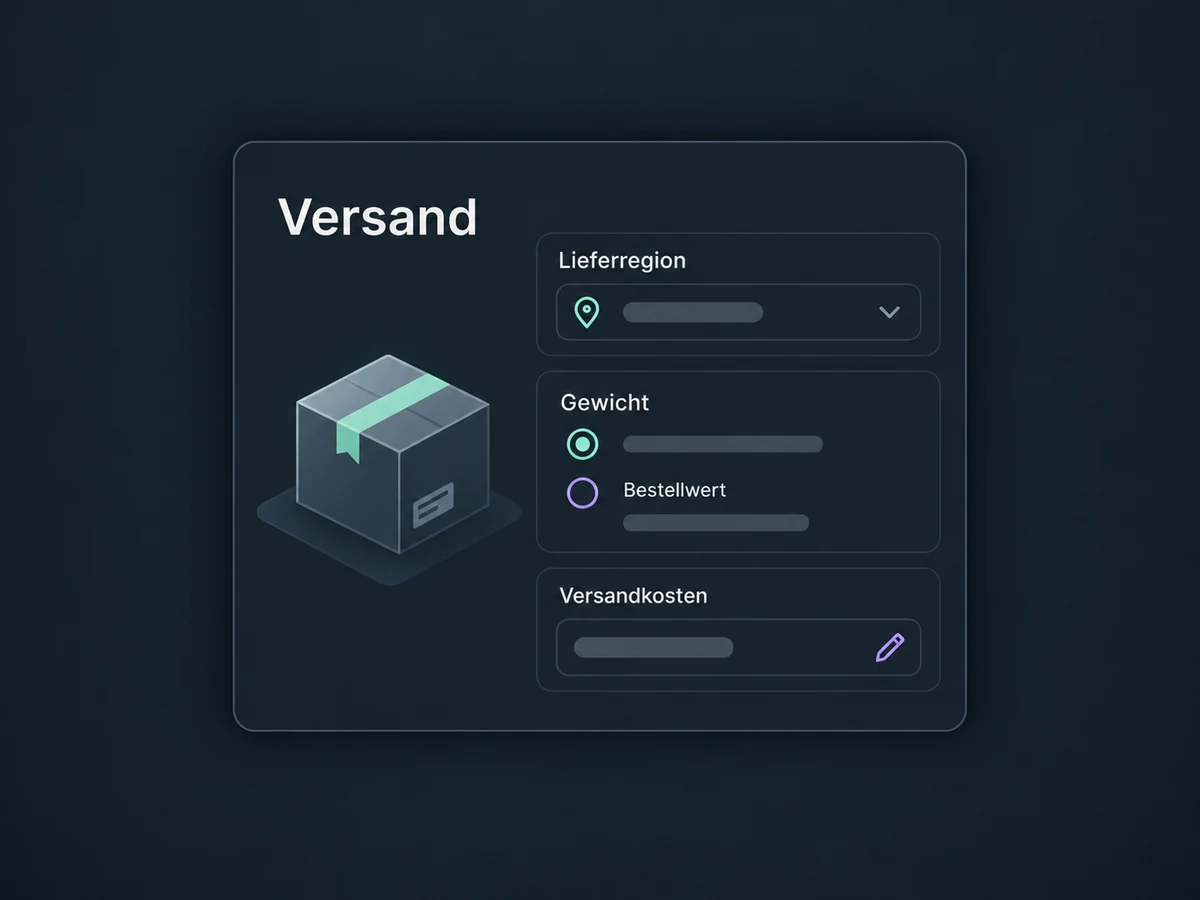
Set delivery regions and shipping rates, for example by weight or order value. Test checkout with representative addresses before releasing the store.
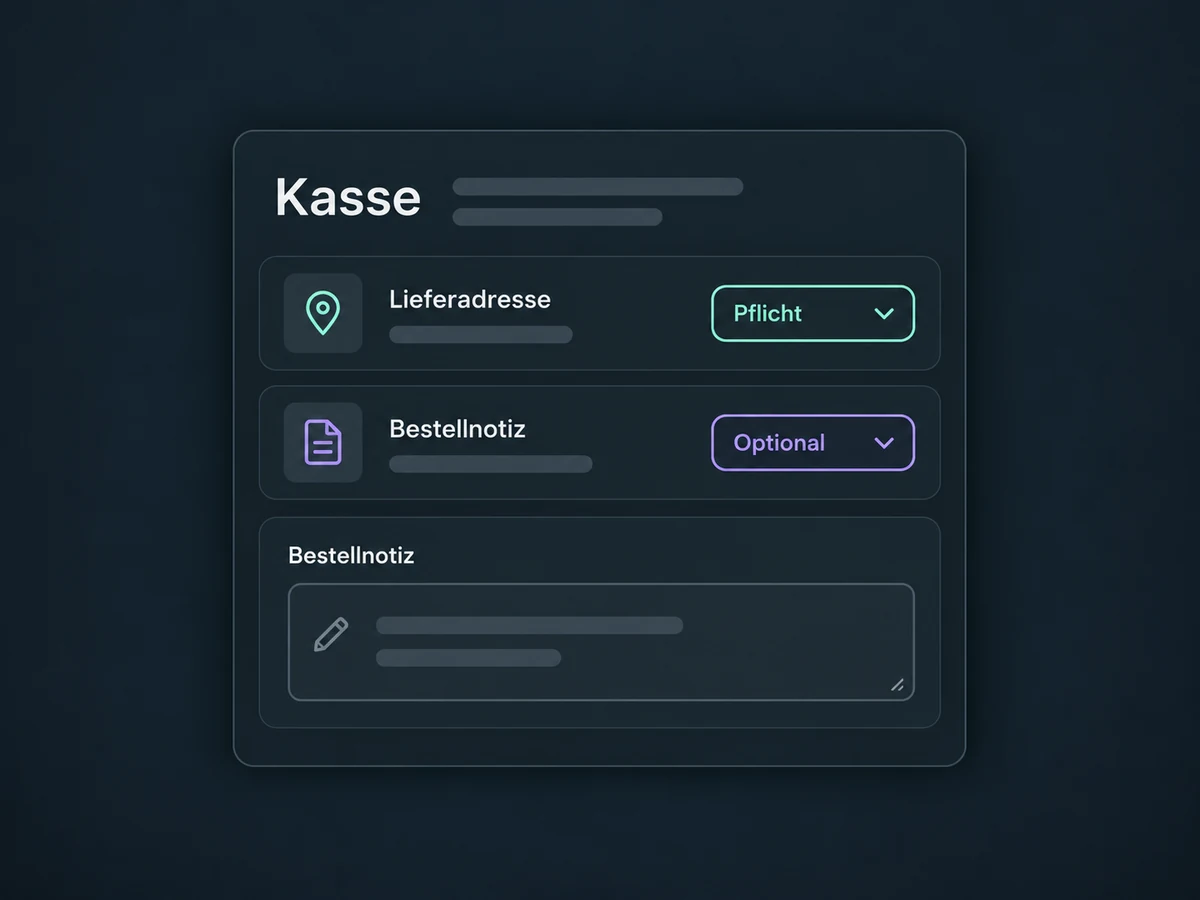
Make available fields required, optional or hidden. An order note gives customers room for additional instructions.
The order access area lets customers see past purchases and shipment details you have recorded. The login code goes to the email address used at checkout.
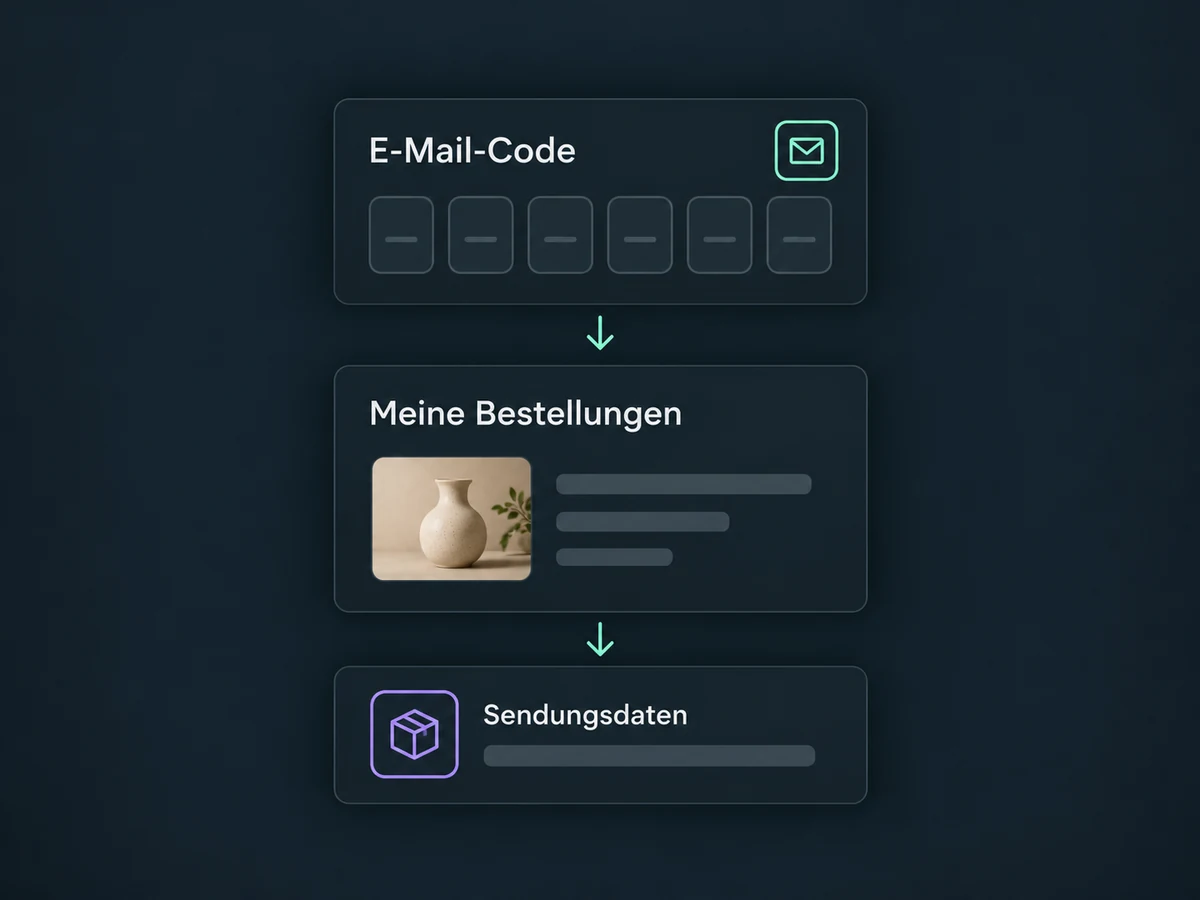
Simplified examples, not live account data.
Before launch, we review access, domain, payment connection, product range and delivery countries. Shipping, taxes, policy texts and notifications need to fit your business and receive the appropriate review. Payment and add-on services may charge separate fees; the store does not automatically replace every inventory system.
After an order, a configured workflow can notify your team or send relevant product guidance. For shipment messages, use the fulfilment event and check that tracking information exists. Test filters, repeat runs and existing store notifications together before activation.
Availability and any add-on or usage costs are confirmed for your ONE LOOP account before implementation.
Alongside products and store pages, you need a suitable domain and a connected payment provider. Available payment methods depend on factors including provider, account, country and product. Check the full purchase journey, including shipping, taxes, confirmation and refunds, in an appropriate test environment. Styling the store does not configure these processes.
Check that the product is enabled for online stores, then review the product selection in the specific store. A newly enabled product may initially appear in multiple stores. Review selection, prices and variants before publication. If you track inventory, also check available stock and your setting for out-of-stock items.
No. Payment and fulfilment are separate states. For physical items, dispatch the goods yourself or set up a suitable logistics connection and record fulfilment. A tracking number is not proof of delivery. Digital items need no parcel shipment, but they do require uploaded files and a tested download access flow.
Configure and enable the store order confirmation. Custom workflow messages are an additional option; review both together to avoid duplicate sends. A submitted order form does not automatically prove a completed purchase. A generic workflow email does not replace configured digital delivery for downloads.
Let’s explore your use case and what the setup requires.
Book a demo