
01
Start in your own words
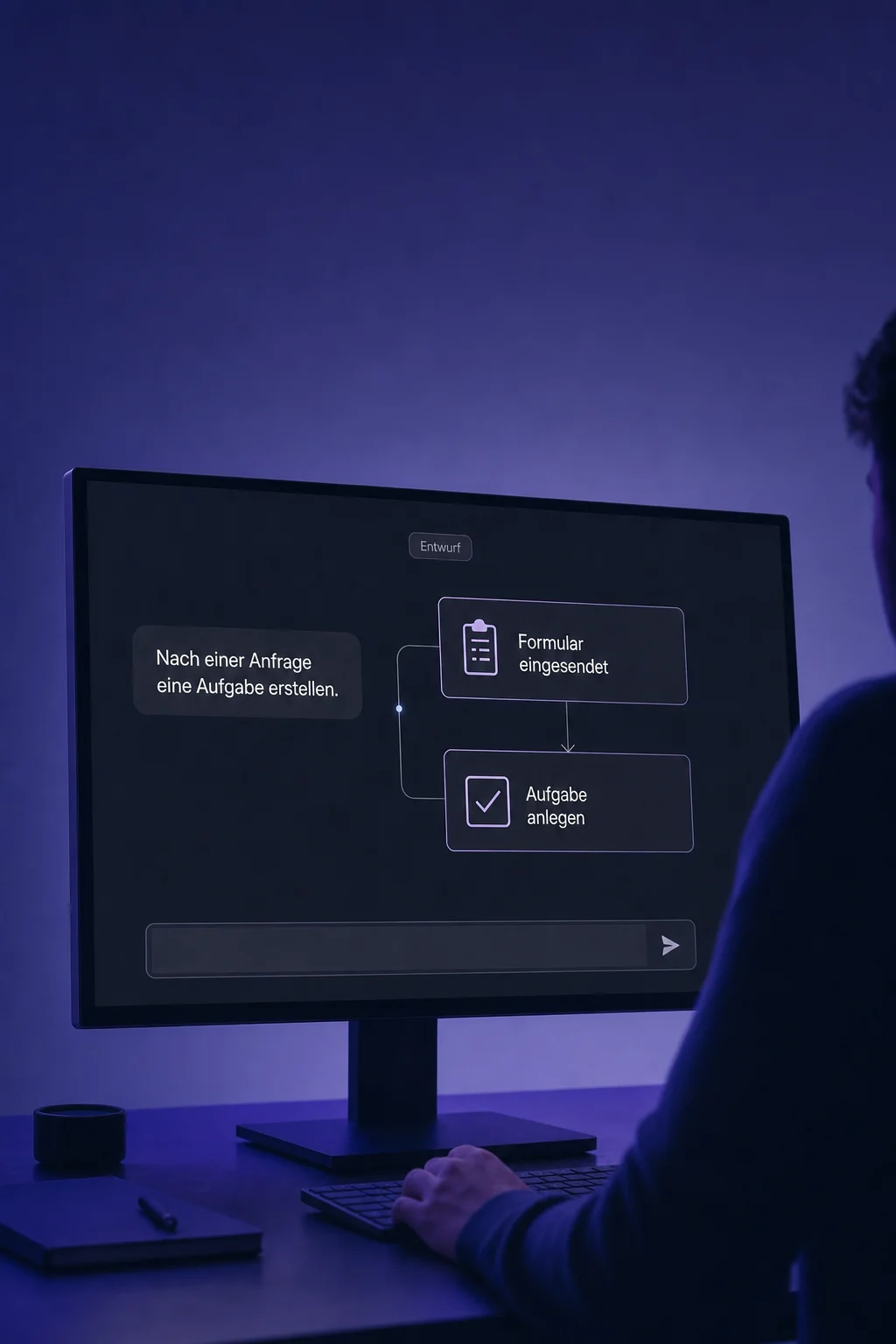
What should start the process, and what happens next? Describe a form submission followed by a task for your team, for example.

Workflow AI
Turn your idea into a visible workflow. Refine it in chat, review its settings and test before launch.
Three examples show how you can use Workflow AI.
What should start the process, and what happens next? Describe a form submission followed by a task for your team, for example.
Select a step and describe the change. Extend a wait, for example, without rebuilding the whole process.

Complete missing details such as the form, recipient or connection. Review triggers, conditions and actions, then test before publishing.

The practical benefits of Workflow AI.
Discuss the idea in chat mode first. Switch to building once the trigger and next steps are clear.

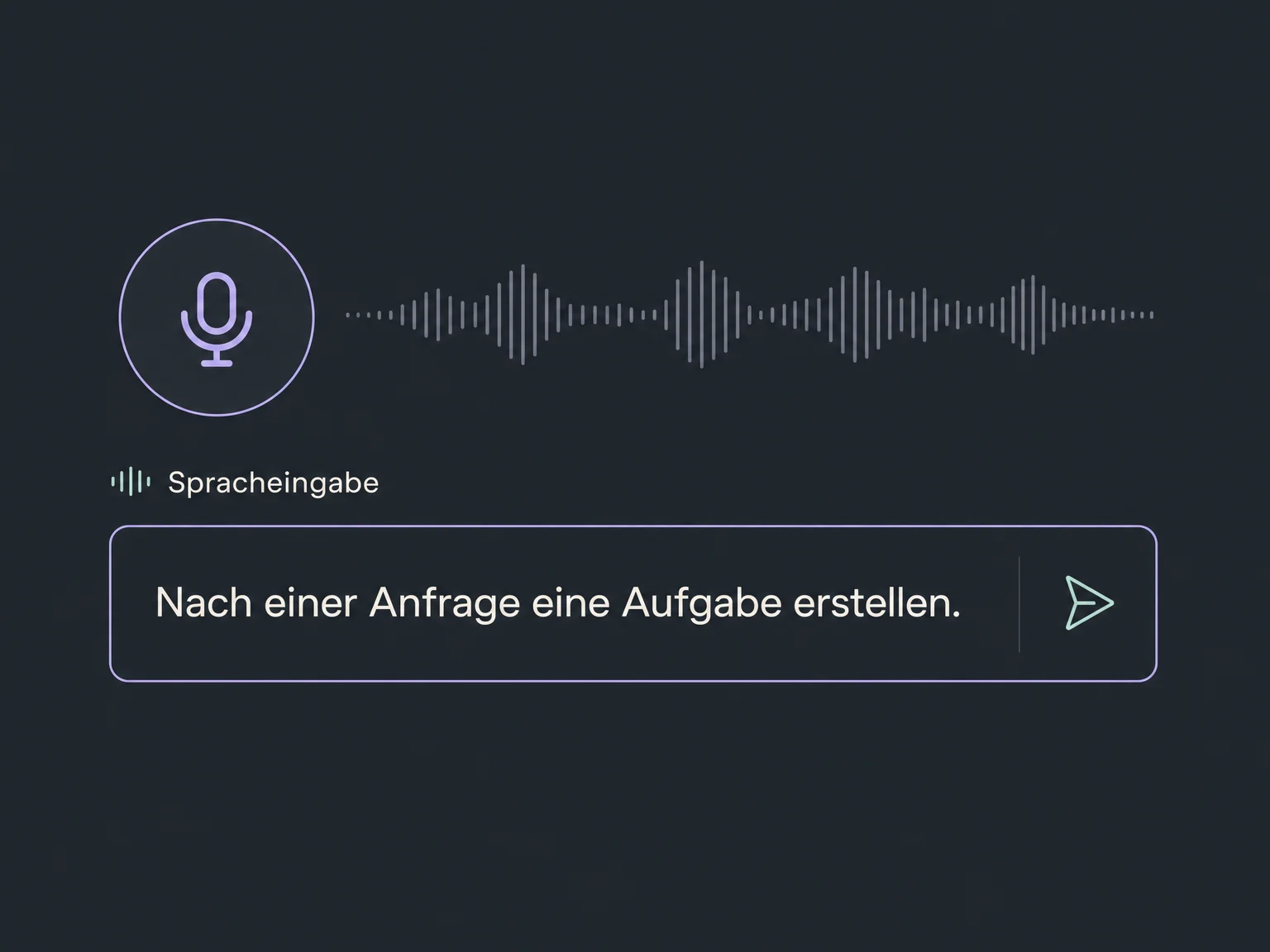
Dictate your process through the microphone. Then review the transcription and generated draft.
Get explanations for supported triggers and actions inside the builder. Ask a follow-up when a setting is unclear.

Describe changes to supported settings, such as sending hours or re-entry. Check the values actually applied.

Open and restore an earlier AI version when needed. If autosave is off, save changes before leaving.

Simplified examples, not live account data.
We check availability in your account and agree on rules, permissions and connected services. Messaging, additional actions and external apps can have separate charges or limits.
Workflow AI helps create and revise a process. The Workflow Builder runs the configured automation. AI actions that process data during a run are a separate feature.
Availability and any add-on or usage costs are confirmed for your ONE LOOP account before implementation.
You can start in everyday language. A clear trigger, intended outcome and specific timing help. The assistant can explain steps, but responsibilities, recipients and effects still need to be understood before approval.
Yes. The generated process opens in the normal Workflow Builder. Edit supported steps in chat or directly in the editor. For targeted AI changes, select the relevant steps or specify the scope explicitly.
No. Warnings about missing fields or connections do not replace testing. Use suitable test contacts and recipients; configured messages or actions may actually execute. Continue monitoring errors and results after launch.
No. Saving preserves your work. Complete missing settings and resolve detected blocking errors before going live. Publish only after review and testing. The absence of warnings does not guarantee an error-free workflow. Changes to published workflows can also affect contacts already progressing through them.
Let’s explore your use case and what the setup requires.
Book a demo