01
One post. Adapted to each channel.
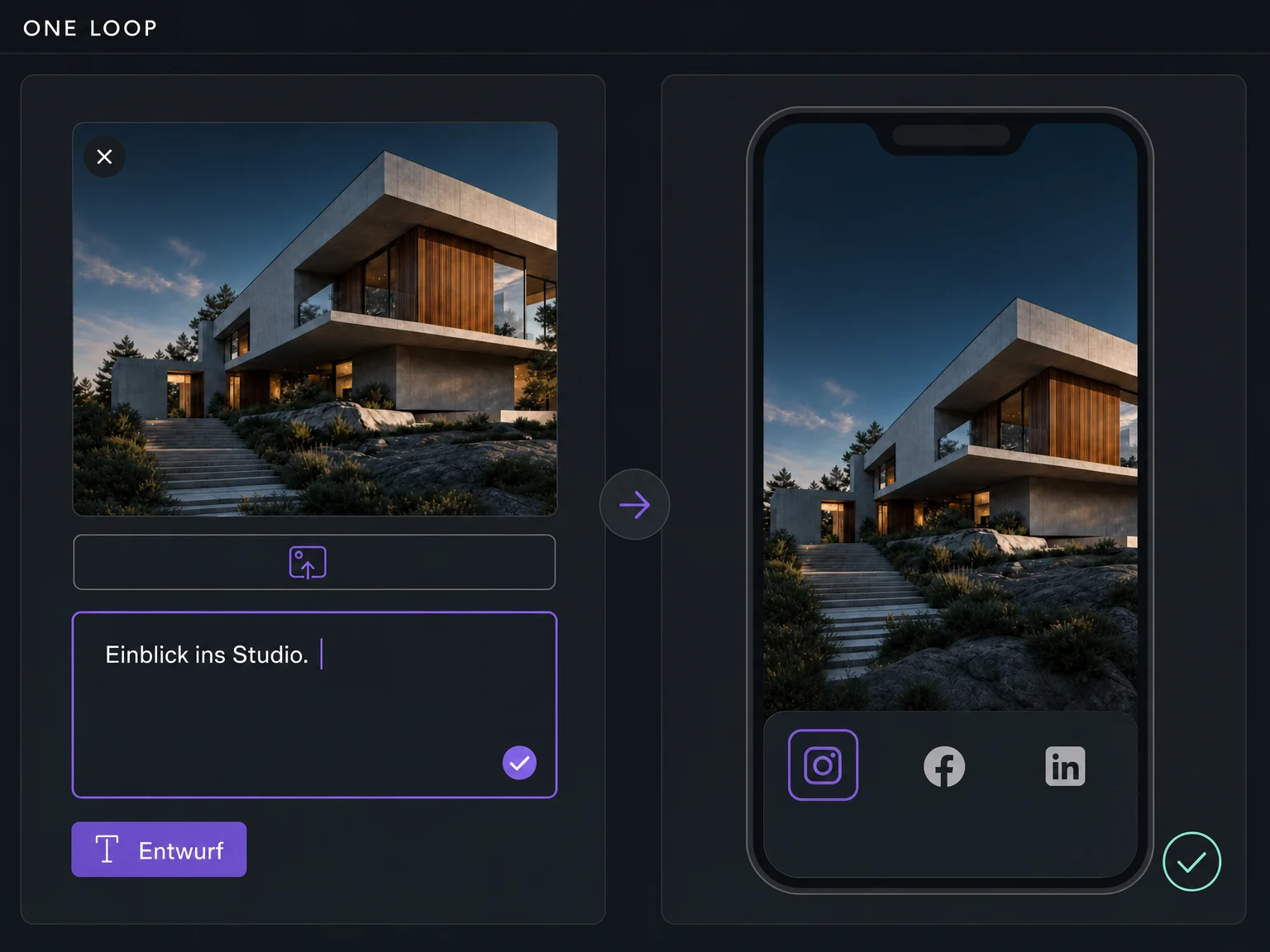
Choose an image or video, write your caption and check the preview. Adjust text and media for each selected channel: a quick glimpse on Instagram, for example, and more context on LinkedIn.

Social Media Planner
Create social posts in ONE LOOP, review them with your team and schedule publishing to your connected profiles. Keep your content plan in one place.
Three examples show how you can use Social Media Planner.
Choose an image or video, write your caption and check the preview. Adjust text and media for each selected channel: a quick glimpse on Instagram, for example, and more context on LinkedIn.
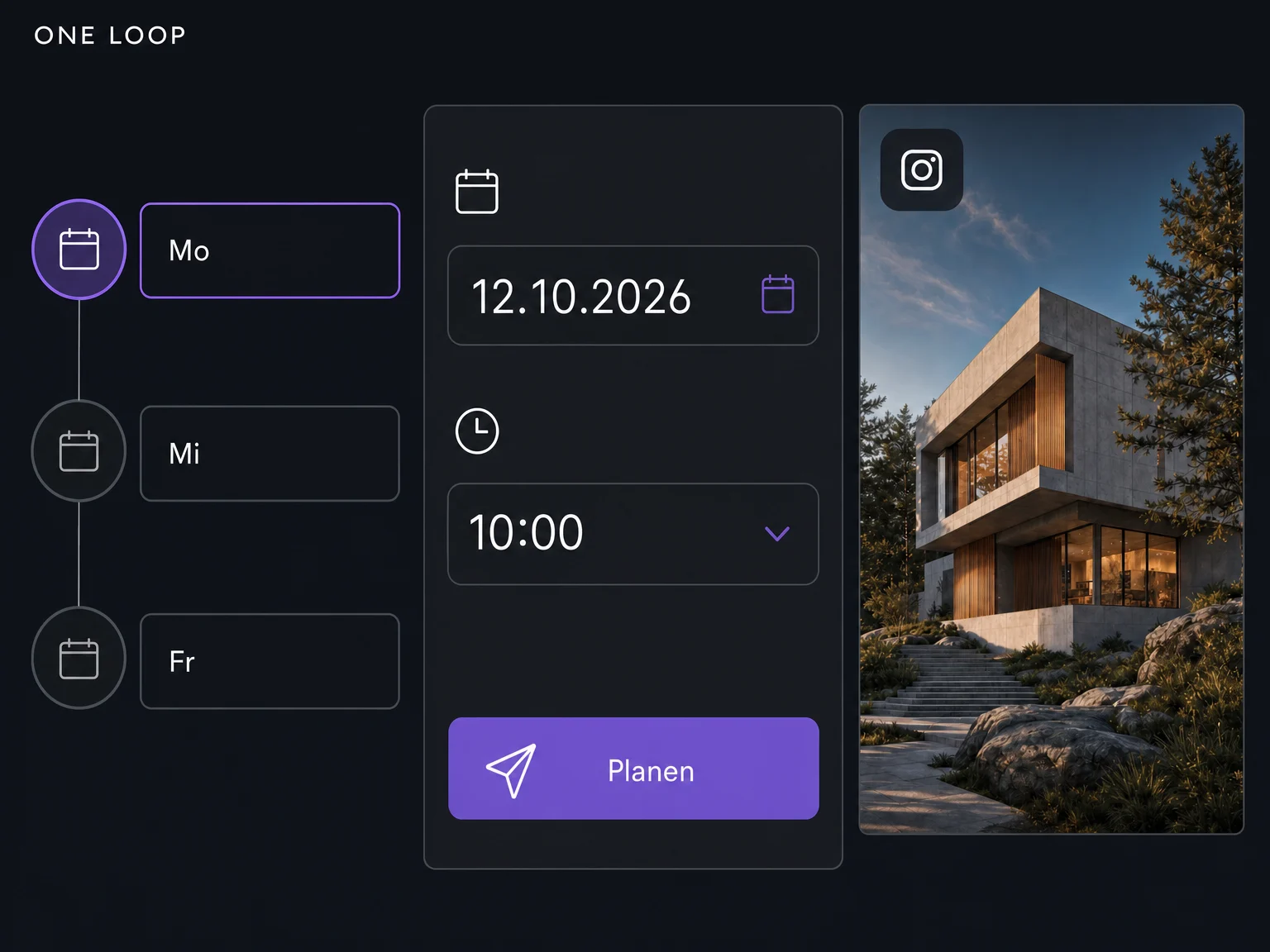
Set a date and time instead of posting everything by hand at the right moment. The calendar shows scheduled content for your connected profiles. Check the timezone before confirming the schedule.
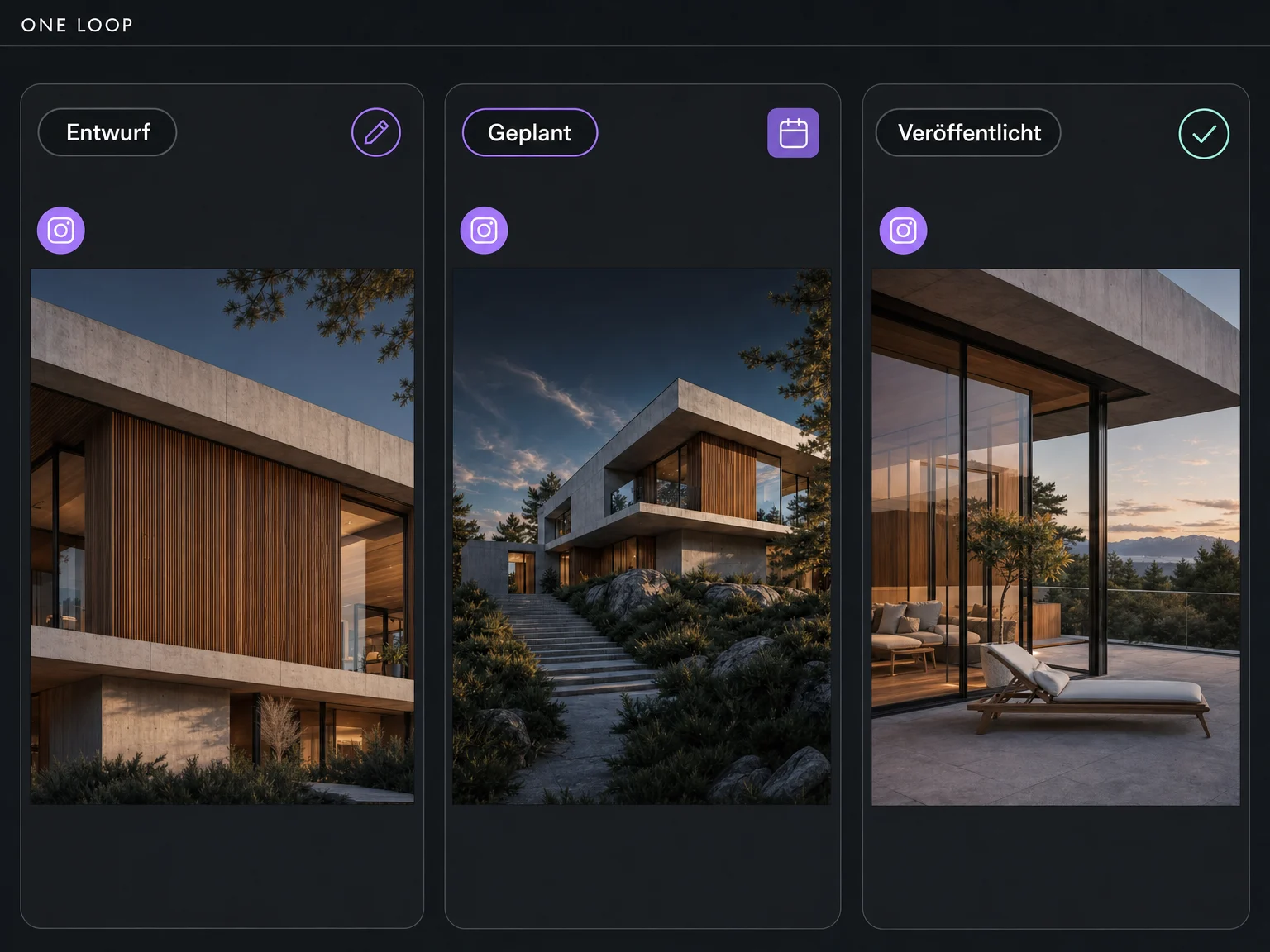
Keep drafts, scheduled posts and published content distinct. If publishing fails, check the error message and account connection. An entry in the calendar does not yet mean a post has been published.
The practical benefits of Social Media Planner.
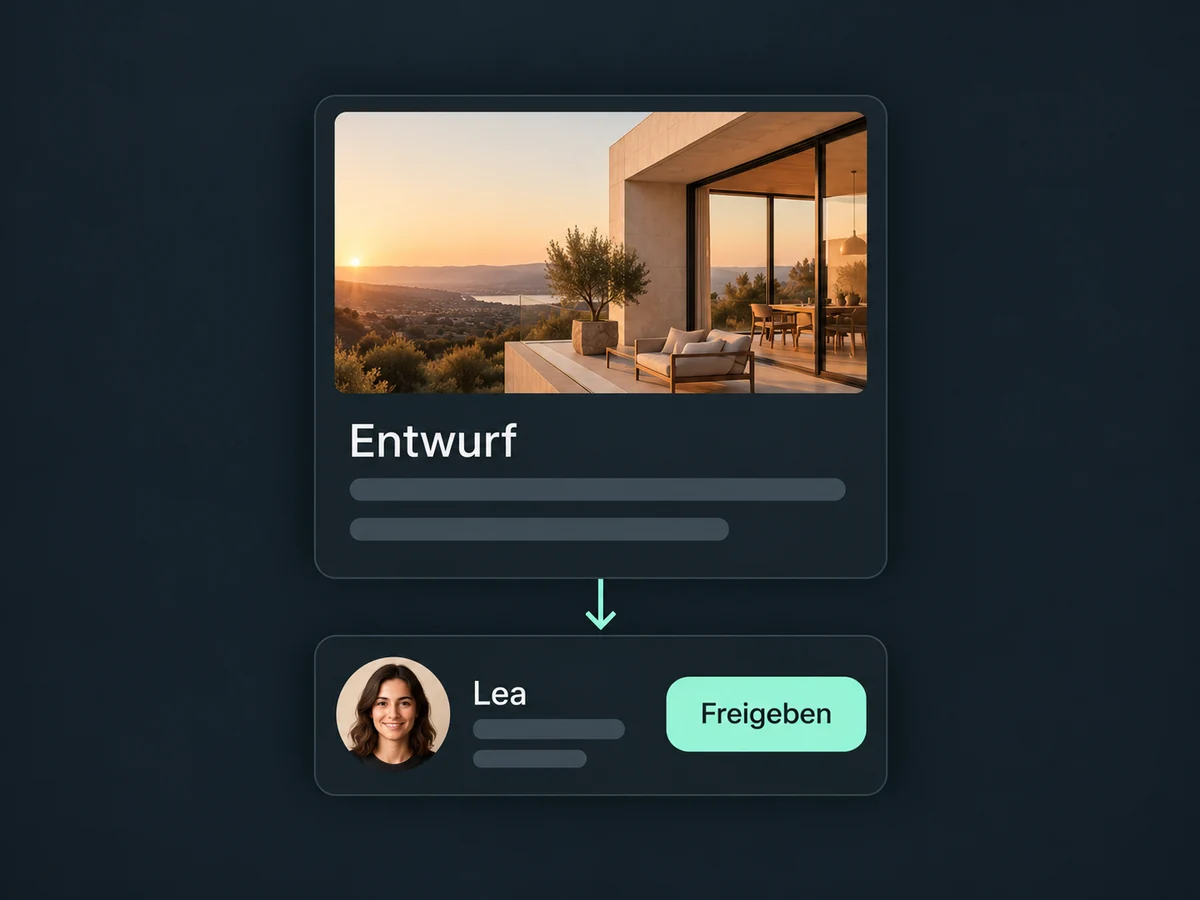
Send a post to a chosen teammate for approval. They can review, edit or reject it with feedback before it is scheduled.
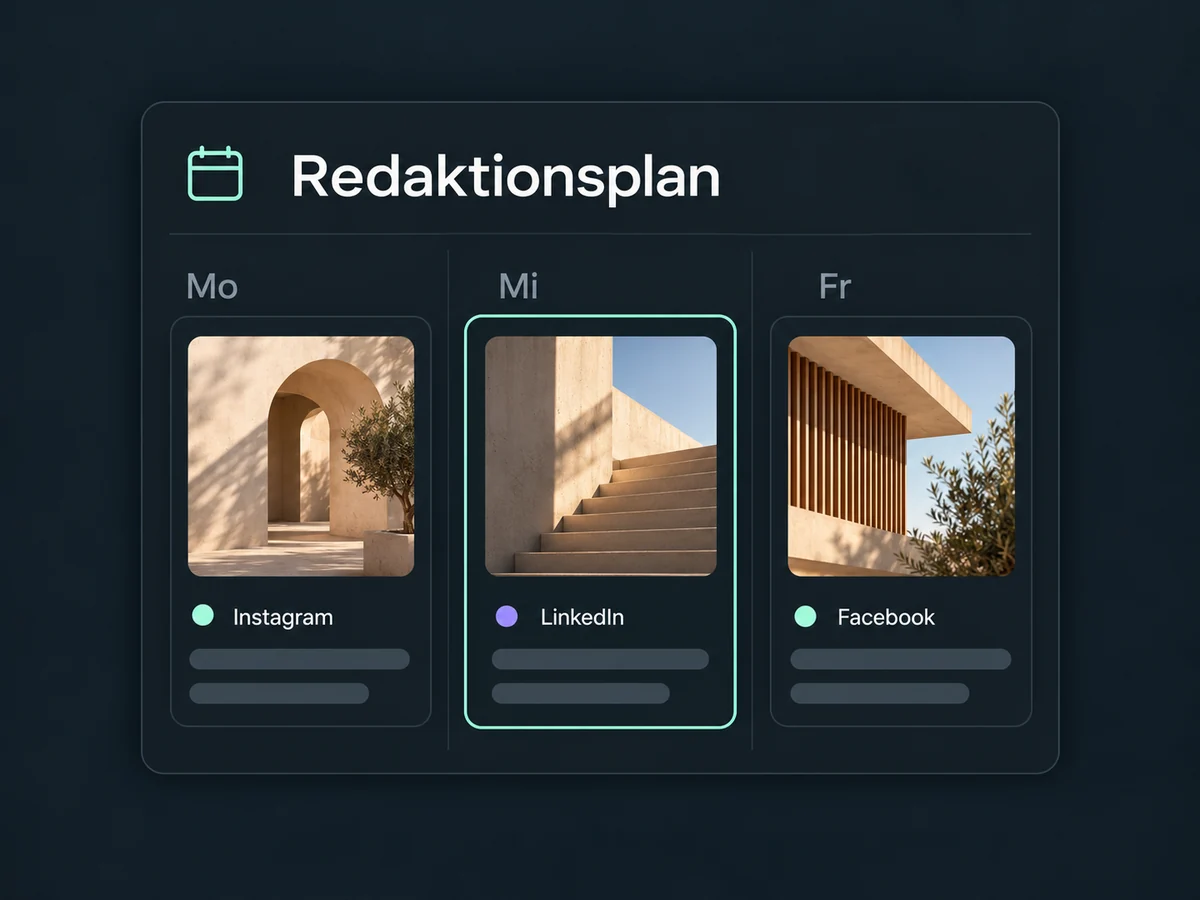
Plan content for your connected pages and profiles together. See where a post is missing or two topics fall on the same day.
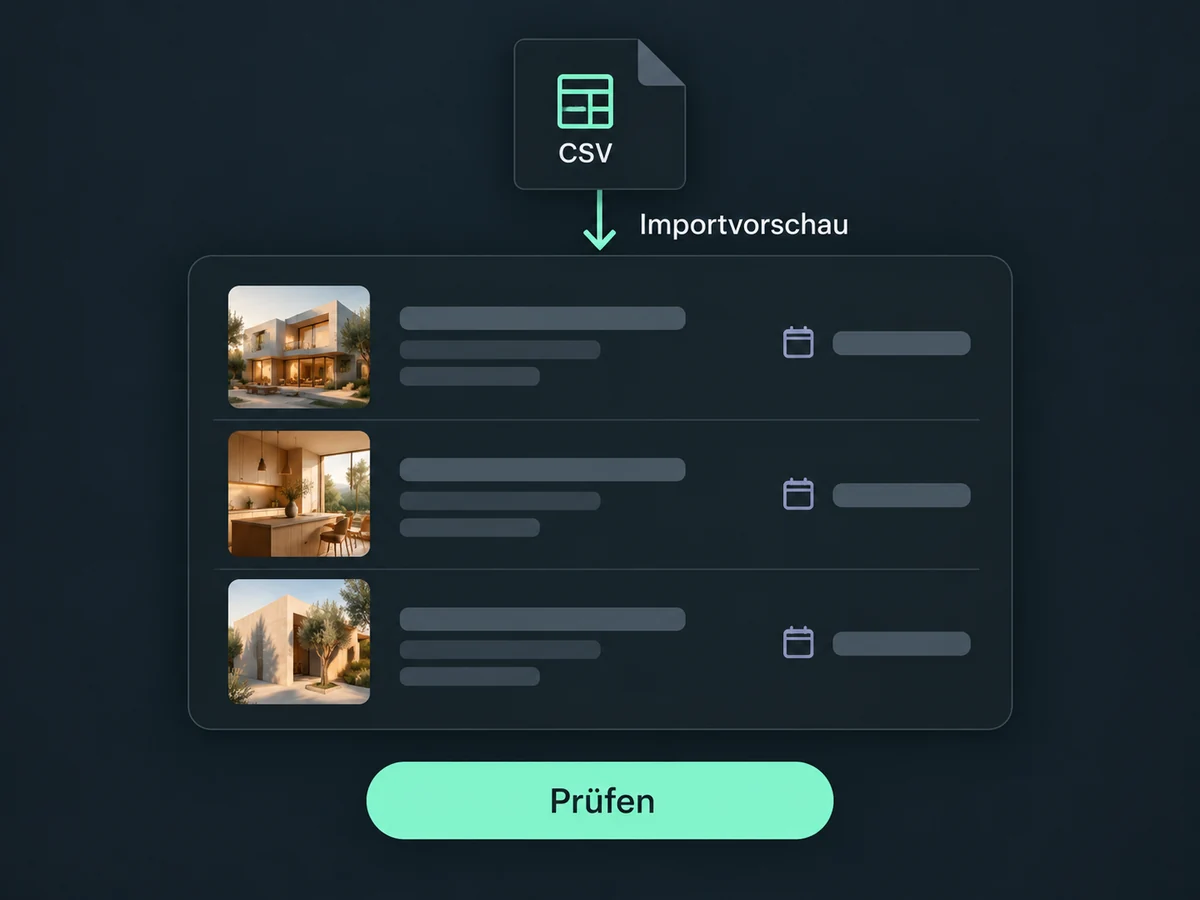
Import prepared posts from a CSV or XLSX file. Review captions, media, profiles and dates in the import preview, then correct errors before adding the posts.
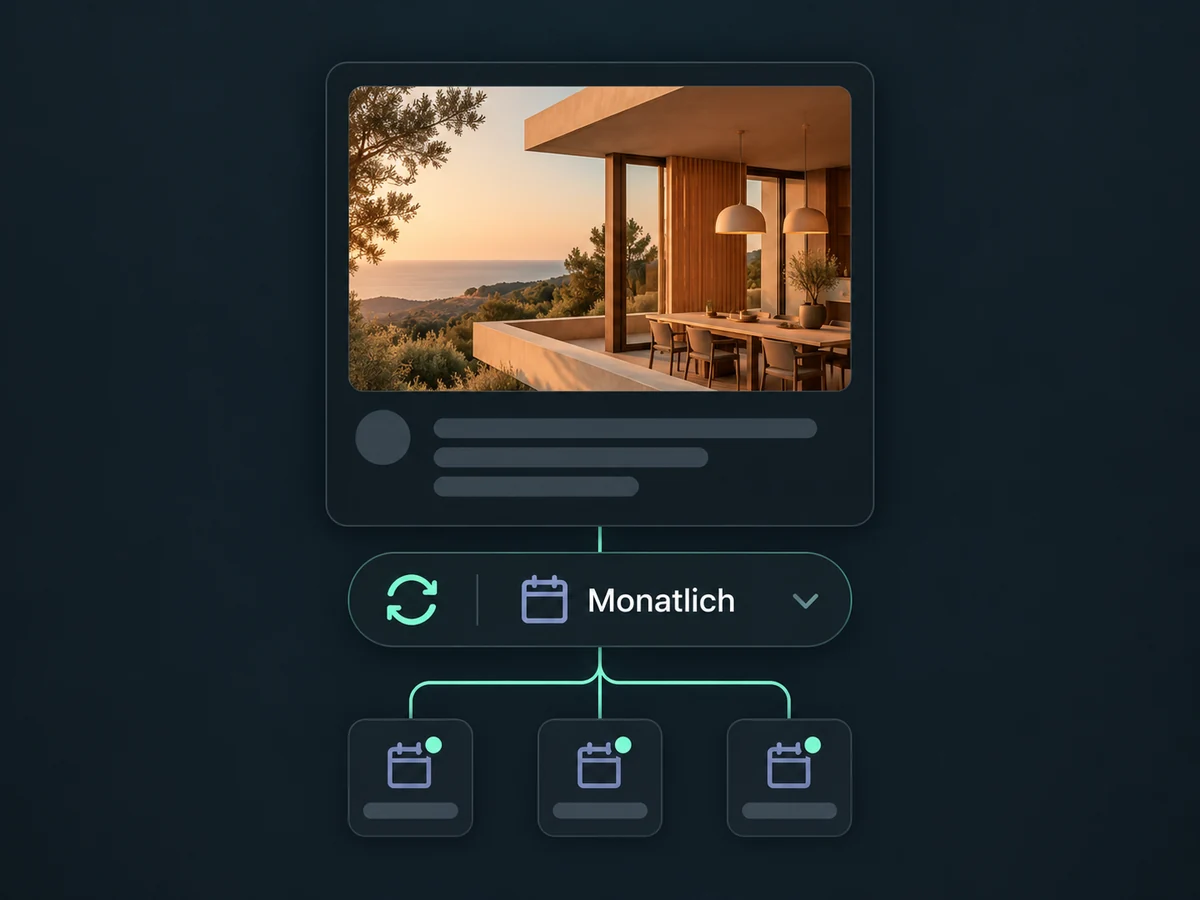
Set recurring dates for suitable posts, such as a regular event reminder. Keep reviewing the content for relevance and follow each network’s rules on repeated posts.
Review available metrics such as likes, comments or reach. The figures available and how quickly they appear depend on the network and account type.
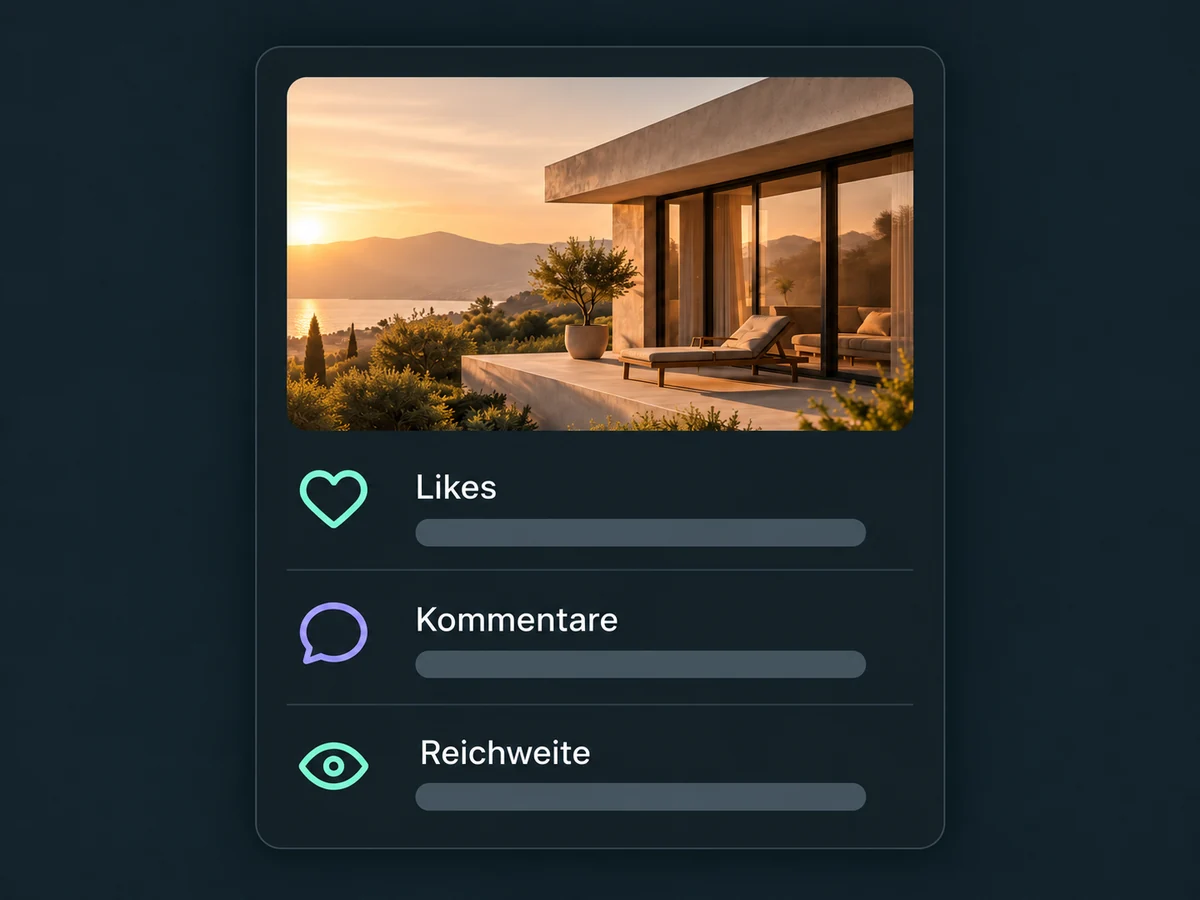
Simplified examples, not live account data.
Connect the profiles you want to use with the required publishing permissions. Check account type, media format, timezone and access in your ONE LOOP offer. Keep permissions current; a disconnected account can prevent scheduled posts from publishing.
Link your posts to a relevant website or landing page. An enquiry starts when someone gets in touch there, not simply when they like a post. Set up forms, campaign tracking and follow-up to match.
Availability and any add-on or usage costs are confirmed for your ONE LOOP account before implementation.
Supported networks include Facebook, Instagram, LinkedIn, TikTok, YouTube, Pinterest, Google Business Profile, Threads and Bluesky. Available post types differ by network and account type. Instagram, for example, requires a Business or Creator account, not a personal profile. We check permissions and access for your offer during setup.
Yes. Select several connected profiles and adjust the caption and media for each channel as needed. Not every format is available everywhere: an Instagram Reel, for example, needs a supported video rather than a collection of images. Check each preview and its media requirements. Scheduling a post does not create an ad campaign; manage ads separately.
First check the post’s status and error message. Common causes include missing permissions, an expired profile connection or media that does not meet the channel’s requirements. Reconnect the profile if needed, correct the post and review its publishing time. Do not assume a failed post will automatically be published later.
Social statistics show metrics supplied by each network, not automatically attributed CRM enquiries. Data may arrive with a delay, and profiles do not all provide the same metrics. The planner’s link-click reporting uses short links created there. Attributing later website enquiries to a campaign also needs correctly configured links, tracking and forms.
Let’s explore your use case and what the setup requires.
Book a demo