
01
Your brand essentials in one place
Create a brand board: upload a logo, save your brand colours and choose fonts. Give it a clear name so your team can find the right set again.


Brand Boards
Save your brand assets once. Choose your colours and fonts while designing emails and pages, instead of looking them up every time.
Three examples show how you can use Brand Boards.
Create a brand board: upload a logo, save your brand colours and choose fonts. Give it a clear name so your team can find the right set again.
You can save several boards. Exactly one is the default at a time: its colours and fonts appear in supported editors, so you work with the right brand set.

Select a button in the email editor and apply your brand colour. Use the saved font choices for text and add your logo from the media library.

The practical benefits of Brand Boards.
Import brand assets from a website address as a starting point. Review the detected logos, colours and fonts before saving them.
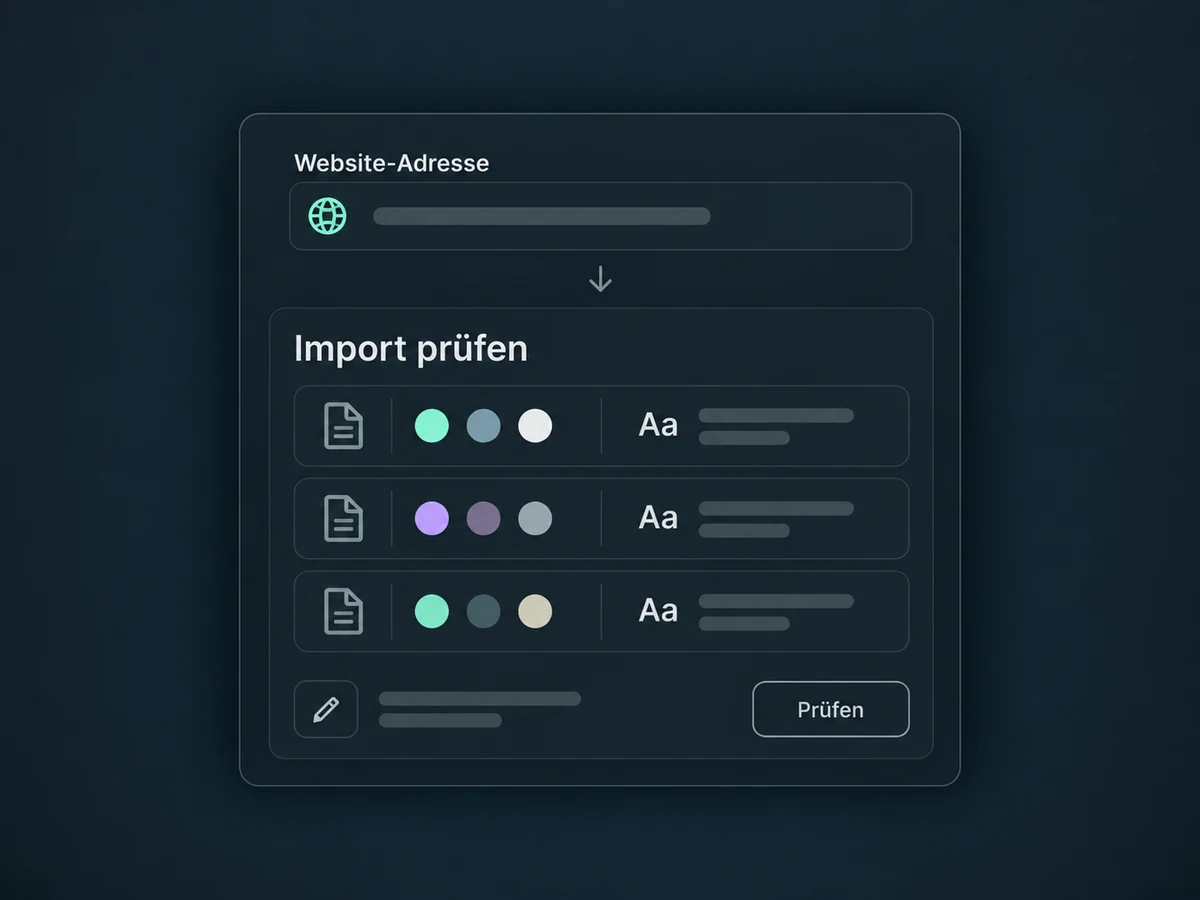
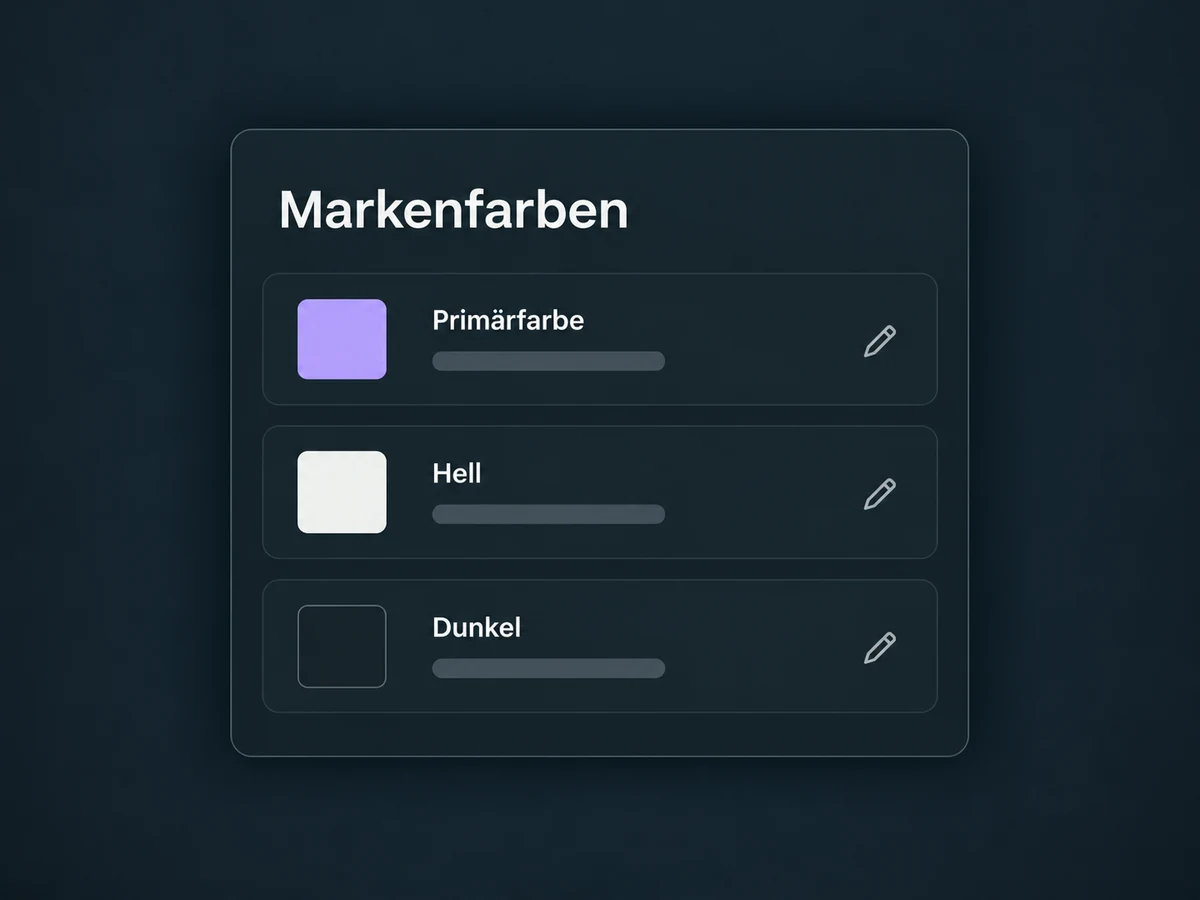
Save precise colour values and clear names, so nobody has to guess which violet belongs to your brand.
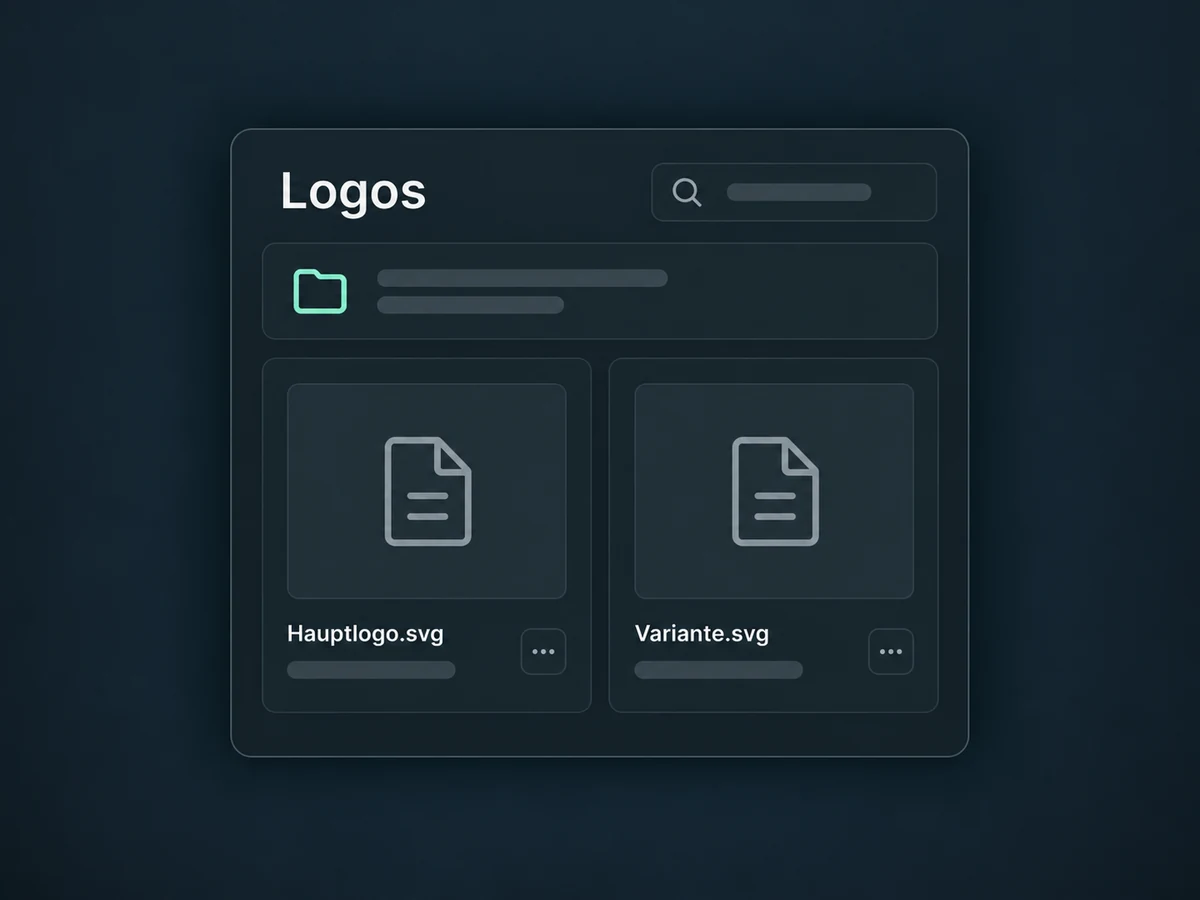
Uploaded logos appear in the media library inside the board's folder. Logos from other boards remain accessible there too.
The website and funnel editors show the default board's colours in their colour picker. Apply them to the element you select.
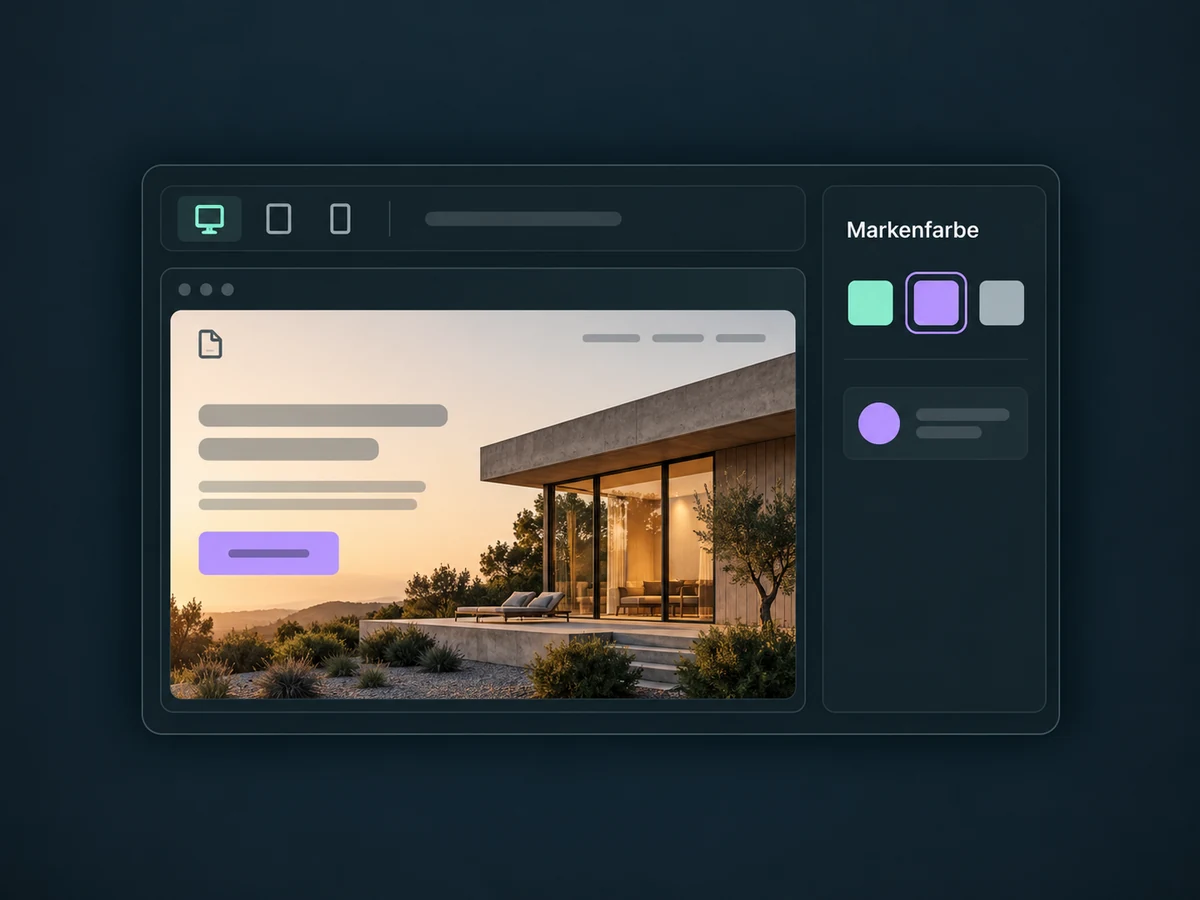
A new brand setting does not retroactively restyle existing pages or emails. You decide which elements to update in each draft.
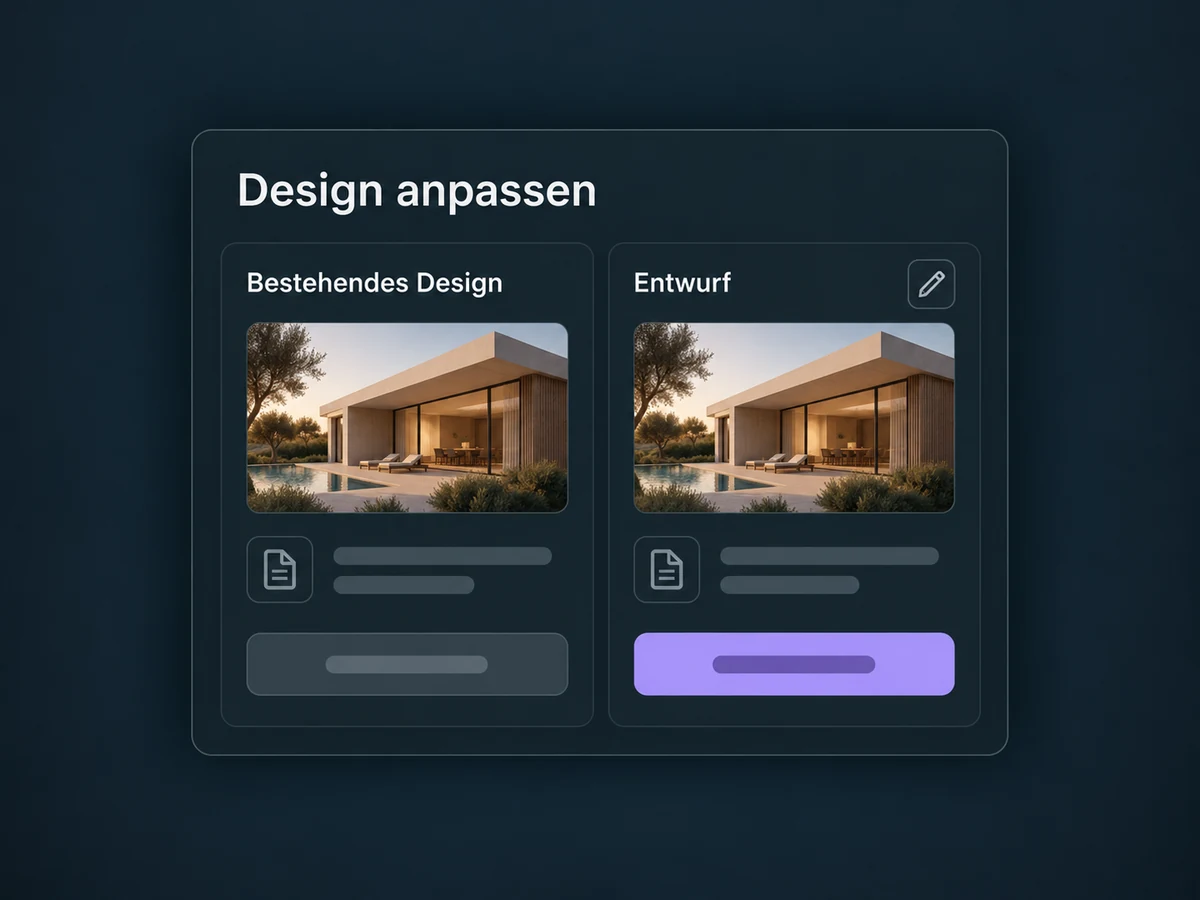
Simplified examples, not live account data.
We check availability in your ONE LOOP offer and the editors you use. Have approved logos, colour values and licensed fonts ready. Save the board and choose the default you want to use.
Brand boards support email marketing, websites and funnels. They provide design assets, not finished content or automatic publishing.
Availability and any add-on or usage costs are confirmed for your ONE LOOP account before implementation.
No. Editing a board or changing the default does not retroactively restyle existing pages and emails. Open the content, update the elements you want to change and review the result before publishing or sending.
Check that your board is saved and set as the default. Only one board is the default at a time; its colours and fonts appear in supported pickers. Logos remain accessible through the media library regardless of that selection.
You can start with a website address and import detected logos, colours and fonts. The import is a starting point, not a complete design review. Add missing assets and correct the selection before saving the board.
Not necessarily. Email clients support fonts differently and may use a fallback font. Check suitable alternatives, rendering and your font licences. Saving a font choice does not guarantee support in every editor or every recipient's email client.
Let’s explore your use case and what the setup requires.
Book a demo