01
Turn an idea into a preview
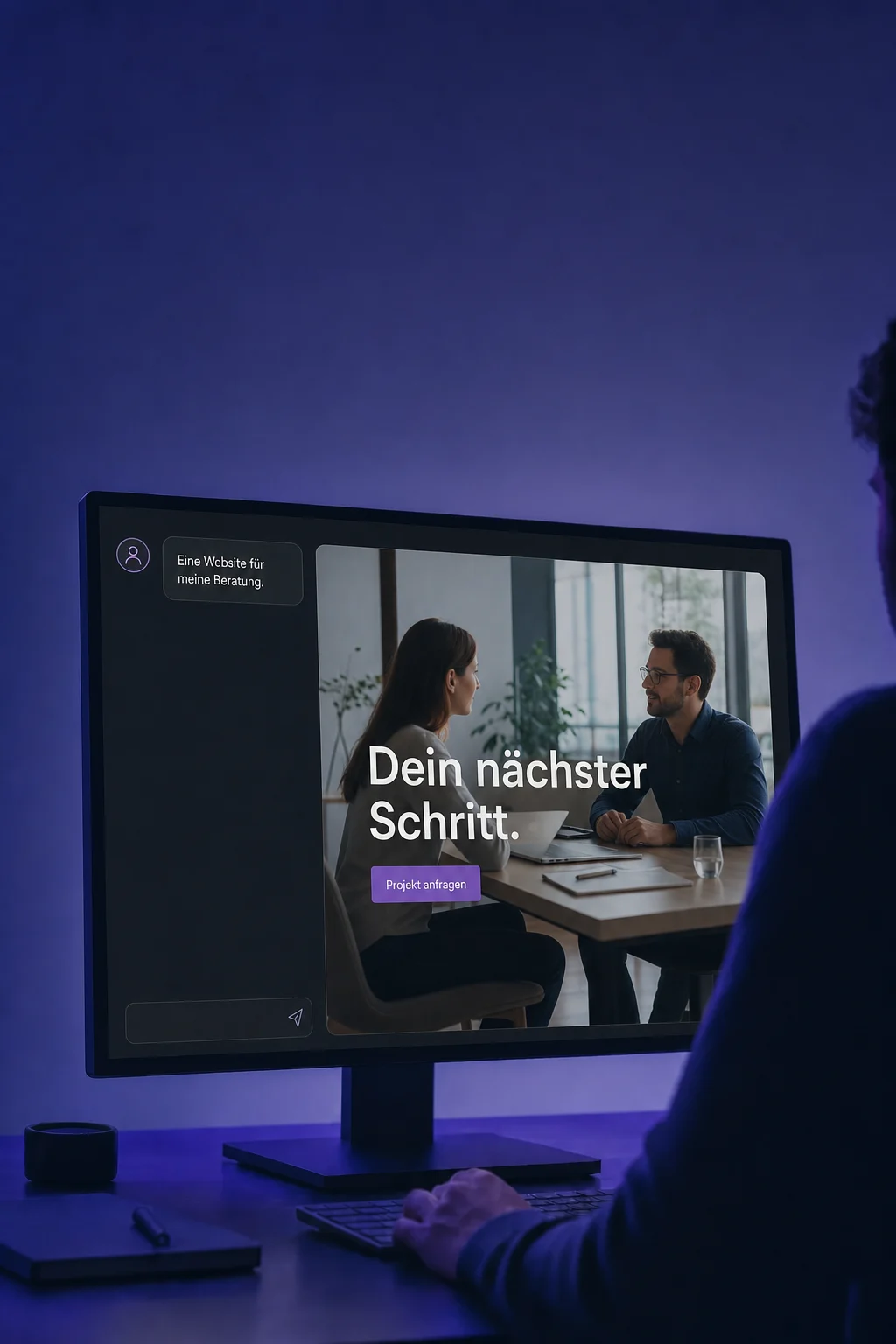
Describe your offer, audience and style. AI creates an initial page draft for you to review and refine.

AI Studio
A website, a project enquiry or a booking page: describe what you need and refine the draft in conversation with AI.
Three examples show how you can use AI Studio.
Describe your offer, audience and style. AI creates an initial page draft for you to review and refine.
Ask chat to add a multi-step project enquiry. Then review its questions, choices and the path through the form.

A visible form starts as a draft. Deliberately connect it to your contacts and test whether an example enquiry arrives correctly.

The practical benefits of AI Studio.
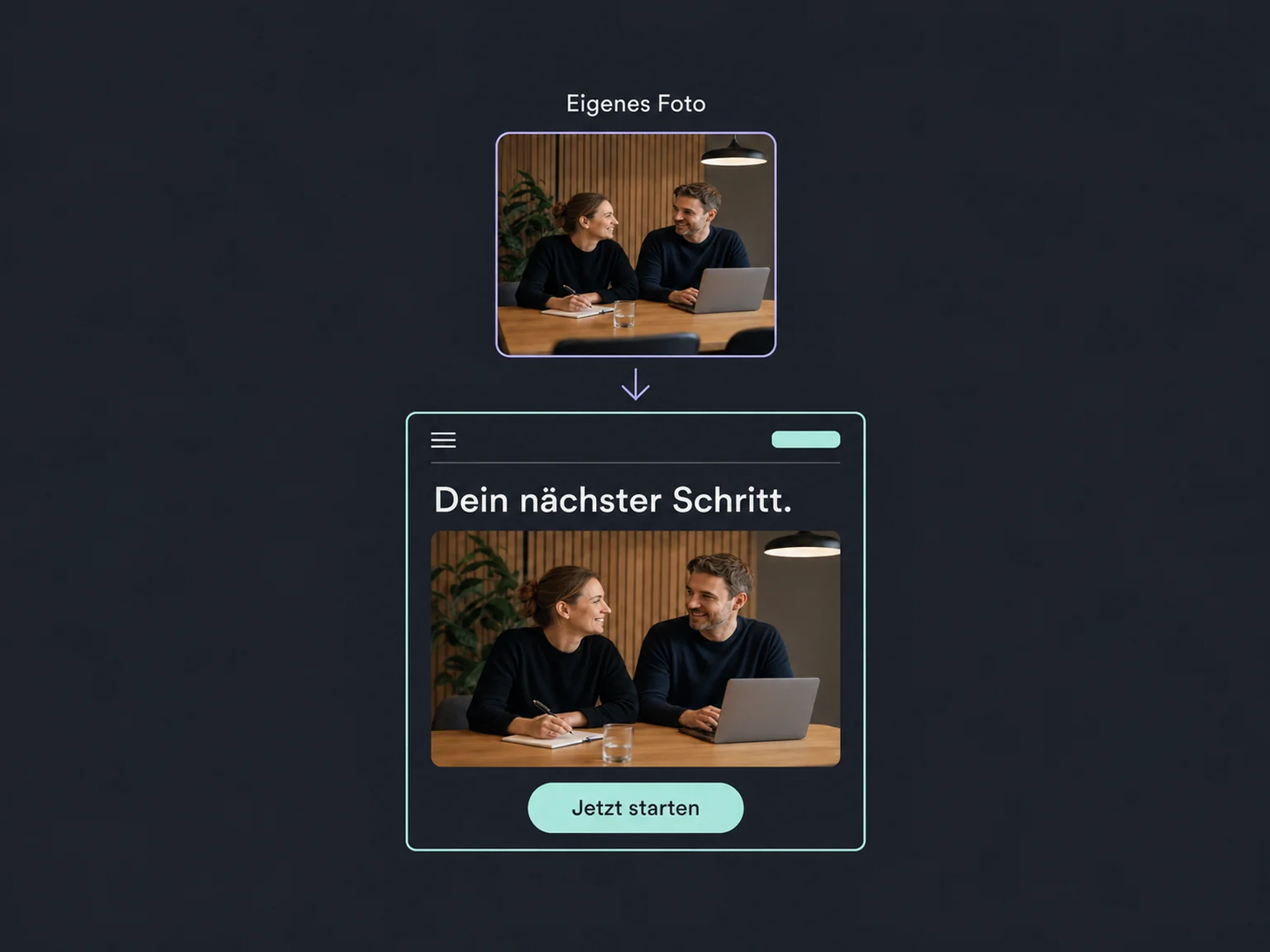
Upload your photos and tell AI where to use them in the draft.
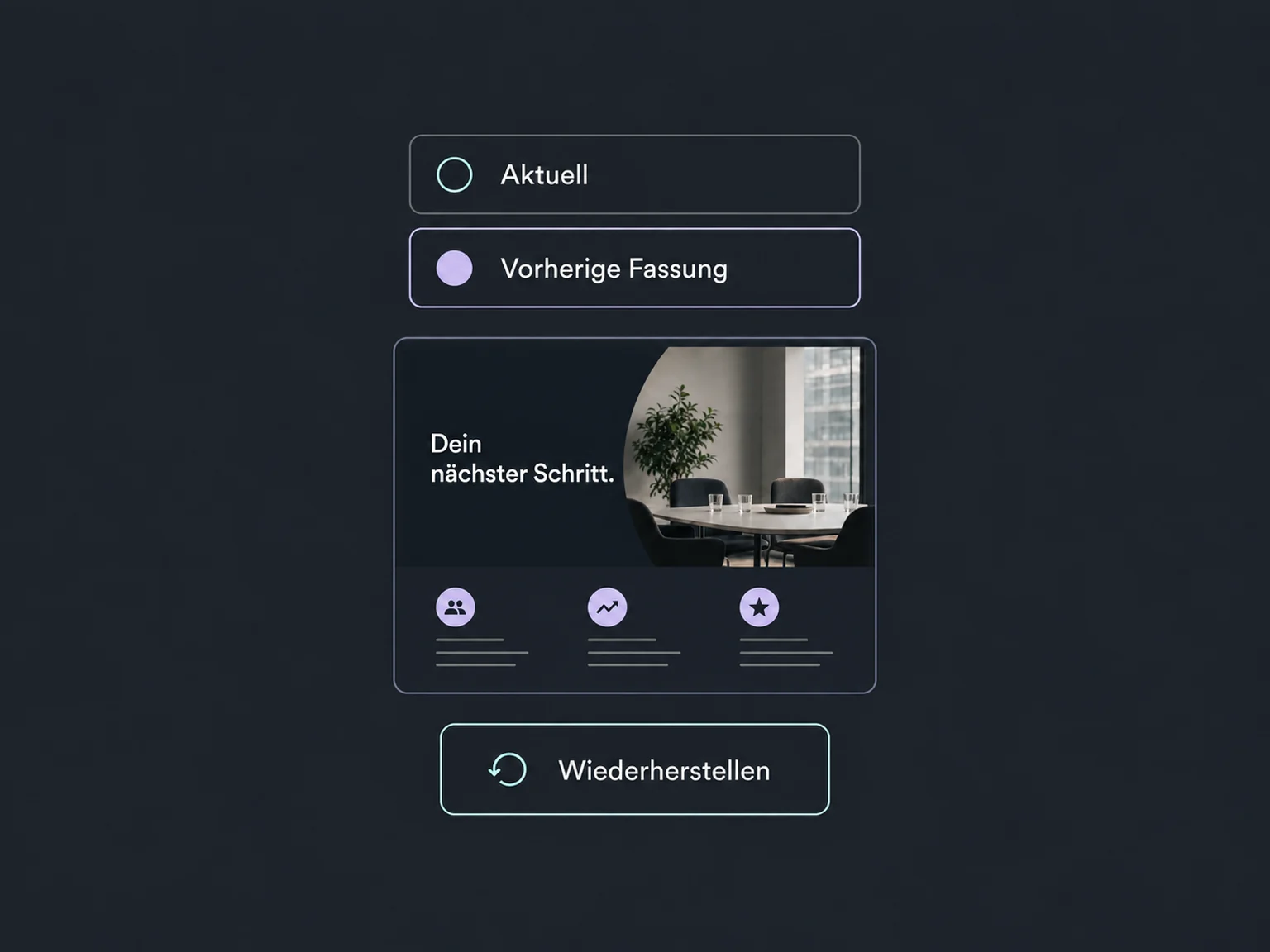
Open an earlier AI version, review its preview and restore it if needed.
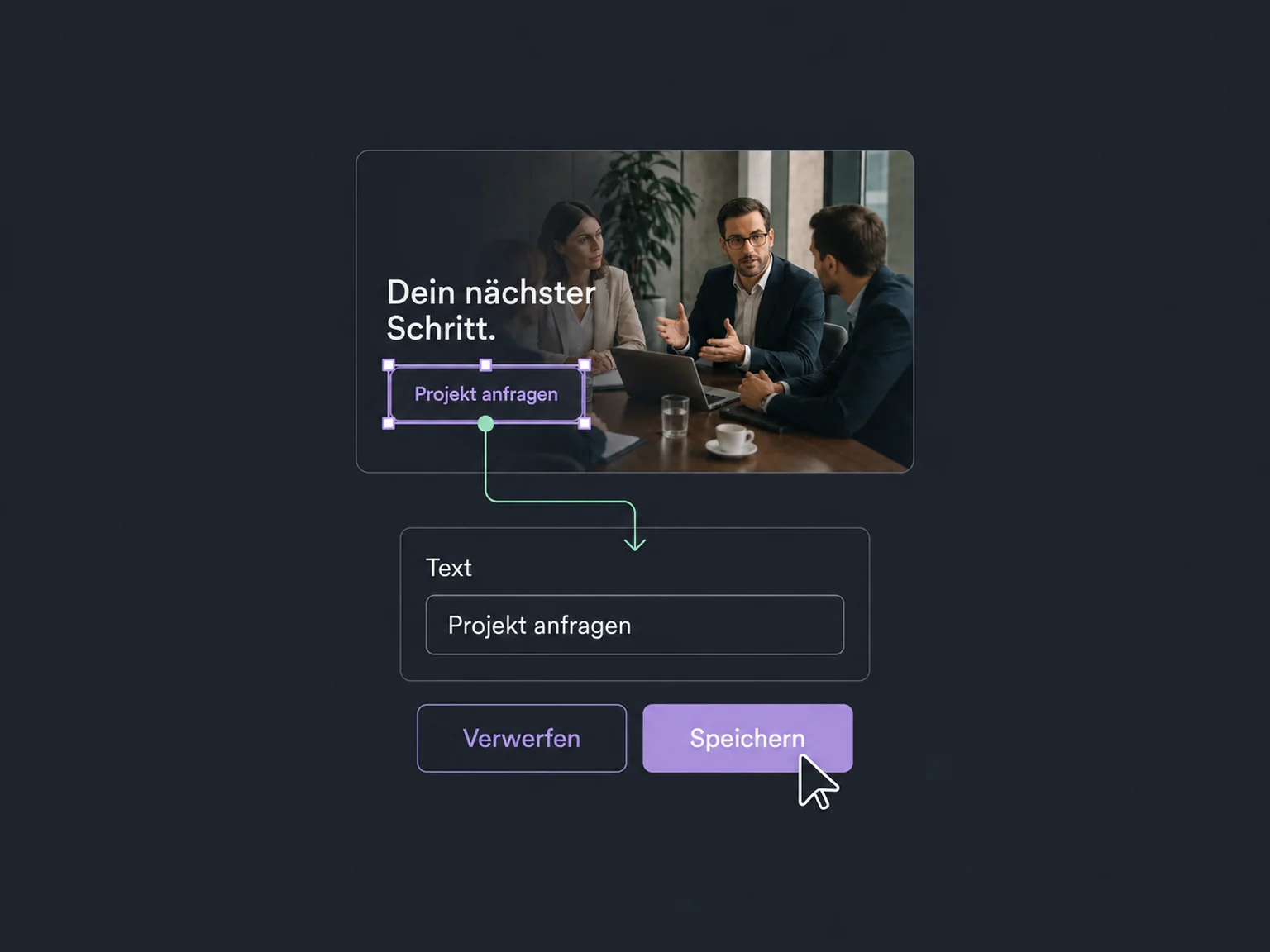
Select text, an image or a button in the preview. Adjust it visually, then save the change deliberately.
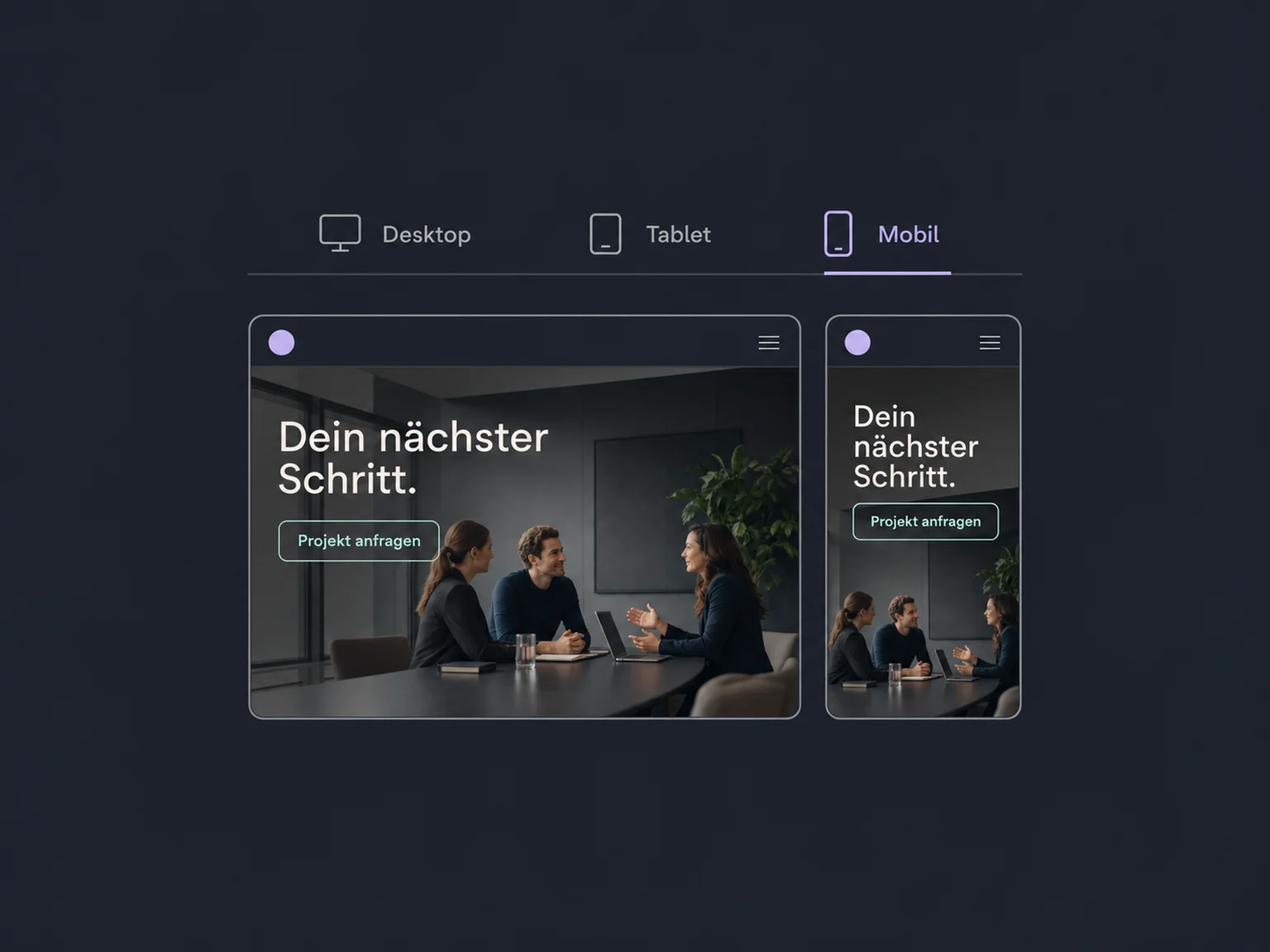
Switch between desktop, tablet and mobile previews. Also check readability and usability on real devices.
Download a version as a ZIP for your development team. External changes do not sync back to the studio automatically.
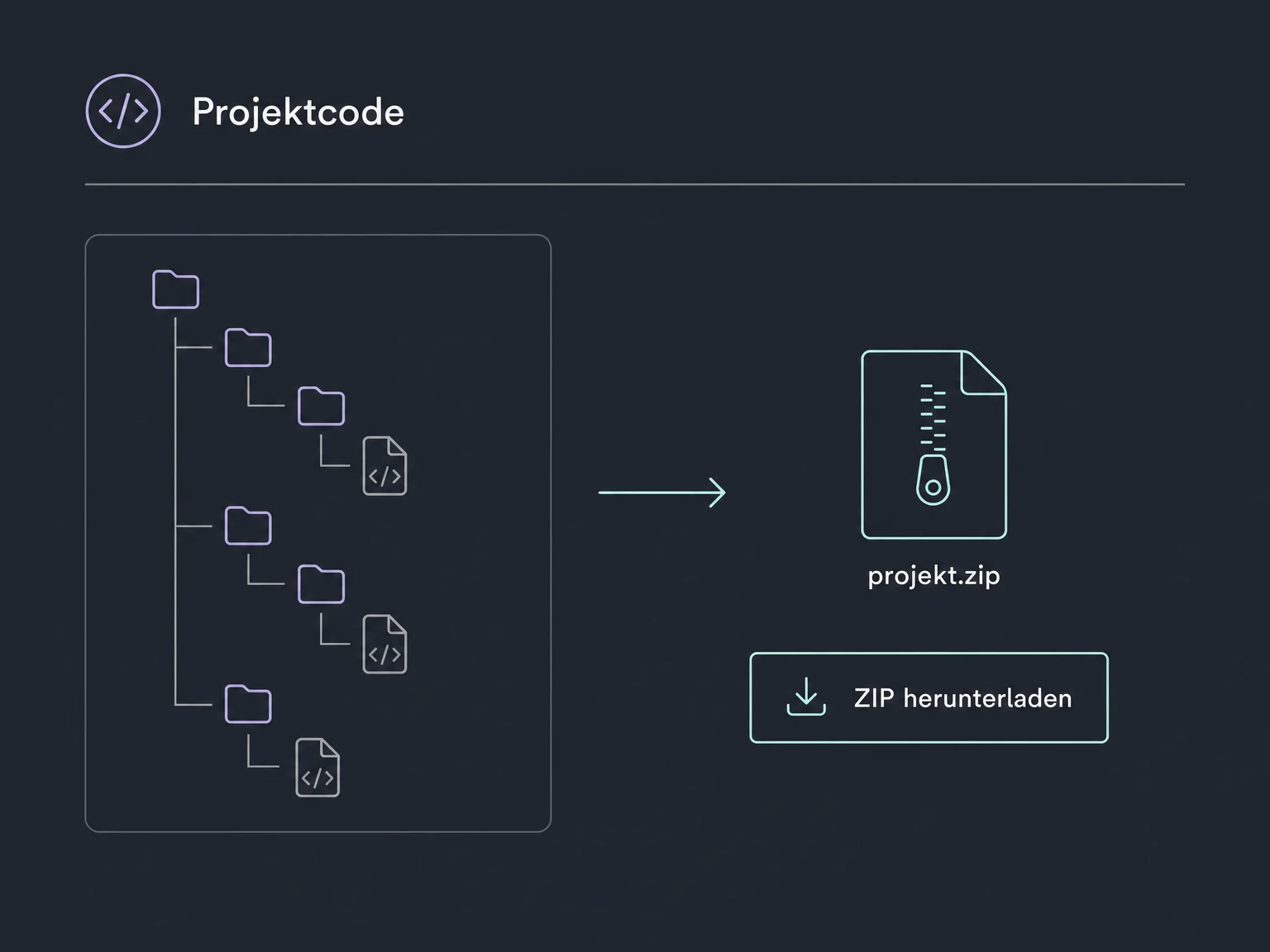
Simplified examples, not live account data.
We confirm access, editing permissions and usage costs before starting. Before publishing, we review content, privacy and connections; tests may create real contacts or bookings.
AI Studio is a dedicated workspace for web projects, not an agent builder. Forms and calendars need a deliberate connection; bookings use a calendar you select.
Availability and any add-on or usage costs are confirmed for your ONE LOOP account before implementation.
No. AI Studio is a separate workspace for pages and interactive web projects. Projects cannot be moved into the standard website or funnel builder, so we choose the appropriate workspace first.
Not just because they appear on the page. A form needs connecting and a calendar needs selecting. Use test data to check that enquiries reach the right account and appointments reach the right calendar. Follow-up actions require separate setup.
The editor preview is not a publication. Publishing creates a live project address, even when it is called a preview domain. You can then connect your own domain. Later draft changes go live only when you publish again.
New projects support server-side functions and interfaces as well as pages. They still need technical planning, permissions and security testing. Older projects are not automatically upgraded. A code export is a separate copy, not ongoing synchronisation.
Let’s explore your use case and what the setup requires.
Book a demo